You can protect your server projects with a password. The password covers all project versions, and can be set or removed by a project owner or a user having
You must be logged to a server to set a password for a particular project.
Setting project password
To set a password for a project
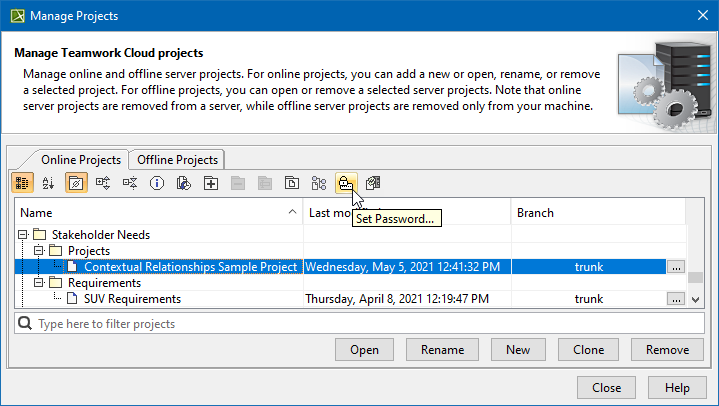
On the main menu, click Collaborate > Projects. The Manage Projects dialog opens.
In the Online project tab, select a project you want to protect by a password and do one of the following:
On the dialog toolbar, click the Set Password button.
Right-click the selected project and click Set Password.
You can use the search bar to faster filter used projects by name.
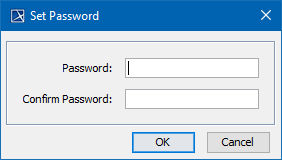
The Set Password dialog opens.
Enter and confirm your password and click OK.
Updating project password
To update a password for Teamwork Cloud project
On the main menu, click Collaborate > Projects. The Manage Projects dialog opens.
In the Online project tab, select a password-protected project (indicated by icon) and do one of the following:
On the dialog toolbar, click the Set Password button.
Right-click the selected project and click Set Password.
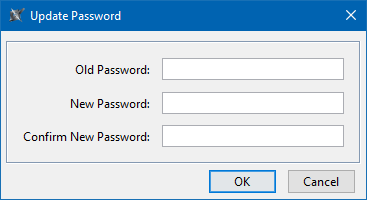
The Update Password dialog opens.
Enter your old password, then enter and confirm your new password and click OK.
Removing project password
To remove a password for Teamwork Cloud project
On the main menu, click Collaborate > Projects. The Manage Projects dialog opens.
In the Online project tab, select a password-protected project (indicated by icon) and do one of the following:
On the dialog toolbar, click the Set Password button.
Right-click the selected project and click Set Password.
The Update Password dialog opens. Enter your old password and leave the New Password and Confirm New Password boxes empty. Click OK. Password is removed.