Publishing from graphical user interface
Publishing documents from the graphical user interface is the simplest way to present models to stakeholders, sponsors, customers, and engineering teams.

Prerequisites
- The Cameo Collaborator Publisher plugin must be installed in your modeling tool.
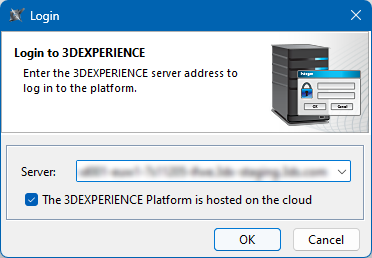
- You can publish Cameo Collaborator documents only on a cloud-hosted 3DEXPERIENCE platform. Make sure you select the relevant check box when logging in.
- If you want to publish a local model, first add it to the 3DEXPERIENCE platform.

Recommendations
- If you intend to publish a large model, increase the default JVM heap size of the Cameo Collaborator Publisher plugin as follows:
Open the <modeling_tool_installation_directory>/bin/<modeling_tool_name>.properties file.
Increase the -Xmx value, e.g., -Xmx4000M.
Save and close the file.
- Depending on the size of the model you intend to publish, allocate a sufficient amount of memory to your modeling tool:
2 million element model - 24 GB of RAM
1 million element model - 15 GB of RAM
500k element model - 7 GB of RAM
Publishing tips
- To change the number of decimals displayed in Cameo Collaborator documents, in the main menu, go to Options > Project Options and specify the Decimal Places option. The setting is remembered and used for other documents published from the project.
- You can specify the diagram export options, such as dimensions and building time (the latter applies only to tables and matrices). To learn more, refer to Diagram image export.
To publish a Cameo Collaborator document
Log in to the 3DEXPERIENCE platform and open the server project you want to publish.
- Use the document template you want to utilize for publishing in the model if you have not already done so.
If document templates are not listed in the Use Server Project dialog, add the -Desi.allow.usage.all.types=true property to the <modeling_tool_installation_directory>/bin/<modeling_tool_name>.properties file and restart the modeling tool.
- Commit project changes to the server.
- In the main menu, select Tools > Cameo Collaborator > Publish.
- In the Cameo Collaborator Publisher dialog, specify the publishing options:
- In the Document box, enter the document name.
- Click
 next to the Scope box and select one or several Packages containing the data you want to publish.
 - Click the Template drop-down box and select the document template you want to use for publishing.
- If you want to update a previously published document, click the Options button and select the Update previously published document check box.
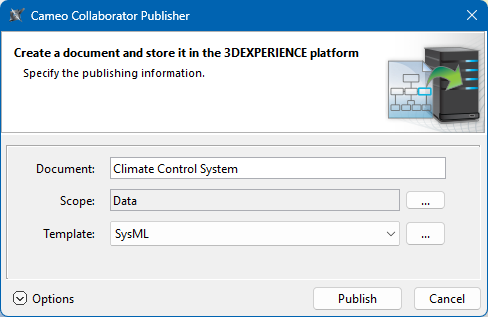
Click the Publish button.
Wait until you get the message that the document is successfully published.