Seamless Collaboration
Why
Working in a team with multiple users at the same time on a single CATIA Magic project can create conflicts in managing the data. To prevent such cumbersome conflict management, it is important to organize work packages.
What
This technical practice focuses on achieving seamless collaboration for users, either by utilizing the Lock/Unlock feature or by managing the work packages through branches of the CATIA Magic project.
Target Audience
Systems Engineer, Systems Architect
Knowledge
Lock and Unlock a Project
Lock Elements and Diagrams
You must lock the part of the model you are going to edit to prevent other users from editing it at the same time. An element can only be locked by one user at a time. Once it is locked, other users can only access it but not edit it.
The following table outlines what you can edit after you lock a single element, single diagram, diagram with elements, symbol styles and project usages.
When you lock... | You can... |
|---|---|
| Element | Edit element specification properties (in the Specification window) |
| Diagram | Edit:
|
| Diagram with elements | Edit:
|
| Symbol styles | Edit properties of symbol styles (in the Project Options dialog) |
| Project usages |
|
Unlock Elements and Diagrams
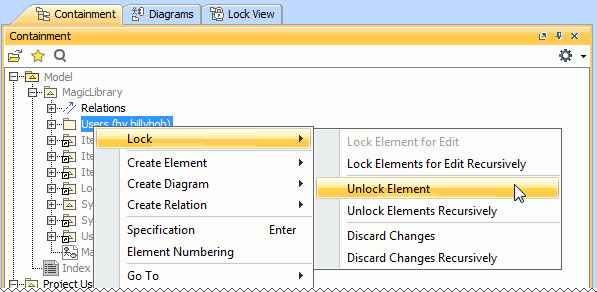
You can use commands from the shortcut menu to unlock elements and diagrams. Unlocking modified elements will trigger to commit the project.
Project Branching
Project branching enables multiple users to work on the same model at the same time. For this, you need to create a project branch, which is a copy of the project. You can modify the branch as required, independent of other branches. Branches can be merged back when required. Conflicts between the branches are resolved during the merge process.
Use Cases
Locking and Managing Branches
Scenario:
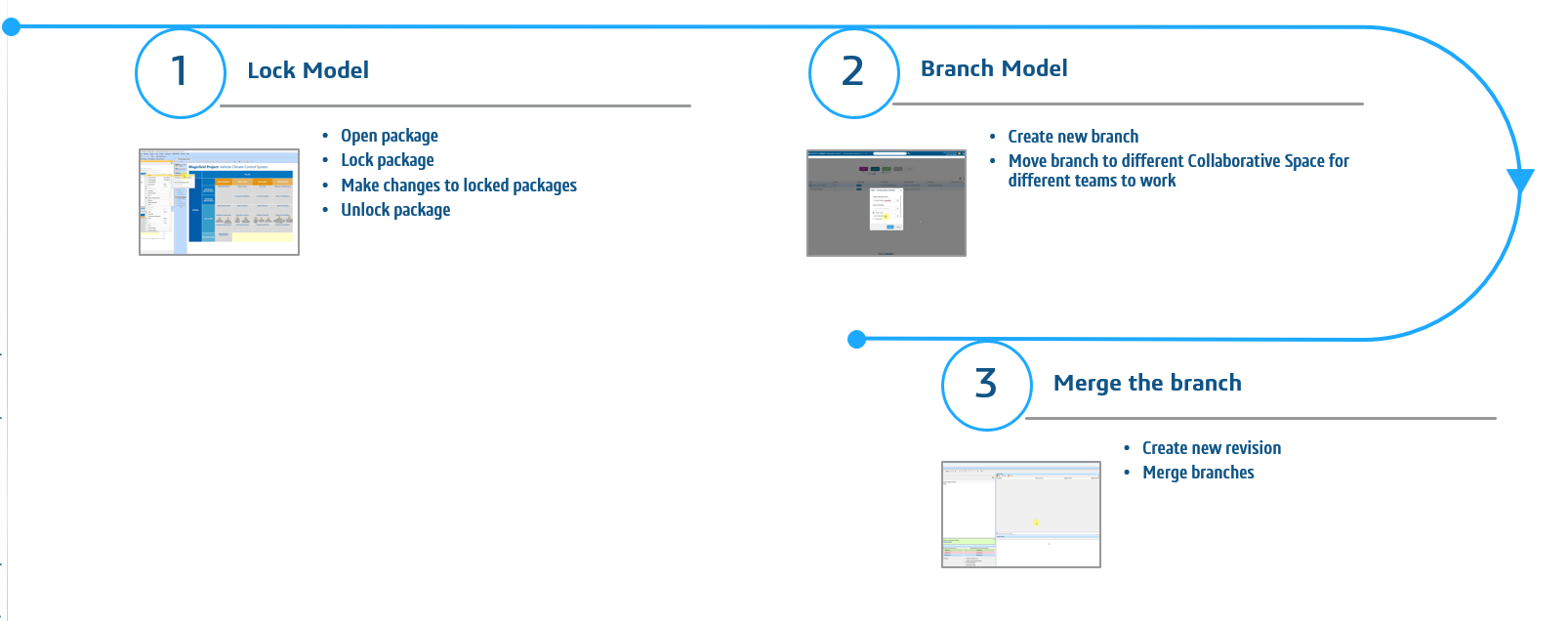
A system engineer is assigned to make edits to a CATIA Magic project. He uses locking and unlocking to prevent other users from making changes at the same time. He is also responsible for moving a branch to a different collaborative space for other teams to make edits to the CATIA Magic project.
Actors/Personas:
Dave, Systems Engineer: Dave, is responsible for making changes in the Cool Down Air Cabin diagram for the cooling system. He is also assigned the task of sharing a branch of the project with the traceability team to make their changes in the Cooling System project.
Workflow:
How
Prerequisite Roles
3DSwymer (IFW-OC), Collaborative Industry Innovator (CSV-OC), Collaborative Designer for CATIA Magic (SSY-OC)
Step 1: Lock Model
Step 2: Share Branch
Step 3: Merge Branches
Recommendarion
Unlocking Elements Locked by Other Users
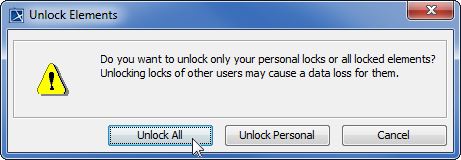
Forced unlocking is helpful when elements are left locked by a user who is currently unavailable. This functionality is only available to the Leader role on 3DEXPERIENCE platform. As a result, all the locks made by another user are released and any changes the user made are lost forever.
To unlock elements locked by another user:
- From the Collaborate menu, select Unlock All.
If a message opens asking you to choose what to unlock, click Unlock All. The Commit Project to the Server dialog opens.
- In the dialog, do the following:
- Type a comment (if needed).
- Click Commit.