Working in Offline Mode
This Technical Practice highlights the use of the offline mode in CATIA Magic. In case of low bandwidth or unstable internet connectivity or technical issues, users will learn to create an offline copy of a CATIA Magic project to work without being connected to the 3DEXPERIENCE platform. It also explains how to synchronize the project once the user is back online.
Why
A CATIA Magic user may not need to interact with the platform to independently work on the CATIA magic project. When a user has limited bandwidth, they can avoid unnecessary interaction with the platform to effectively utilize the available bandwidth. When a user is accessing a network with unstable connectivity, there is a possibility of data loss while interacting with the platform.
What
This technical practice highlights the use of the offline mode in CATIA Magic. In case of low bandwidth or unstable internet connectivity or technical issues, users will learn to create an offline copy of a CATIA Magic project to work without being connected to the 3DEXPERIENCE platform. It also explains how to synchronize the project once the user is back online.
Target Audience
Systems Engineer, Systems Architect
Knowledge
Lock and Unlock a Project
Managing access to the projects becomes crucial while working with a team. Let us read more about locking and unlocking of the CATIA Magic project and it's elements.
Lock Elements and Diagrams
You must lock the part of the model you are going to edit to prevent other users from editing it at the same time. An element/ object can only be locked by one user at a time. Once it is locked, other users can only access it but not edit it.
The following table lists editable elements after you lock a single element, single diagram, diagram with elements, symbol styles and project usages.
| When you lock... | You can... |
|---|---|
| Element | Edit element specification properties (in the Specification window) |
| Diagram | Edit:
|
| Diagram with elements | Edit:
|
| Symbol styles | Edit properties of symbol styles (in the Project Options dialog) |
| Project usages |
|
Unlock Elements and Diagrams
You can use commands from the shortcut menu to unlock elements and diagrams. Unlocking modified elements will trigger to commit the project.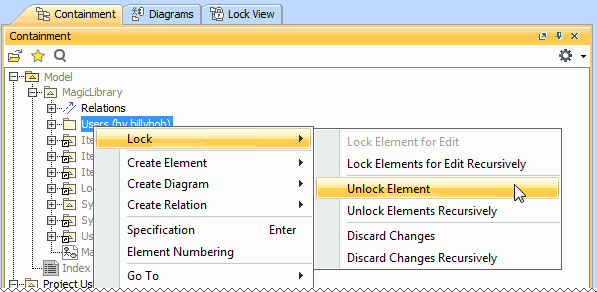
Project Branching
Project branching enables multiple users to work on the same model at the same time. For this, you need to create a project branch, which is a copy of the project. You can modify the branch as required, independent of other branches. Branches can be merged back when required. Conflicts between the branches are resolved during the merge process.
Use Cases
Use Case: Working in Offline Mode
Scenario
A systems engineer is assigned to make changes in the CATIA Magic project. He is currently in the low bandwidth area, due to which he cannot be continuously connected to the 3DEXPERIENCE platform. Let us see how the systems engineer uses CATIA Magic in offline mode for making the changes and later commits the project in the 3DEXPERIENCE platform.
Actors/personas
Mark, Systems Architect: Mark is responsible to make changes in the CATIA Magic model. But due to low bandwidth, he cannot be continuously connected to the 3DEXPERIENCE platform. He now needs to work on the CATIA Magic model in the offline mode and later commit the modification to the server.
Workflow
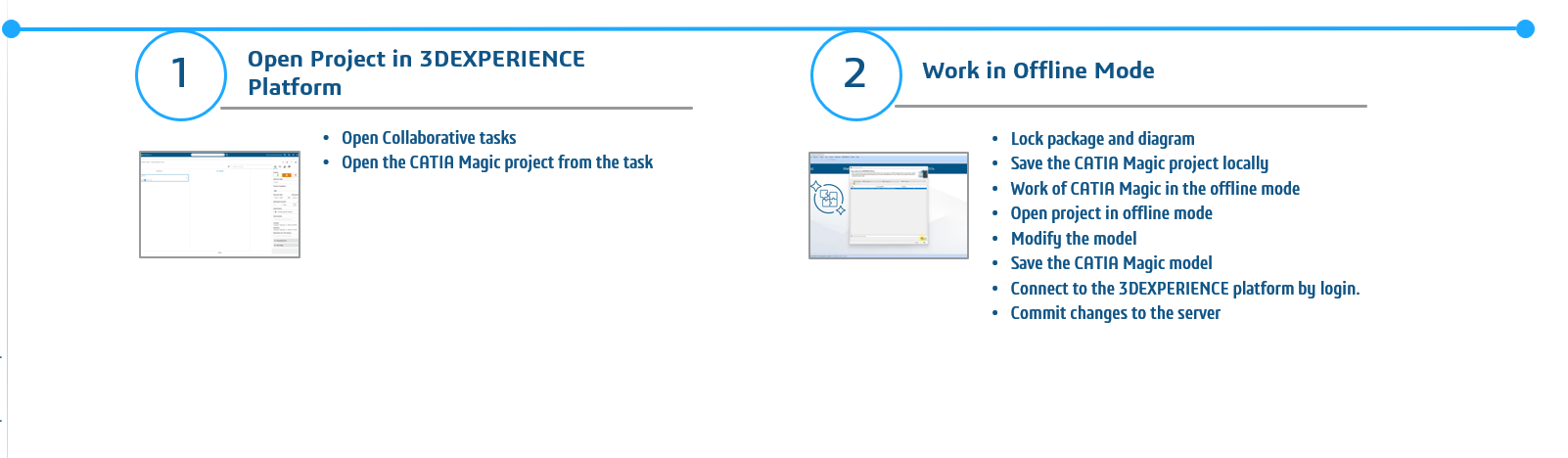
How
Prerequisite Roles
3DSwymer (IFW-OC), Collaborative Industry Innovator (CSV-OC), Collaborative Designer for CATIA Magic (SSY-OC)
Step 1: Open CATIA Magic Model
Step 2: Work in Offline Mode
Recommandation
There is no need to commit the project at every little change. If a task is in work, the project can be saved locally and committed once all the modifications are complete.