Preparing Docker Containers

This section describes how to build and run the Teamwork Cloud stack using Docker Compose.

Best practices
- Always build images after changing Dockerfiles.
- Monitor the memory usage closely.
- Enable persistent volumes in production.
- Secure certificates and credentials.
- Use external backups for Cassandra.
The following sections provide a practical example of deploying the required services using containers. While Docker Compose is used as the primary example for orchestration, the configuration is flexible and can be adapted to your infrastructure - either by combining services into a single Compose file or separating them into multiple files. Furthermore, users may opt to build services individually using docker build and manage them as standalone containers for a more granular setup
Prerequisites
For Teamwork Cloud requirements, see the official documentation here: TWC Requirements
To install Docker, follow the official steps from Docker’s documentation
Directory structure
To create a directory structure
- Use the following command to create a folder structure in your installation path:
mkdir -p twc/{cassandra,data/{cassandra,certs,elasticsearch,twcloud,webapp},messaging,twcloud/{docker.scripts,twcloud},webapp/{docker.scripts,WebAppPlatform},zookeeper_elasticsearch}SHELL - Verify using the following command:
tree -d -L 2 twcSHELL
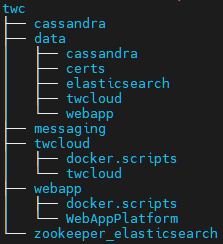
Each service is built locally using its own Dockerfile.
Preparing Containers
To create containers network
- Create and verify a network for containers using the following command:
docker network create twc-net
docker network ls -f name=twc-net
SHELL
Generate Certs
Example script to generate certificates for the application.
- Change directory to twc.
cd twc/SHELL - Create the script file generateCerts.sh (make it executable ) and run it to generate certs
#!/usr/bin/env bash

generate() {
  local fqdn=$1

  echo Generate keypair with -dname cn=$fqdn -ext SAN=dns:$fqdn

keytool -genkeypair -keyalg RSA -sigalg SHA256withRSA -keysize 2048 -validity 3650 -keystore "${fqdn}.p12" \
 -storetype  pkcs12 -storepass nomagic -keypass nomagic -alias $fqdn -dname cn=$fqdn \
 -ext BasicConstraints:critical=ca:false -ext SAN=dns:$fqdn,dns:localhost,dns:host.docker.internal
keytool -export -keystore "${fqdn}.p12" -storepass nomagic -alias ${fqdn} -file "${fqdn}.crt"

}

pushd data/certs && \
generate twcloud && \
popd || exit
SHELL - Validate the generated certificates in data/certs:
ls -l data/certs
keytool -list -keystore data/certs/twcloud.p12 -storepass nomagic
SHELL
Please follow the links below for container preparation.
Helpful Commands
To follow the output (tail) the output of a specific container:
docker compose logs -f <Container Name or ID>