This section describes how to uninstall
Teamwork Cloud
and Cassandra using the uninstallation files. The product uninstall file is located in the installation directory (<install_root>/UninstallerData/Uninstall).
Using the uninstall file for all services
On Linux
To uninstall
Teamwork Cloud
using the uninstall file
Run the uninstall file to uninstall the product and Teamwork Cloud Admin.
sudo <install_root>/UninstallerData/Uninstall
BASH
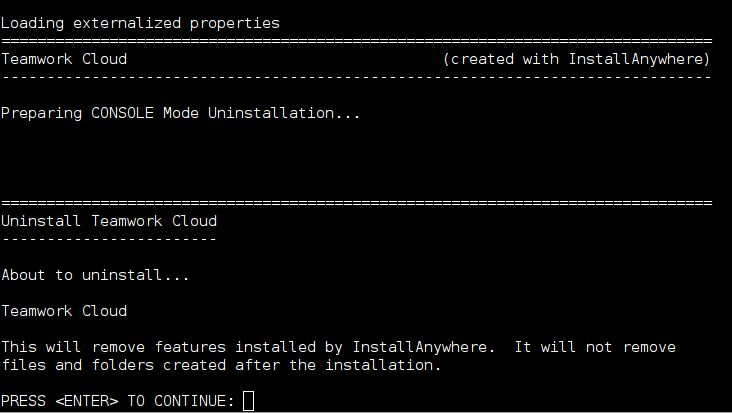
Press Enter to continue.
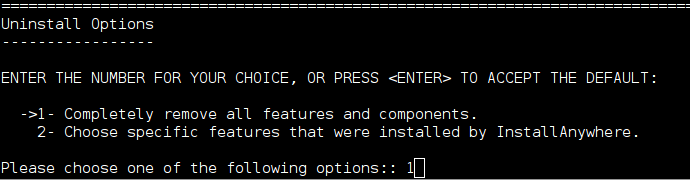
Type either "1" to completely uninstall the product and Teamwork Cloud Admin or "2" to uninstall selected features and follow the instructions. A message informing that
Teamwork Cloud
and Teamwork Cloud Admin uninstallation is complete will appear.
Managing separate services
To uninstall
Teamwork Cloud
, Web Application Platform, and Cassandra
- Stop
Teamwork Cloud
and WebApp Server.
- Remove the services.
- Delete the directory in which the product is installed.
- Uninstall Cassandra.
If you need to remove only selected services, remove them using the following commands:
Remove Teamwork Cloud service using the following script:
sudo <install_root>/TeamworkCloud/scripts/linux/service.sh remove
BASH
Remove WebApp service using the following script:
sudo <install_root>/WebAppPlatform/bin/service.sh remove
BASH
Remove Zookeeper service using the following script:
sudo <install_root>/Zookeeper/bin/zkService.sh remove
BASH
To uninstall Cassandra
Delete the directory in which
Teamwork Cloud
is installed (<install_root>).
Uninstall Cassandra using the following commands:
sudo service cassandra stop
sudo yum remove cassandra
BASH
On Windows
To uninstall
Teamwork Cloud
using the uninstall file
Stop Teamwork Cloud, AuthServer, and WebApp services from the Services window.
Run the uninstall file, located at <install_root>/UninstallerData/Uninstall.exe to uninstall the product.
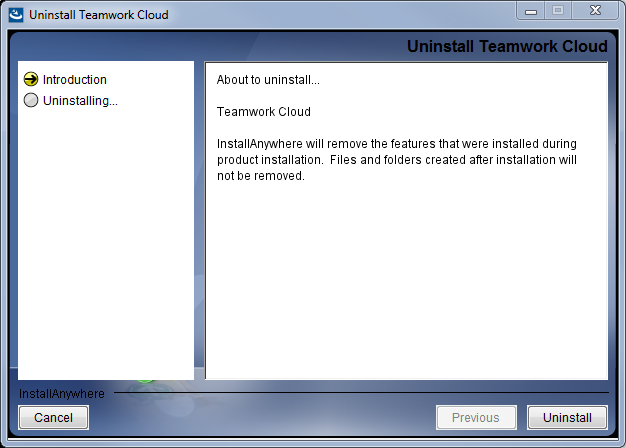
In the open dialog, click the Uninstall button. The dialog will close once the uninstallation is complete.