Licensing

MagicLab Collaborator uses Cameo Collaborator licenses. If your Cameo Collaborator license is already in use, you need an additional license to use MagicLab Collaborator.
License types
You can purchase the following types of Cameo Collaborator licenses, depending on the number of connections you want to use:
License types | Authenticated commenting | Number of concurrent authenticated connections | Predefined portals | Customized portals |
|---|---|---|---|---|
5-connection license | + | 5 | + | + |
10-connection license | + | 10 | + | + |
25-connection license | + | 25 | + | + |
50-connection license | + | 50 | + | + |
75-connection license | + | 75 | + | + |
100-connection license | + | 100 | + | + |
Unlimited license | + | Unlimited | + | + |
Applying licenses to new installations (no existing license server)
MagicLab Collaborator uses a floating license managed by the FlexNet license server or DSLS (Dassault Systèmes License Server). The license server information is specified when installing Web Application Platform with the MagicLab Collaborator service, so make sure that you install a license server before installing Web Application Platform. The steps below explain how to apply the MagicLab Collaborator license and start using the product.
To apply the MagicLab Collaborator license
Install and start one of the following license servers:
Check if the license server is running.
Add the Cameo Collaborator license to the license server.
Install Web Application Platform with the MagicLab Collaborator service and specify the license server details during the installation.
Once you apply the license as described above, the product is ready to use. Note that you can change the license server details later if needed.

Working with multiple licenses
The FlexNet license server can contain only one license. If you want to add multiple licenses to the same FlexNet license server (e.g., MagicLab Collaborator, Teamwork Cloud, and MagicDraw), contact your sales executive and ask them to merge the licenses.
Managing MagicLab Collaborator licenses
There are multiple ways to manage MagicLab Collaborator licenses
Multiple pods' licensing
If you have multiple pods (i.e. Kubernetes), you can configure all licenses either via thewebappplatform.properties file OR via the user interface in the Settings application.
If you want to manage licenses via the user interface in the Settings application, but at least one pod has the license configured via the webapp.properties file, you need to remove the license from the webapp.properties file and restart the services.Applying a license via Teamwork Cloud Admin
To apply a MagicLab Collaborator license via Teamwork Cloud Admin
- Open Teamwork Cloud Admin in a web browser using this address format: http(s)://<server_address>:<port>/webapp. 8443 is the default port.
- Sign in to Teamwork Cloud with a user who has the Server Administrator role.
- Click the Settings application to open it.
- From the left-side menu, select the MagicLab Collaborator license page.
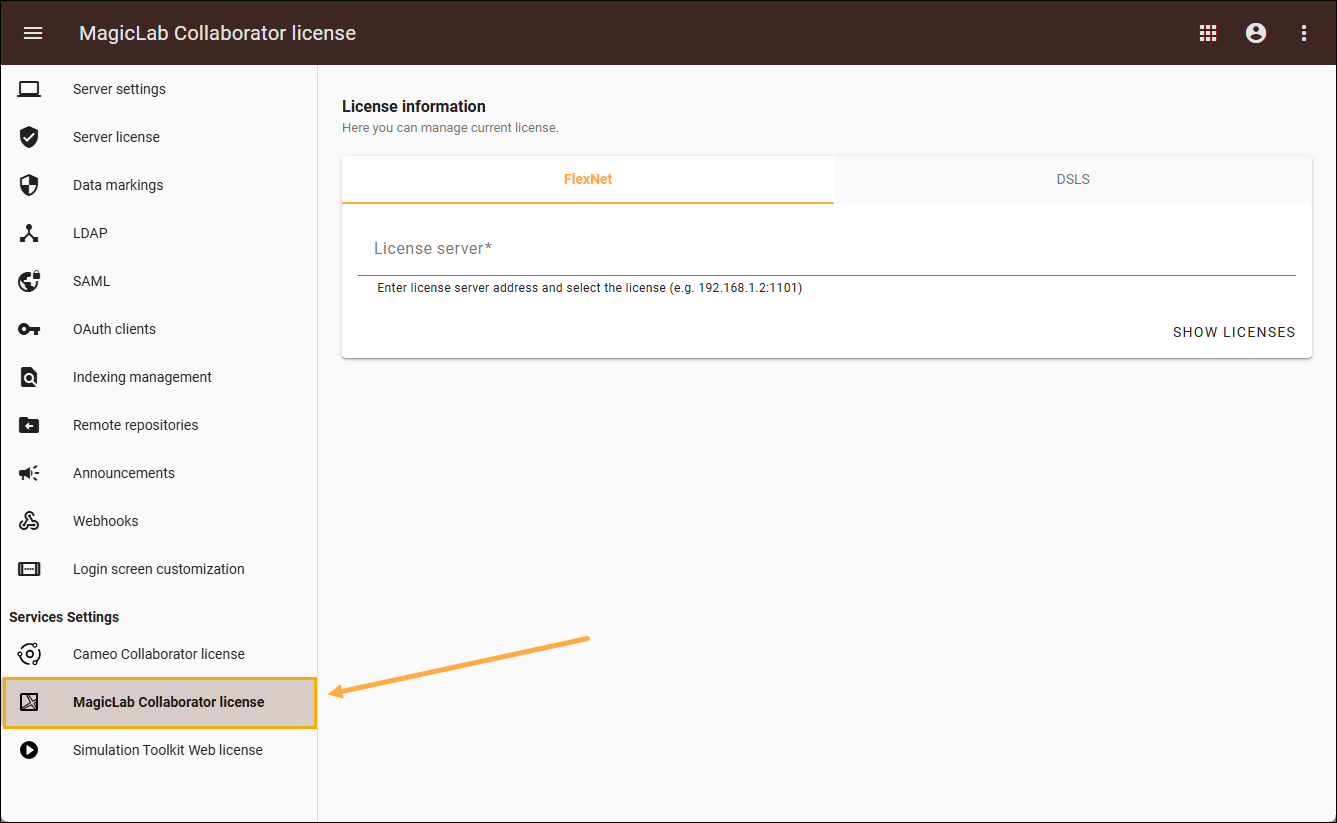
- Select either the FlexNet or DSLS tab:
- In the FlexNet tab, enter the license server address to view the list of available licenses.
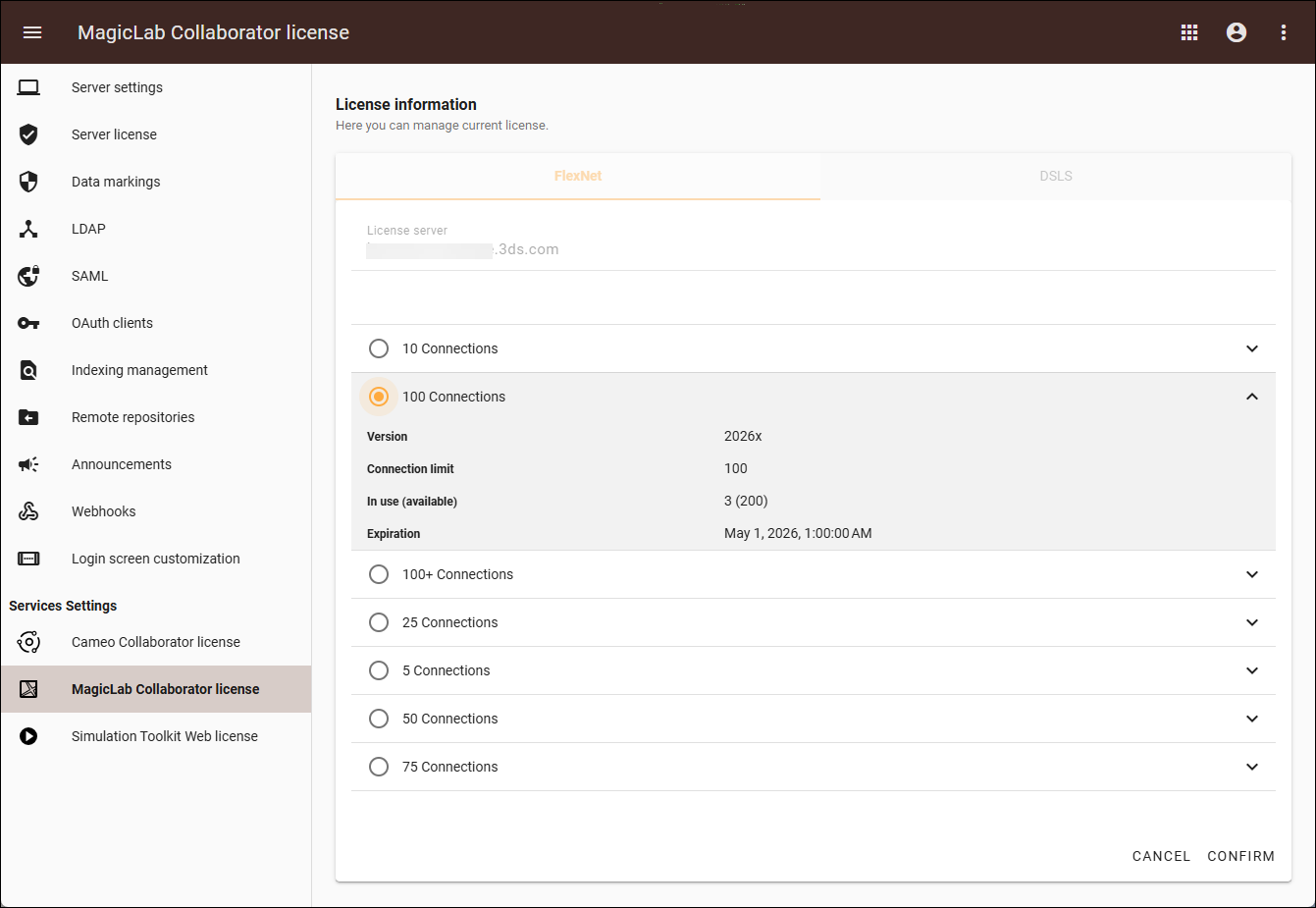
Select a license and click Confirm to apply. - In the DSLS tab, select either Organization defined or Custom.
- If you select Organization defined, choose a license from the list and click Confirm to apply.
- If you select Custom, enter the license server address, choose a license from the list and click Confirm to apply.
- In the FlexNet tab, enter the license server address to view the list of available licenses.
Viewing active users
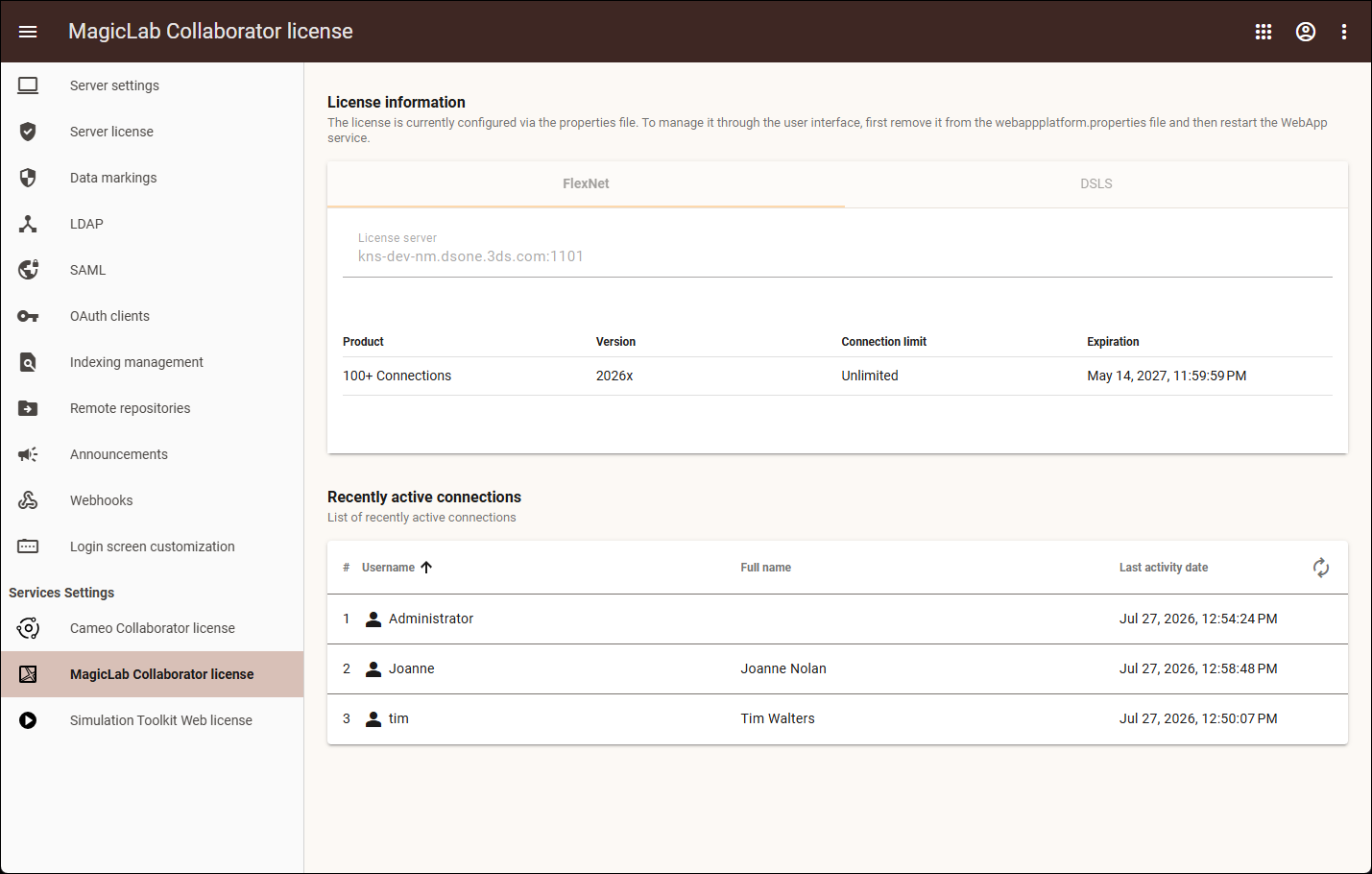
The MagicLab Collaborator license page allows you to view active connections (users). They are displayed in the Recently active connections part of the page.
Managing licenses via the properties file
Checking which license is in use
You can check MagicLab Collaborator license information either in the Settings app or as described below.
To check the license information
In your internet browser, go to http(s)://<server_address>:<port>/webapp.
Default port
By default, MagicLab Collaborator uses port 8443.
If you are not signed in, enter your user credentials on the authentication page.
In the same internet browser, go to http(s)://<domain_name>:<port>/magiclab-collaborator/api/magiclab/license/info
The web page displays MagicLab Collaborator license details, including the number of connections and expiration date.
Specifying which license should be used
If there are several licenses in the license server, you can specify which MagicLab Collaborator license (edition) should be used.
To specify which MagicLab Collaborator license should be used
Go to the <install_root>/WebAppPlatform/shared/conf directory.
Open for editing the webappplatform.properties file.
In the file, add the ml.license.edition property and specify its value (e.g., ml.license.edition=100+ Connections for an unlimited license).
Valid property values
The valid values for the ml.license.edition property are:
5 Connections
- 10 Connections
25 Connections
50 Connections
75 Connections
100 Connections
100+ Connections
Restart the Web Application Platform.
Resetting a license
The instructions below explain how to reset the MagicLab Collaborator license if, for example, the connection with the license server was lost.
To reset the MagicLab Collaborator license
In an internet browser, go to http(s)://<server_address>:<port>/webapp.
Default port
By default, MagicLab Collaborator uses port 8443.
If you are not signed in, enter your user credentials on the authentication page.
In the same internet browser, go to http(s)://<domain_name>:<port>/magiclab-collaborator/api/magiclab/license/reset
If the license reset was successful, the open web page will display this message:
{"initialized":true}
Specifying license server information for Web Application Platform
The licensing information should be specified when installing Teamwork Cloud and/or Web Application Platform. If you have not specified licensing information during installation or if you want to change it later, you can do this by following the steps below.
To specify/change the license server information
Go to the <install_root>/WebAppPlatform/shared/conf directory.
Open for editing the webappplatform.properties file.
In the webappplatform.properties file:
The values of some properties are placeholders, e.g., mail.from.default=info@company.com. Make sure to replace the placeholders with actual values.
Read the comments with property descriptions to ensure accuracy when specifying property values.
- Specify the following properties under the FlexNet/DSLS server properties for Web Application Platform services property group.
For the DSLS server:
license.framework
license.server
license.dsls.server.mode
For the FlexNet server:
license.framework
license.server

MagicLab Collaborator supports the FlexNet Three-Server Redundancy mode (Triad License Server). If you want to use the Triad License Server, specify the license.server property in this format:
license.server=<port>@<server1_address>,<port>@<server2_address>,<port>@<server3_address>
Restart Web Application Platform.