You can navigate the opened view in several ways.
- Using the controls at the top of the MagicLab content pane:
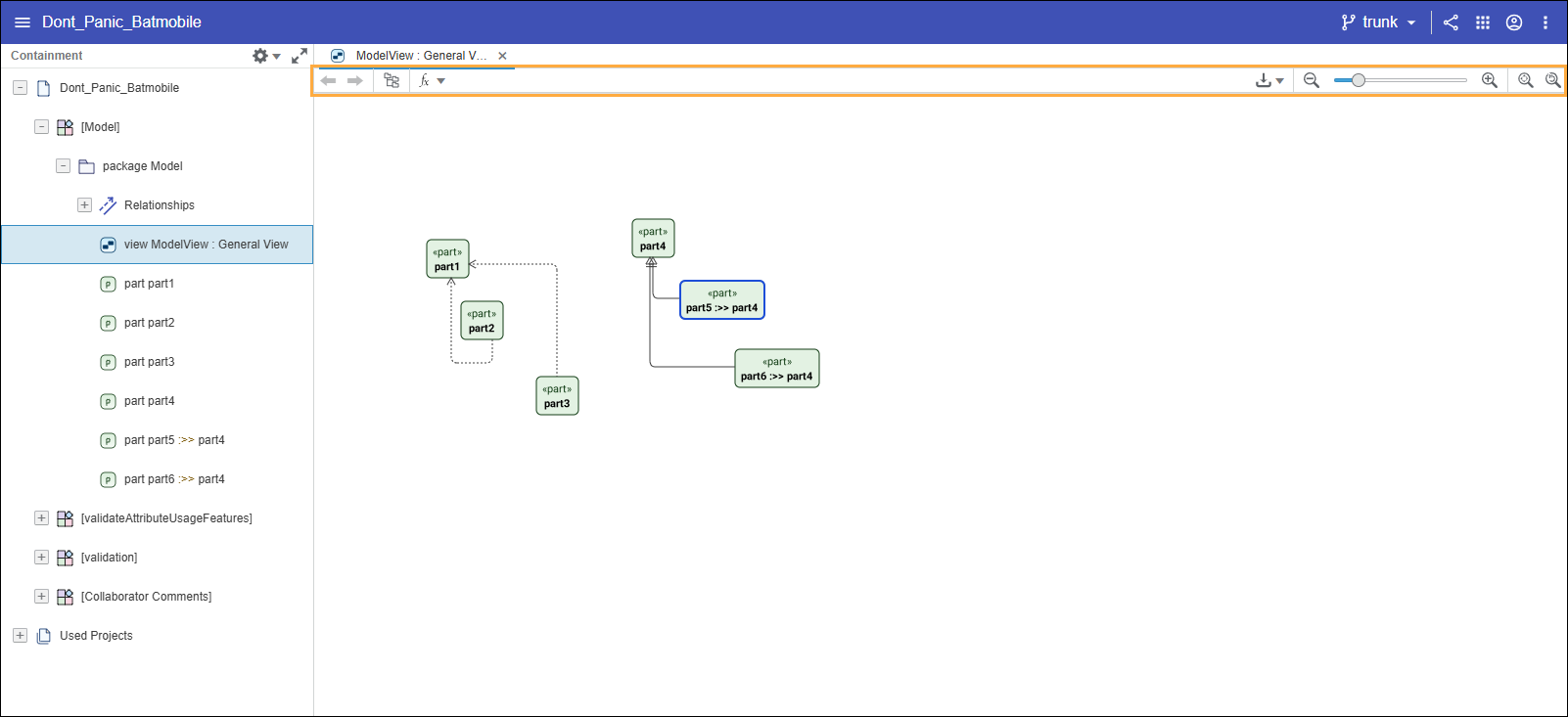
View opened in MagicLab.
| Icon | Icon description |
|---|
| If several views are opened, you can navigate between them using these arrows. |
| Click to select the view in the Containment tree. |
| Click this icon and select to Evaluate or to Clear values. Note that you need the Evaluation license to use this option. |
| Click and select: - SVG diagram - to download an SVG diagram of the view.
- SVG diagram (searchable) - to download an SVG diagram with textual search capability.
|
| Click the icons or use the slider to zoom in or out of the view. |
| Click to adjust the view according to the window. |
| Click to reset zoom controls. |
In an open view, right-click any area to access the context menu:
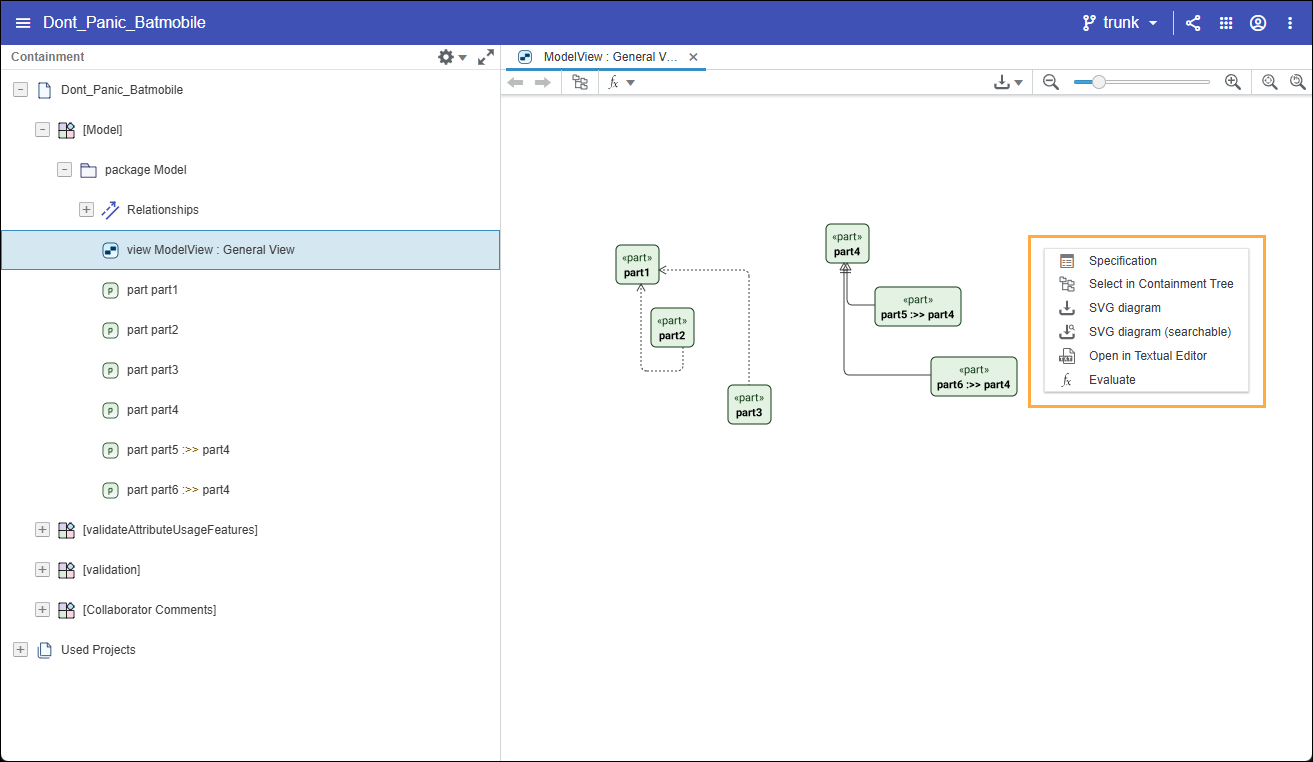
| Option | Option description |
|---|
| Opens the Specification panel of the view. |
| Click to select the view in the Containment tree. |
| Click to download an SVG diagram of the view.
|
| Click to download an SVG diagram with textual search capability. |
| Opens the view in the Textual Editor. |
| Click to evaluate the elements of the view. Note that you need the Evaluation license to use this option. |
Note that right-clicking an element opens a slightly different context menu:
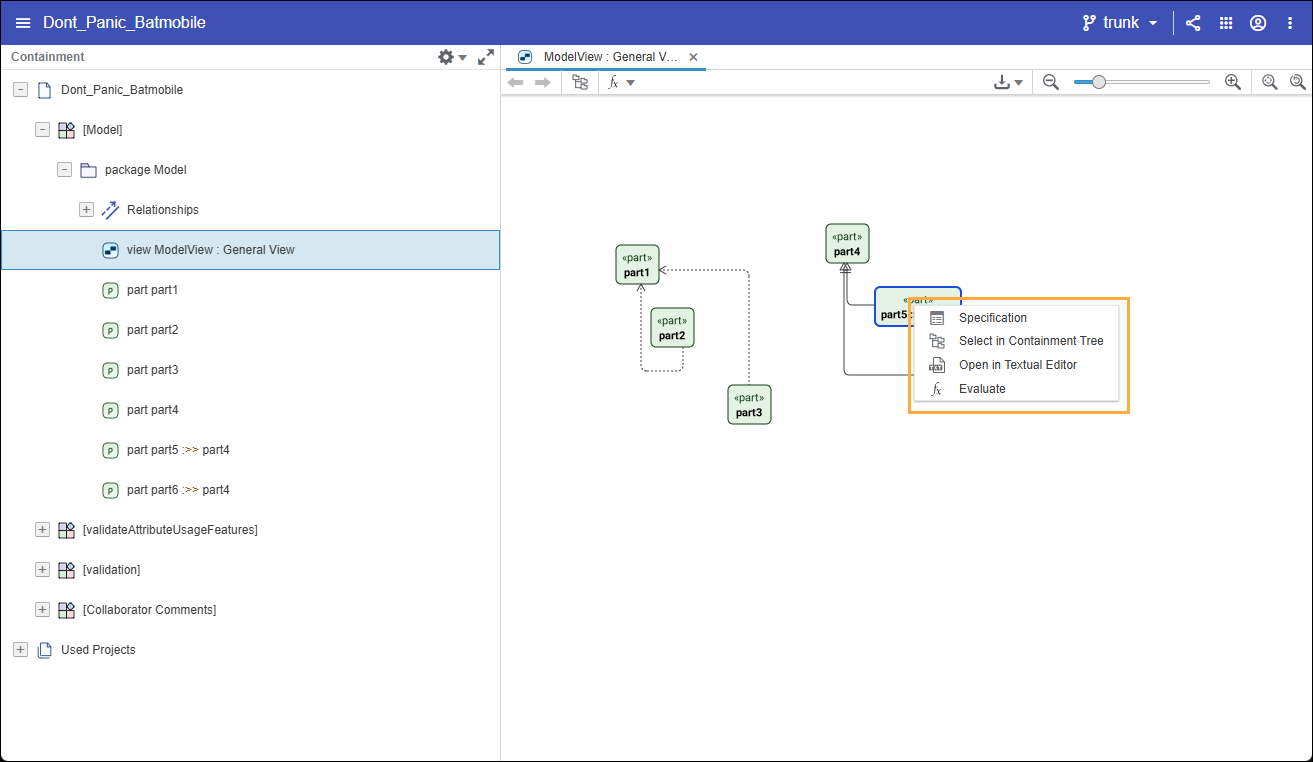
| Option | Option description |
|---|
| Opens the Specification panel of the element. |
| Click to select the element in the Containment tree. |
| Opens the view in the Textual Editor. |
| Click to evaluate the elements of the view. Note that you need the Evaluation license to use this option. |