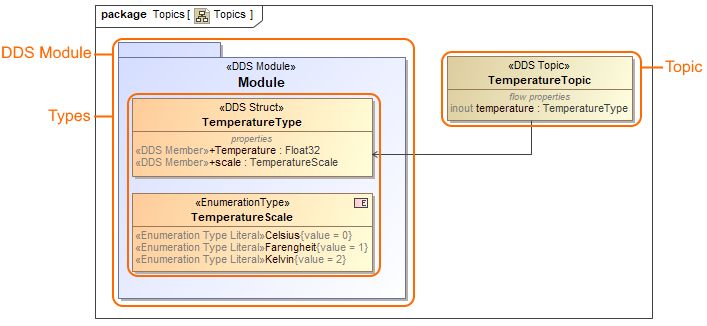
You can define topic and types used by them in the DDS Topic Definition Diagram.
The example of the DDS Topic Definition Diagram where main elements are highlighed: DDS Module, Types and Topic.
Creating DDS Topic Definition Diagram
After a blank DDS Project is created, the predefined package structure is prepared where the DDS Topic Definition Diagram is already created under the Topics Package named Topics. It contains an empty DDS Module. If you need another one, create it manually, as described in the following procedure.
To create blank DDS Topic Definition Diagram
In the Model Browser, select the owner for the new diagram.
Do one of the following:
Right-click the Package, and from the shortcut menu select Create Diagram.
Press Ctrl+N.
On the main toolbar, click .
From the main menu, select Diagrams > Create Diagram.
In the Create Diagram box, under General diagram group, select the DDS Topic Definition Diagram.
Press Esc or click outside the dialog to close the diagram creation dialog without creating the diagram.
Defining topics and types
You can create the following types:
Struct Type
Union Type
Bitmask Type
Enumeration Type
Map Type
Alias Type
Annotation Type
Creating and defining types
From the diagram palette, select a type you need and click on DDS Module element.
Type its name.
Click the Create Membersmart manipulator to create a Members for the type.
Select newly created Member on the shape, click and select a type for a it.