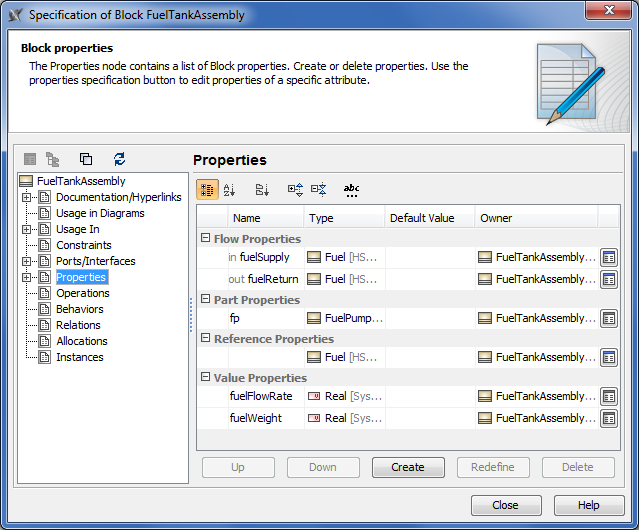
You can create and manage the Block properties in several ways:
Using the smart manipulator
Creating a property for a Block
You can create and manage properties for a Block directly on the diagram pane by using the symbol smart manipulators.
To create a property for a Block
Select the Block shape.
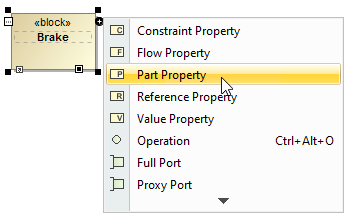
Click smart manipulator.
From the opened menu select the property you want to create for a Block.
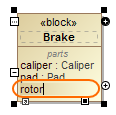
Type its name.
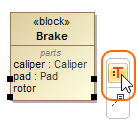
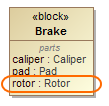
Specify its type. The property is created and displayed on the Block shape in the compartments area.
Removing a Block property from the Block shape
To remove a Block property from the Block shape
Select the property on Block shape.
Press Delete. The property is removed from the Block compartments but not from the model.
Deleting a Block property from the model
To delete a Block property from the model
Right-click the property on the Block shape.
From the shortcut menu select the Select in Containment Tree command. The property is selected in the Containment tree.
Do one of the following:
Press Delete.
Right-click and from the shortcut menu and select the Delete command.
If a property is shared with other people, the Question dialog opens. You can then confirm or cancel the Delete command.
The Block property is removed from the model.
Using the Specification window
All owned and inherited Block properties are collected on the left of the Block Specification window > Properties. Block properties are grouped in the Block compartments. Manage them by creating, redefining or deleting directly in the General Specification pane.
Column name
Name
Property name.
Type
Property type.
Default Value
Property default value.
Owner
Block name that contains the current property.
Button name
Description
Opens the Specification window of the selected property.
Create
Opens the list of available properties to create. Click to create the Connector property, Part property, Reference property, Value property, Constraint property, Flow property.
Redefine
Duplicates the selected item and marks its name in ascending order.