There are three ways to create the SysML projects.
Creating the blank SysML v1 project
To create a blank SysML v1 project
Do one of the following:
Select File > NewProject.
On the main toolbar, click the NewProject button.
Press Ctr+Shiftl+N.
In the New Project dialog, under Systems Engineering, select SysML v1 Project.
Specify name and location.
Click OK when you are done. The blank project is created and stored in your file system with a defined name.
Creating a SysML v1 project from a template
To create a SysML v1 project from a template
Do one of the following:
Select File>NewProject.
On the main toolbar, click the NewProject button.
Press Ctr+Shiftl+N.
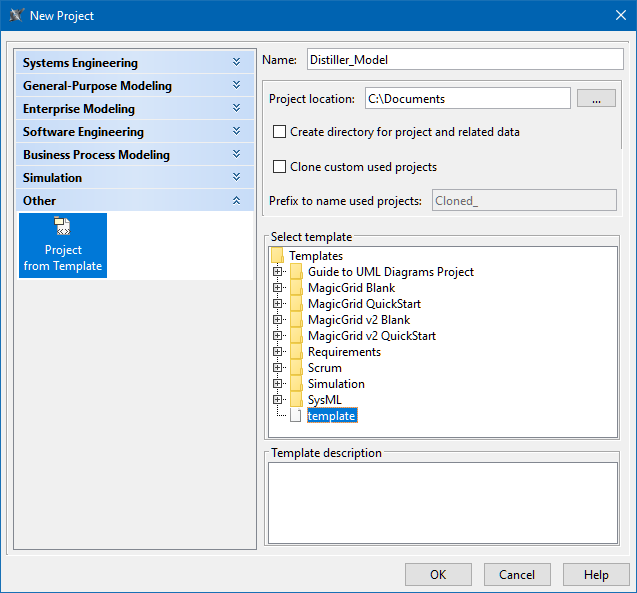
In the New Project dialog, under Other, select Project from Template.
Specify name and location.
Select the SysML v1 template.
Click OK when you are done.
Creating MagicGrid projects
To create a MagicGrid project
Do one of the following:
Select File>NewProject.
On the main toolbar, click the NewProject button.
Press Ctr+Shiftl+N.
In the New Project dialog, under Systems Engineering, select either:
MagicGrid QuickStart - to create a project with a structure and guidelines on how to use the MagicGrid approach.
MagicGrid Blank - to create a blank project with a predefined package structure of the MagicGrid approach.
MagicGrid v2 QuickStart - to create a project with a structure and guidelines on how to use the MagicGrid v2 approach.
MagicGrid v2 Blank - to create a blank project with a predefined package structure of the MagicGrid v2 approach.
Specify name and location.
Click OK when you are done.
When you create a new MagicGrid project, a question dialog is prompted, asking you to switch the perspective. Clicking Yes changes the modeling tool's perspective to the MagicGrid perspective.
The MagicGrid project is created and stored in your file system with a defined name.