Using Requirement patterns glossary
You can use the specific condition patterns in Requirement texts if you want to extract Constraint from Requirement automatically.
Enabling/disabling the Requirement patterns underlining in Requirement text
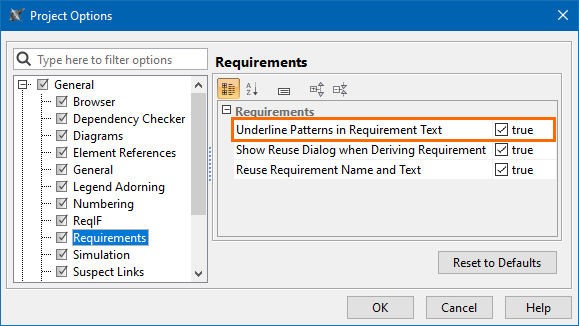
Before using this feature, make sure the Underline Patterns in Requirement Text option is enabled.
To enable/disable Requirement patterns underlining
- From the main menu, click Options > Project.
- In the Project Options dialog, under the General group, click Requirements and select the Underline Patterns in Requirement Text option.
Set its value to true to underline the Requirement text that matches the defined pattern, or false - to disable it.

The default value of the Underline Patterns in Requirement Text option is true.
Defining custom condition patterns
If you can't find an appropriate condition pattern from the predefined glossary table, you can define a custom glossary. For this, you have to create a new Glossary Table with the <<requirementTerms>> stereotype and define custom condition patterns in it.
Creating a new Glossary table for custom condition patterns
To create a new Glossary table with the stereotype <<requirementTerms>>
- From the main toolbar, click the Create Diagram button.
- Double-click the Glossary table icon. The Glossary table is created.
- In the Containment tree, right-click the Glossary table and in its shortcut menu, click Stereotype.
In the Stereotype selection menu, select the check mark for the <<requirementTerms>> stereotype. Click Apply.
Only Static Table Contents Available
Once the <<requirementTerms>> stereotype is applied, the dynamic content specification properties (Scope, Query, and Element Type) are hidden because the Requirement Pattern mechanism is limited to manually added table contents.
- You can add terms to the table:
- Via the Add New
 button in the Table toolbar.
 - Via the Add Existing
 button in the Table toolbar.
 - By drag-and-dropping an element from the Containment tree to the Glossary table.
- Via the Add New
Defining a custom condition pattern
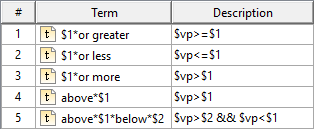
To define a condition pattern, you need to specify the term and its description in the Term and Description columns of the Glossary table.
The term is composed of either two or three parts:
Name | Part of the Term | Description |
|---|---|---|
textual phrase | e.g. no more than, less than, equal to, etc. | The phrases that form the pattern in the requirement text. |
number variable | $[number] (ampersand symbol and a number between 1 and 9) | It represents the actual number that would be indicated in the requirement text. Incrementation (e.g., $1, $2, $3) should be used if there are multiple numbers to be indicated in the term (e.g., between*$1*and*$2). |
| (optional) symbol to be treated as any | * (asterisk symbol) | It represents symbols used between the textual phrases and the number variables that should be skipped. These can be any symbols (except numbers) that may be used in the requirement text but should not be treated as part of the term. The asterisk symbol should be inserted between textual phrases, number variables, or a textual phrase and a number variable; it should not be used at the beginning or end of the term. Some symbols are exempt from being treated as any. They are listed in the SymbolsToIgnoreAsAny enumeration and can be customized (to learn more, see the Symbols not treated as any in the requirement text subsection). |
The Description column indicates the mathematical expression of the term, e.g., how the term found in the requirement text should be calculated. It is composed of:
| Name | Part of the expression |
|---|---|
| value property variable (that satisfies the requirement) | $vp |
| operators | > < == >= <= && |
| number variable (a number between 1 and 9) | $[number] |
The result looks like this:
Symbols not treated as any in the requirement text
The asterisk symbol in the term indicates symbols used between the textual phrases and the number variables that should be skipped. These can be any symbols that may be used in the requirement text but should not be treated as part of the term. However, some symbols are exempt from being treated as any. They are listed in the SymbolsToIgnoreAsAny enumeration (located at MD Customization for Requirements::requirement verification::SymbolsToIgnoreAsAny). By default, it includes these symbols:
- . (dot)
- , (comma)
- ; (semi-colon)
- ? (question mark)
- ! (exclamation mark)
- > (greater-than sign)
- < (less-than sign)
- = (equal sign)
 Since the asterisk symbol ('*') in the condition term represents any symbol, in the requirement on the left, the word 'and' is treated as any without affecting the integrity of the pattern.
Because the comma symbol (',') is exempt from being treated as any symbol (as it is part of the SymbolsToIgnoreAsAny enumeration), adding it in place of the asterisk symbol ('*') breaks the pattern. As a result, this triggers a different pattern in the requirement on the right.
If, however, you need to modify the list of symbols not treated as any, you can do so by either extending or replacing the existing list of symbols following the procedure below.
To customize symbols not treated as any
- Create a Class diagram.
- Drag the SymbolsToIgnoreAsAny enumeration element (located at MD Customization for Requirements::requirement verification::SymbolsToIgnoreAsAny) to the diagram.
On the Diagram palette, in the Class Diagram section, select the Enumeration button and click on the diagram to create the enumeration symbol.
If you cannot see the Enumeration button, click the arrow button next to the Data Types button to see the buttons list and then select Enumeration.
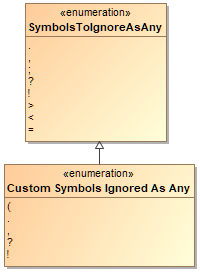
- On the Smart Manipulator of the newly created enumeration, click Generalization, and draw the Generalization to the SymbolsToIgnoreAsAny symbol (the latter symbol should be the supertype).
- Open the Specification window of the newly created enumeration element.
- On the left-side panel of the Specification window, select the Enumeration Literals property group.
- Do the following:
To define a new symbol to be ignored, click the Create button, specify the symbol in the Name line, and click the Close button.
There can be only one symbol per Enumeration Literal. Additional symbols should be specified as separate Enumeration Literals.
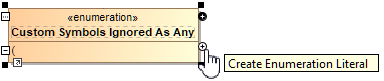
To re-use an already defined symbol, select the symbol in the Inherited section and click the Close button.
Creating a new Enumeration connected to the SymbolsToIgnoreAsAny enumeration via a Generalization overrides the symbols defined in the SymbolsToIgnoreAsAny enumeration. If you want to specify new symbols and use those defined in the SymbolsToIgnoreAsAny enumeration, you need to clone them.
Opening the predefined requirements glossary table
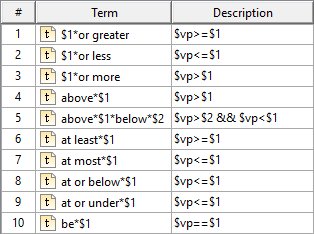
You can use condition patterns from the already-created glossary table. If you want to check the most frequently used patterns, open the predefined glossary table.
To open the predefined glossary table
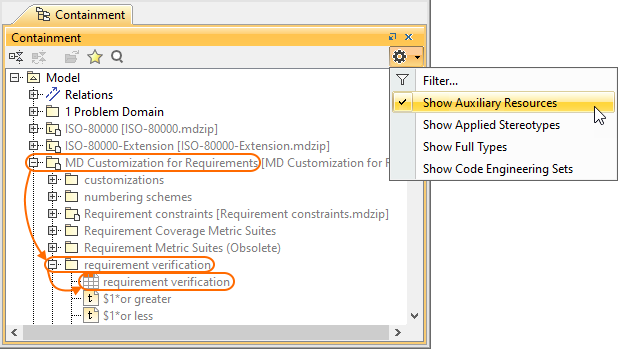
- In the (2026x) Model Browser, click
 and select Show Auxiliary Resources.
 - Expand MD Customization for Requirements Package > requirement verification Package.
- Double-click the requirement verification to open the table (see the figure below).
The glossary table with the stored frequently used condition patterns opens (see the following figure).

Warning
You cannot extend the list of custom condition patterns in this Glossary Table.