Click the HTML source tab to view the HTML source.
Advanced HTML Editor dialog
To insert an image into HTML text
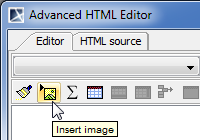
Click the Insert image button, as shown in the following picture.
In the Picture Properties dialog, specify the image location. Do one of the following:
Type the path to the image location.
Click Browse and select the image you want to insert.
If you are working on a server project, make sure that the path to the image location is accessible from any computer that has an Internet connection. Otherwise, the image will not display when the project opens on another computer.
To insert an image as an attached file, simply paste its URL to the Picture Source box by pressing Ctrl+V (Cmd+V on OS X). For more information, refer to Inserting into HTML text.