Set the Element Type to Diagram. Make sure to select the Include Subtypes check box. Click OK.
Set the Scope where the diagrams will be searched for.
Click theiconin the Scope field and selectCustom. The Query dialog opens.
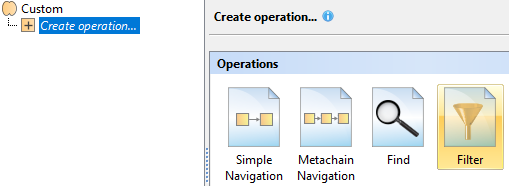
Select Create operation > Filter.
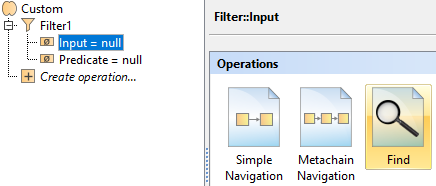
Select Filter > Input > Find.
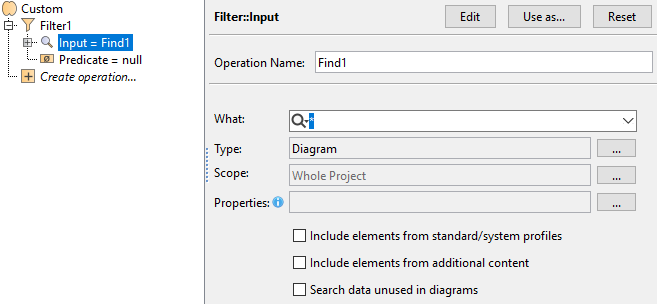
Set the Type to Diagram.
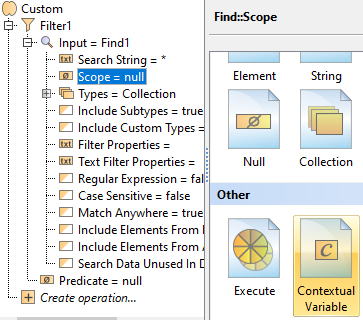
Expand Find > Scope > Contextual Variable.
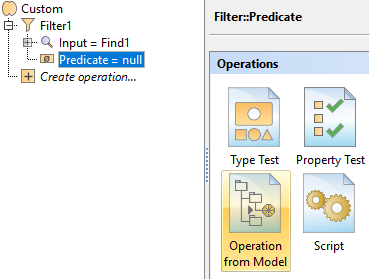
Select Filter > Predicate > Operation from Model > GreaterThanOrEquals.
If you cannot see the GreaterThanOrEqualsoperation, make sure the Apply Filter box is not checked.
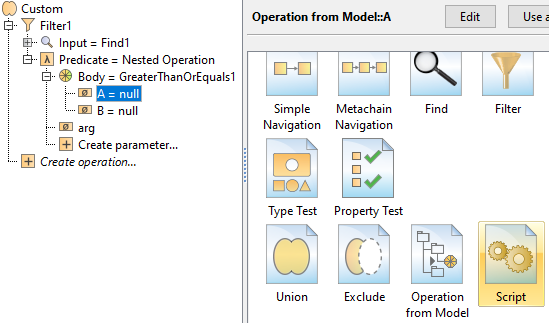
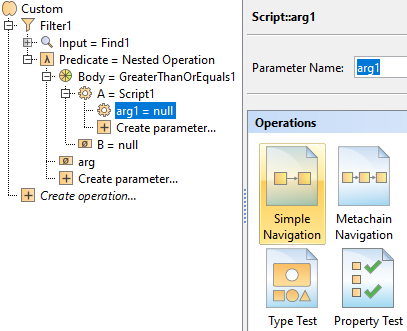
Select Predicate > Body > A > Script.
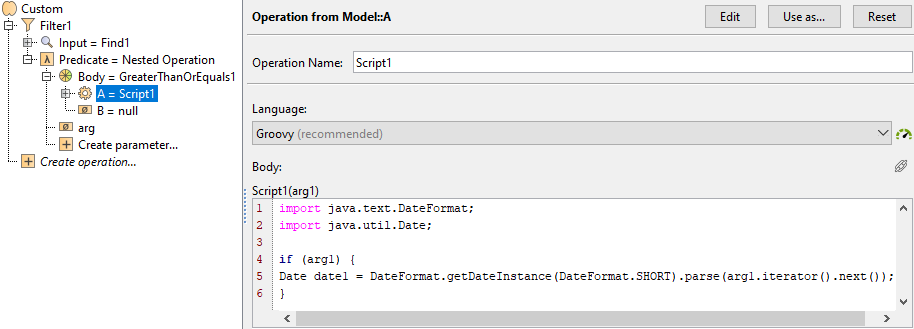
From the Language drop-down list, select Groovy.
Insert the following script as the Body:
Groovy
import java.text.DateFormat;
import java.util.Date;

if (arg1) {
Date date1 = DateFormat.getDateInstance(DateFormat.SHORT).parse(arg1.iterator().next());
}
CODE
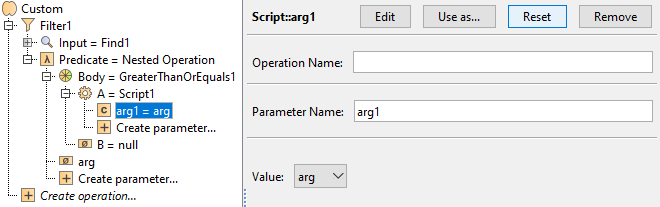
Select A > arg1 > Reset.
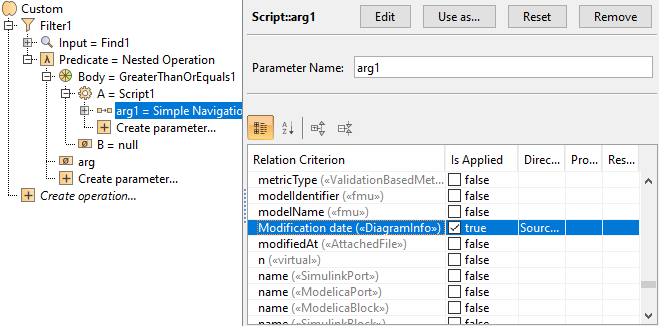
Select A > arg1 > Simple Navigation.
Select Modification date and set Is Applied to true.
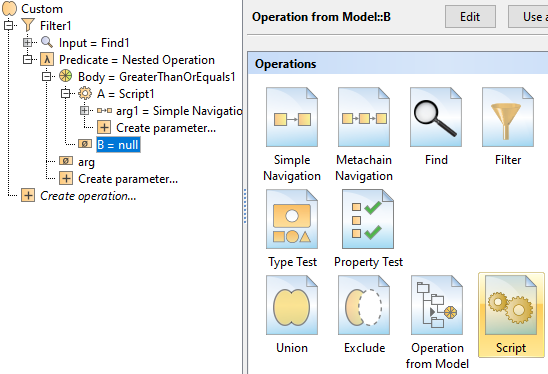
Select Predicate > Body > B > Script.
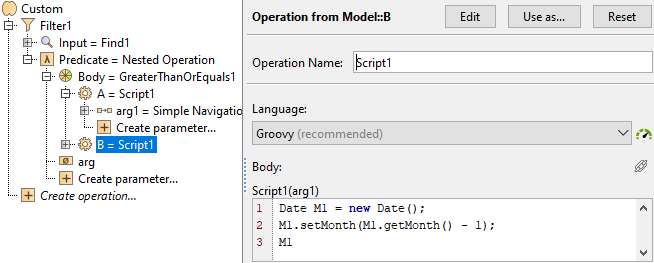
From the Language drop-down list, select Groovy.
Insert the following script as the Body:
Groovy
Date M1 = new Date();
M1.setMonth(M1.getMonth() - 1);
M1
CODE
Click OK. To view the column, make sure to display it via the Columns button in the diagram toolbar > Select Columns > set the Modification date column to true.
Sample model
The model used in these examples is the Case Studies for Querying the Model sample model. To open this model, you need to download case studies for querying the model.mdzip.