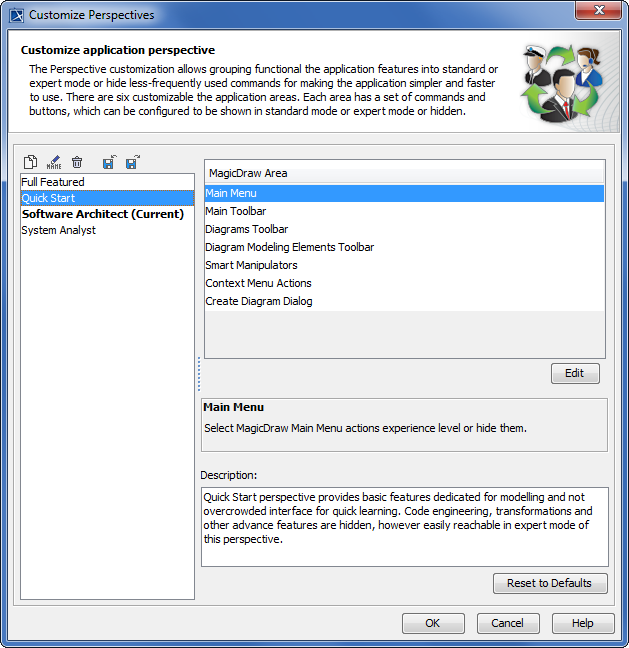
Modeling Tools Getting started Customizing and Selecting Perspective Current: Customize Perspectives dialog Customize Perspectives dialog To open the Customize Perspectives dialogFrom the Options menu, choose Perspectives and then Customize.Element NameDescriptionClone SelectedPerspective Copy the selected perspective to a new one.Rename SelectedPerspective The Enter Perspective Name dialog opens. Change name of the perspective and click OK. You can also rename perspectives by pressing F2.Remove SelectedPerspective Delete the selected perspective from the list.Import NewPerspective The Open dialog appears. Select *.umd extension file and click Open to import the perspective into the modeling tool environment.Export SelectedPerspective The Save dialog opens. Type a name for the created perspective and click Save to store it as *.umd extension file.Full FeaturedQuick StartSoftware ArchitectSystem AnalystList of the available perspectives with the predefined configuration.MagicDraw AreaList of customizable toolbars and command sections.EditClick the Edit button to open the Customize Main Menu dialog.Change he commands mode by selecting radio buttons.DescriptionLearn the short description about each selected area.Reset to DefaultsReset all changes back to the default configuration. ×