Once you have created a template, you will need to import it into the modeling tool by using Report Wizard.
To import a template into a modeling tool using Report Wizard
- Click Tools > Report Wizard on the main menu.
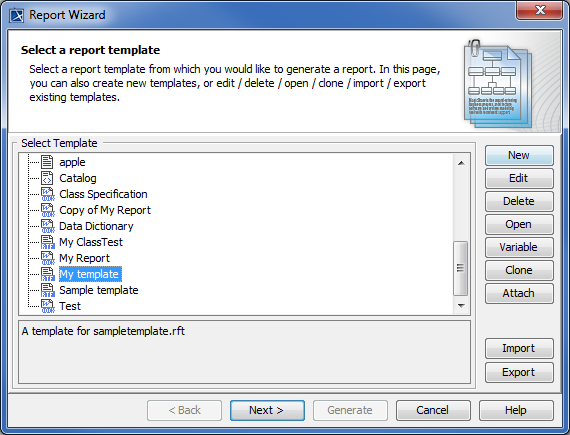
Click the New button in the Select a report template wizard. The New Template dialog will open.
In the New Template dialog, type the name and description. Select a category, and then click .
.
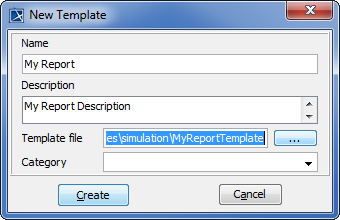
- Find the template file that you have created, and click
 .
. - Click
 to import the template.
To generate a report based on a template, select the template (in this example, My template) from the template list, and follow the steps as instructed by the wizard. See Report Wizard User Guide for more information.
- Report template
Ready-made report configurations that you can use to quickly create a specific type of report in Report Wizard.
For more information about working with templates and reports, visit the following pages:
Template Management Pane
Default templates
Report Data Management Pane
Generating Reports from Report Wizard