Select Element Scope pane
The Select Element Scope pane (see the figure below) allows you to select the scope of the modeling tool's data to generate a report.
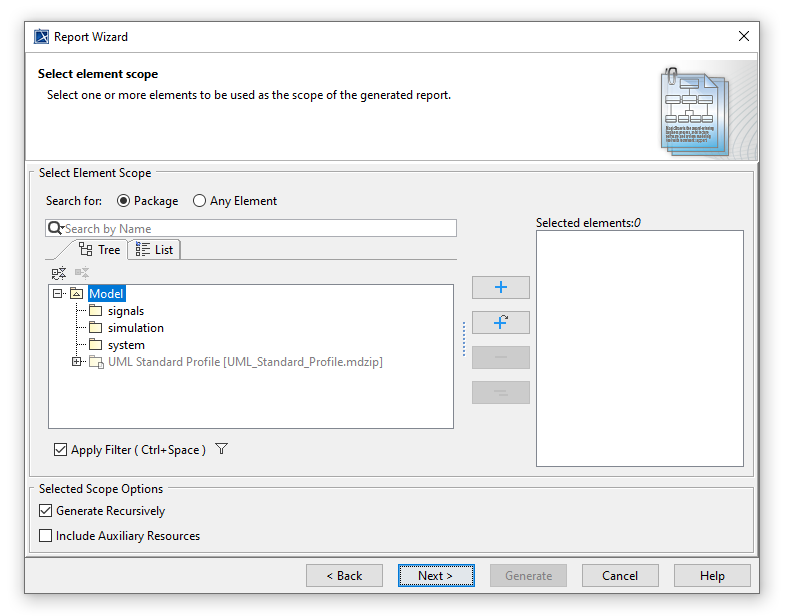
The Select Element Scope pane.
The table below describes the detail of each component in the Select Element Scope pane.
| Component | Name description |
|---|---|
| Select Element Scope pane | A group for selecting an element scope. |
| Search for scope | Select Package for listing only Package elements in the tree. Select Any Element for listing any element in the tree. |
| Apply Filter option | Select to apply the filter to the tree. |
| Filter button | Select the filter options: Hide Uncommon Elements and Exclude Auxiliary Resources. |
| Add the selected element in the tree. |
| Recursively add the selected elements in the tree. |
| Remove the selected scope element from the list. |
| Remove all scope elements from the list. |
Selected elements pane | List added element(s) in the tree. |
| Selected Scope Options |
|
You can perform the following operations in the Select Element Scope pane:
- Add packages into the Selected elements list.
- Remove packages from the Selected elements list.
- Select or clear the Generate Recursively option.
- Include auxiliary resources.
- Show and search for package elements.
To add packages
- In the Select Element Scope pane (see the figure above), select the packages from the tree and click Add
 or Add Recursively
 to add them into the Selected elements list.
- In the Select Element Scope pane (see the figure above), select the packages from the tree and click Add
To remove packages
- In the Select Element Scope pane (see figure above), select the packages from the tree and click Remove
 or Remove All
  to remove them from the Selected elements list.
- In the Select Element Scope pane (see figure above), select the packages from the tree and click Remove
To select or clear the Generate Recursively option
- Select or clear the Generate Recursively check box (see the figure above).
To include auxiliary resources
- Select the Include Auxiliary Resources check box and add auxiliary resources into the Selected elements list (see the figure above).
To show and search for package elements
- In the Search for scope, select the Package option and enter the search keyword in the search field (see the figure above).
- In the Search for scope, select the Package option and enter the search keyword in the search field (see the figure above).

Tip
The figure above shows the UML 2 Elements package and the Generate Recursively option are selected. It means that the UML 2 Elements package and its subpackages will be generated in the report.