You can specify the colors, line styles, or, alternatively, set an icon for the representation of your relationships in Dependency Matrices. To be able to do this, you need to access the Style dialog in the first place.
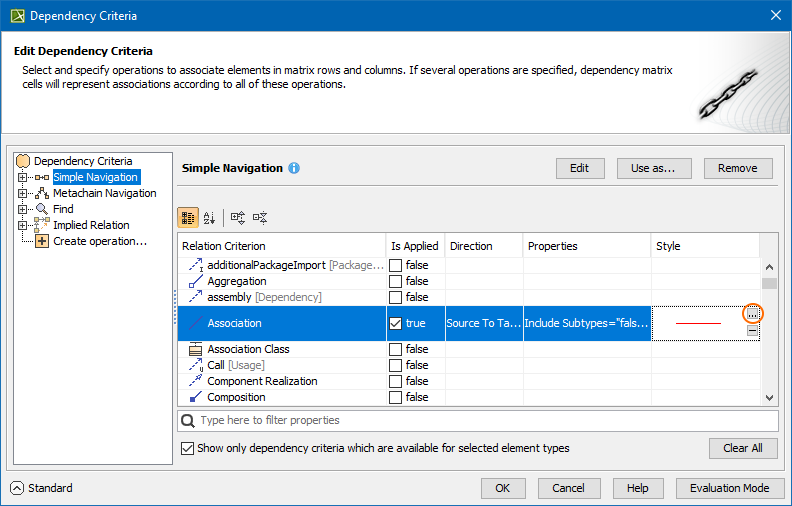
To open the Style dialog
- Open the Dependency Criteria dialog by
- double-clicking the Legend.
- clicking the
 button next to Dependency Criteria in the Criteria area.
- Open the Style dialog by clicking the button in the Style column of your selected relation criterion.
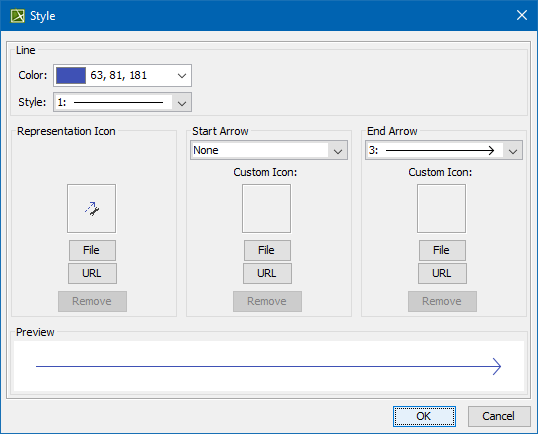
- In the Style dialog, customize Color, Style, Start Arrow, End Arrow or set Representation Icon (see the table below for more information).
- When you are done, click OK to close the dialog.
Style Options
| Color | Specify the line color. |
| Style | Specify the line style. |
| Start Arrow | Specify the arrowhead style. |
| End Arrow | Specify the arrow end style. |
| Representation Icon | Represent relationships using an icon. - File - upload the icon image from your file system.
- URL - add a path to the icon available on a shared location.
- Remove - remove the uploaded icon image or the specified URL.
|
Your selection is shown in the customized legend in the top-left corner or above the matrix. The legend is displayed by default in all new projects, but if you don't want to see it all the time, simply click the  button in the (2026x) Dependency Matrix toolbar and then click Legend Location > Do Not Display.
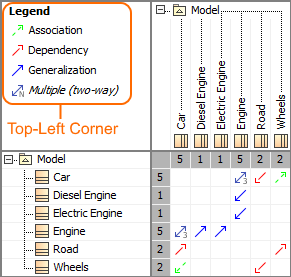
The legend shown in the top-left corner of the Dependency matrix.
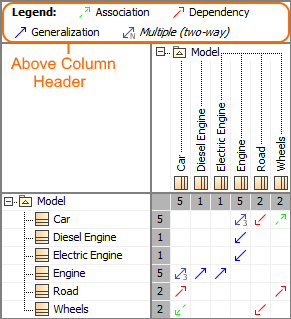
The legend shown above column header in the Dependency matrix.