To show the default documentation when creating a new project
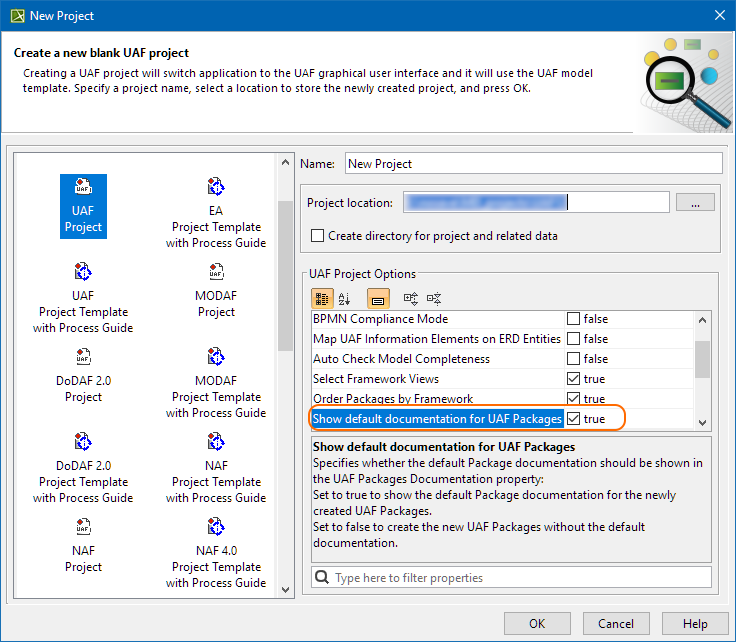
In the New Project dialog, choose the required project template.
In the UAF Project Options area, set the Show default documentation for UAF Packages option to true.
If you set the option to false, the new UAF Packages will be created without the default documentation.
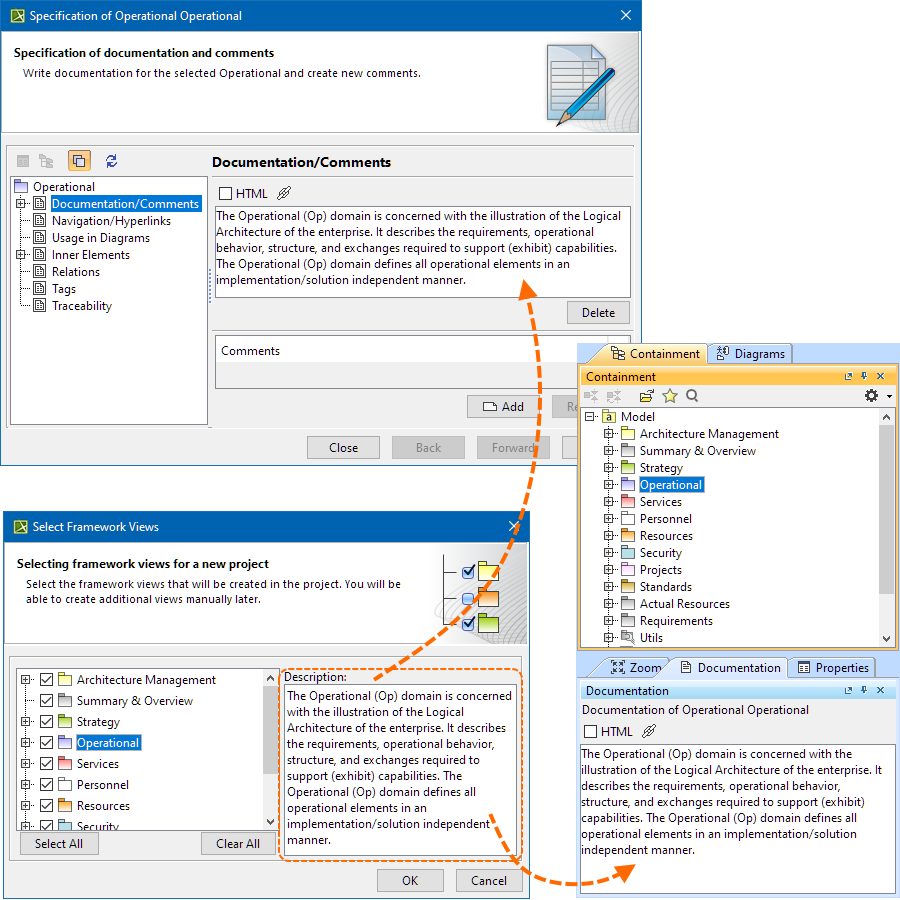
The default documentation is initially displayed in the Select Framework Views dialog, which is shown when creating a new project. You can choose to show the defaultdocumentation in:
The viewpoint package element's Specification window, Documentation/Comment property
The selected viewpoint package element's Documentation tab, which is located in the (2026x) Model Browser.
To show the default documentation for the existing projects
In the modeling tool main menu, click Option > Project. The Project Options dialog opens.
Go to General > UAF.
Find the Show default documentation for UAF Packages project option and set it to true (if it was set to false).
If you set the option to true, a message appears where you can choose if the default Package documentation will be shown for the existing UAF Packages. In the message:
Click Yes to show the default Documentation for existing UAF Packages if they have no custom documentation.
Click No to keep the existing UAF Packages documentation unchanged.
The “Show default documentation for UAF Packages” option will not affect read-only elements and elements locked by other users.
Turning the “Show default documentation for UAF Packages” option off will NOT affect the existing UAF Packages' documentation to prevent data loss.