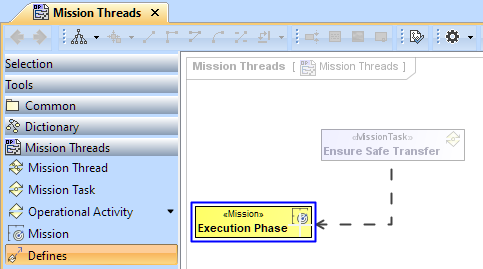
Working with Mission Threads diagram
The Mission Threads diagram describes the activities that are normally conducted in the course of achieving business goals that support a capability. It describes operational activities, their Inputs/Outputs, operational activity actions and flows between them.
Creating a diagram
To create a Mission Threads diagram
- In the Containment Tree, select the Operational Processes and do one of the following:
- From the selected package's shortcut menu, select Create Diagram > Mission Threads.
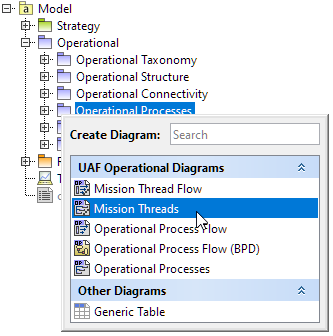
- In the modeling tool's main menu, click Create Diagram, search for Mission Threads, and select it.
- From the selected package's shortcut menu, select Create Diagram > Mission Threads.
- Name a diagram or leave it with the default name.
Creating an element
When the diagram is created, you can start creating the appropriate elements. An example is described using the Mission Thread element, but the same is valid for other elements.
To create a Mission Thread in a diagram
- In the diagram palette, click the Mission Thread and then click the appropriate place on the diagram pane.
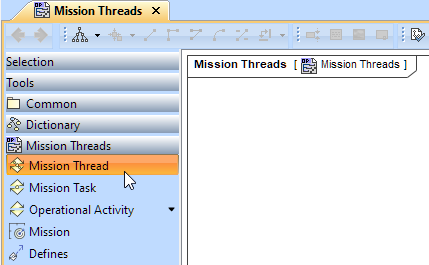
- Name the element.
To create a Mission Thread in a Containment tree
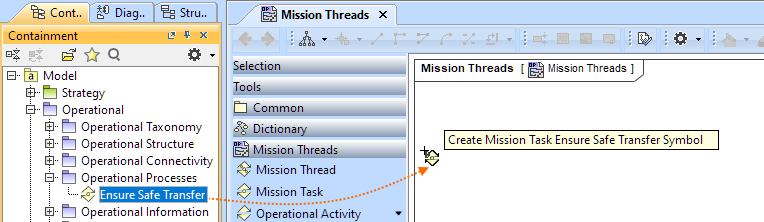
- In the Containment tree, right-click the Operational Processes package and from the shortcut menu, select Create Element. Search for the Mission Thread and select it.
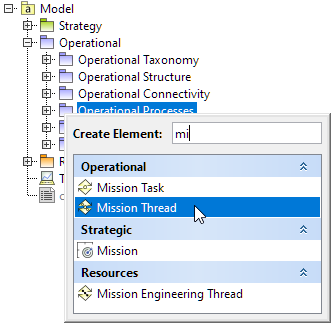
- Name the element.
- Drag the created element from the Containment tree to the diagram pane.
To create the elements from other resources (e.g. Word, Excel, HTML)
- Copy a list in your resource.
- In a diagram, press Ctrl+V and from the Paste Special dialog, choose Element.
- From the Select Type dialog, choose Mission Thread (or other appropriate element).

For more information about creating the elements from other resources, see (2026x) Creating elements from other resources.
Connect the Mission Thread
When you have the Mission Thread created, you can start connecting them using the Defines relationship.
To connect the elements with the Defines relationship
- Select an element from which the Implements will be drawn.
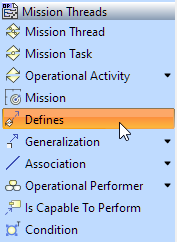
From the smart manipulator, which appears after you select the element, choose Defines.
You can also select the Defines relationship from the diagram palette.
- Move the mouse pointer over the target element and click to finish the action.