Attack Paths
On this page
Basic Concepts
Attack path
The path, interface, and actions by which an attacker executes an attack to achieve a threat scenario.
Attack Steps
Enumerate each step needed to perform the threat scenario.
Attack Feasibility Rating
An attribute of an attack path describes the ease of successfully carrying out the corresponding set of actions
Opening an Attack Paths window
To open an Attack Paths window
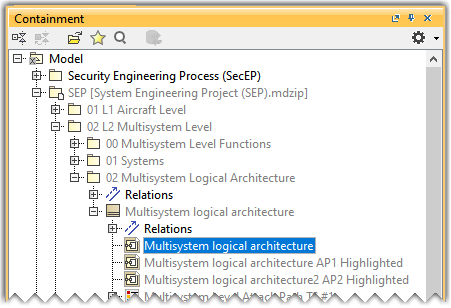
- In the Containment tree, open the Multisystem logical architecture IBD diagram present in the 02 L2 Multisystem Level package of the System Engineering Project(SEP).
- Click the Attack Path
 icon on the toolbar above the diagram pane to open the Attack Paths window.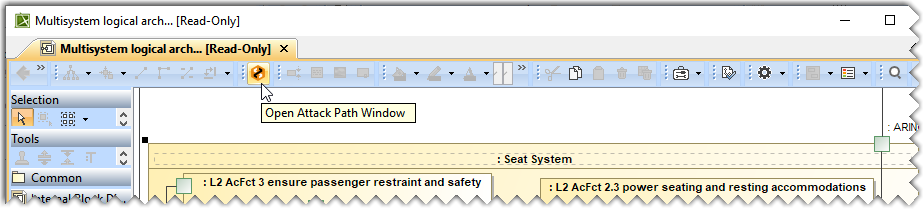
The Attack Paths window is displayed below the Containment tree window.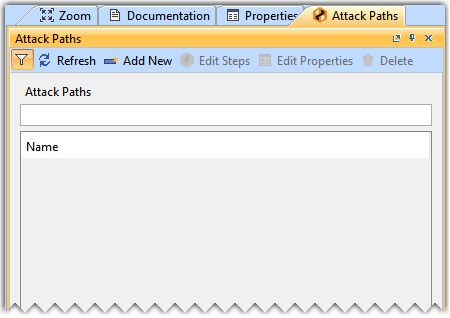

You can also open the Attack Paths window by clicking Window> Attack Path in the main menu.
Selecting an IBD diagram
To select an IBD diagram
- In the Attack Paths window, click the
 icon.
icon.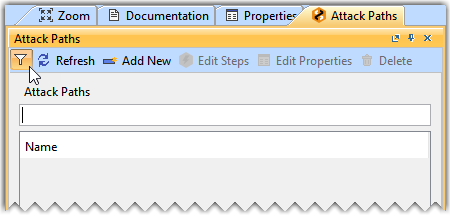
- In the Select Opened Diagram, select the required IBD diagram(s) and click OK.
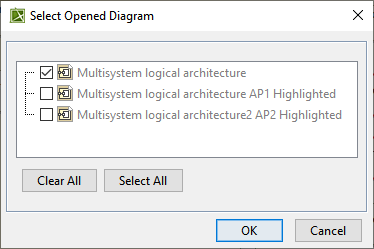
If you open the Attack Paths window using the diagram pane toolbar, the corresponding IBD diagram is selected by default in the Select Opened Diagram dialog.
Creating an Attack Path
To create an Attack Path
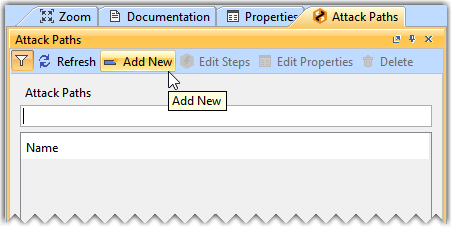
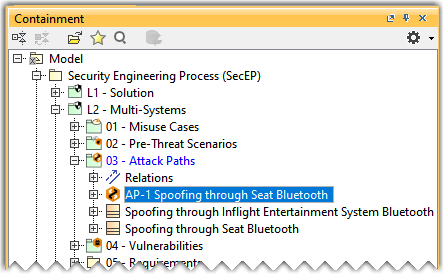
- Click Add New to create a new Attack Path element.
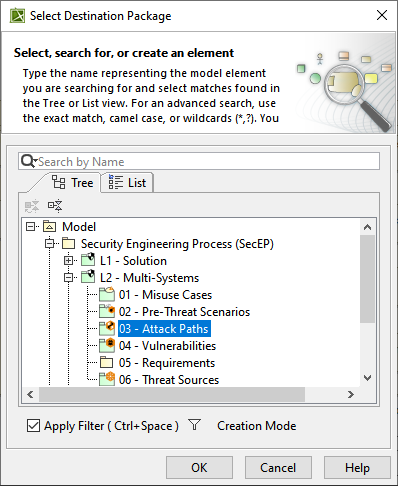
- In the Select Destination Package, select the 03 - Attack Paths package to save the newly created attack path.
- In the Containment tree, name the newly created attack path as Spoofing through Seat Bluetooth.
Deleting an Attack Path
To delete an Attack Path
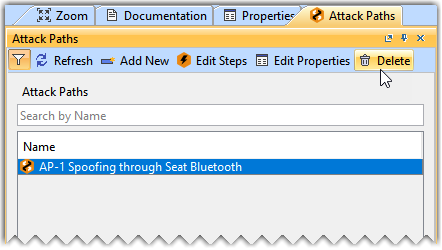
- In the Attack Paths window, select the required Attack Path and click Delete.
Adding Attack Path Steps to an Attack Path
To add Attack Path Steps to an Attack Path
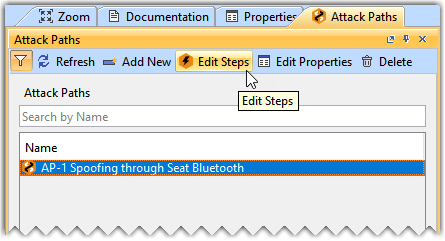
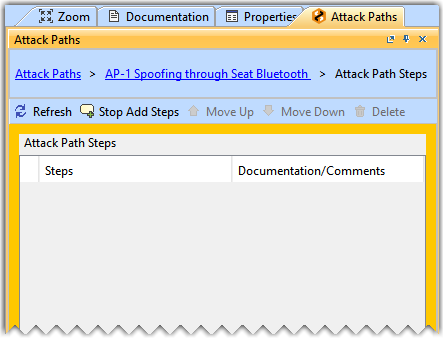
- In the Attack Path window, select the AP-1 Spoofing through Seat Bluetooth attack path and click Edit Steps.
- Click Add Steps.
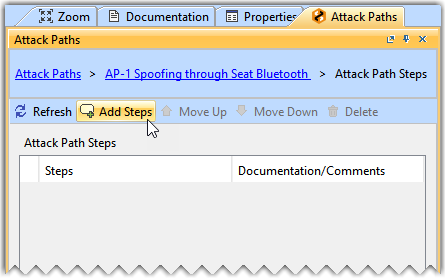
Once you click Add Steps, the entire Attack Paths window is highlighted in Orange.
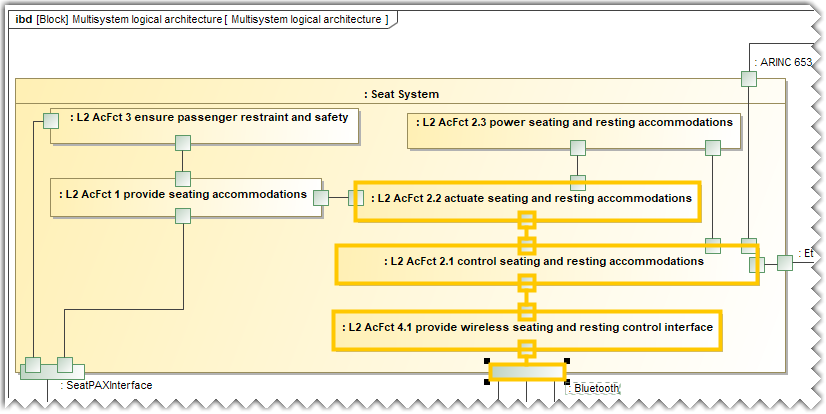
- Select the required elements in the Multisystem logical architecture IBD diagram.
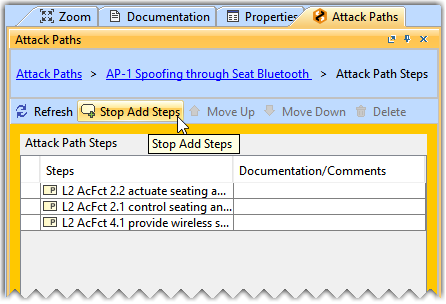
- Click Stop Steps.
- Click on the AP-1 Spoofing through Seat Bluetooth hyperlink at the top of the Attack Paths window to go back to the list of all Attack Paths.
Modifying the Attack Path Step of an Attack Path
To move an Attack Path Step
- In the Attack Path window, select the AP-1 Spoofing through Seat Bluetooth attack path and click Edit Steps.
- Select the required Attack Path Step and click Move Up or Move Down as needed.
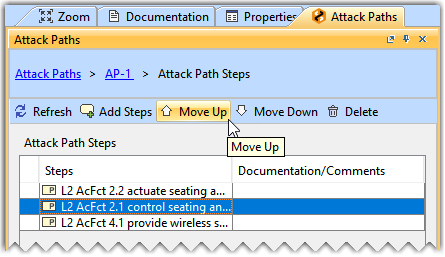
To delete an Attack Path Step
- In the Attack Path window, select the AP-1 Spoofing through Seat Bluetooth attack path and click Edit Steps.
- Select the required Attack Path Step and click Delete.
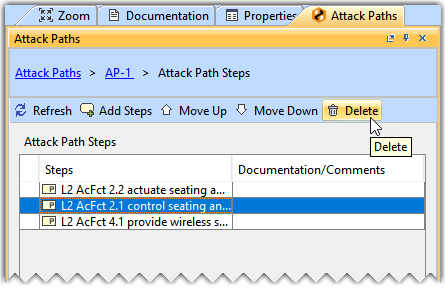

The Move Up, Move Down, and Delete buttons are only enabled when you select an Attack Path Step.
Selecting the Elapsed Time for an Attack Path
To select the Elapsed Time
- In the Attack Path window, select the AP-1 Spoofing through Seat Bluetooth attack path and click Edit Properties.
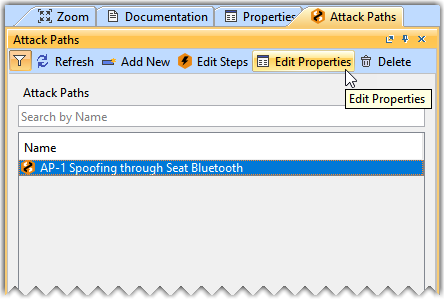
- From the list of Standard properties, select the Elapsed Time's value cell and from the drop-down list select the required value.
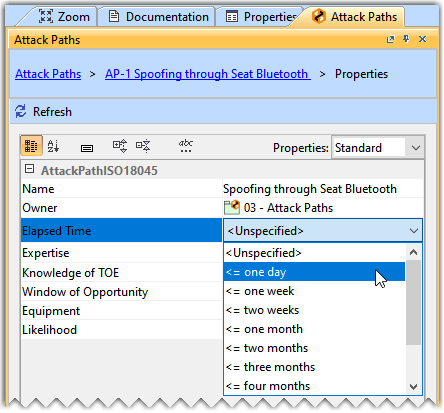
- Click on the AP-1 Spoofing through Seat Bluetooth hyperlink at the top of the Attack Paths window to go back to the list of all Attack Paths.
Similarly, you can define the values for other Standard properties, including Expertise, Knowledge of TOE, Window of Opportunity and Equipment.
The Likelihood is calculated with the help of standard properties of the attack path, such as Elapsed Time, Specialist Expertise, Knowledge of Item/Component, Window of Opportunity, and Equipment. Each property has a different grading system, which has a numerical value assigned to it. These numerical values are based on the ISO/IEC 18045 standard.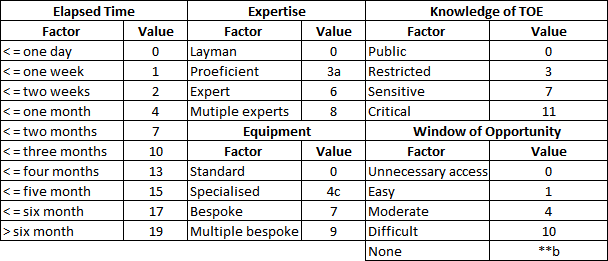
The numerical values are added together to calculate the Likelihood. The formula below is used to calculate the Likelihood.
- Likelihood = Elapsed Time + Expertise+ Knowledge of TOE+ Window of Opportunity+ Equipment
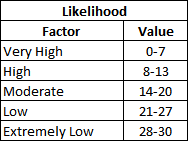
The following table shows the numerical values assigned to the Likelihood.