Pre Threat Scenario Table
On this page
Basic Concepts
Threat Scenario
The specification of intentional unauthorized electronic interaction, consisting of the contributing threat source (attacker and attack path), vulnerabilities, operational conditions, resulting threat conditions, and events by which the target was attacked.
Opening the Pre-Threat Scenario Table
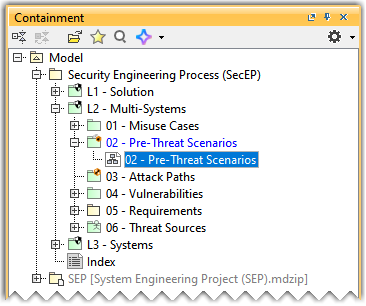
To open the Pre-Threat Scenario Table
- In the Containment tree, expand the 02 - Pre-Threat Scenarios package and open the 02 - Pre-Threat Scenarios table.
Adding a Threat Scenario
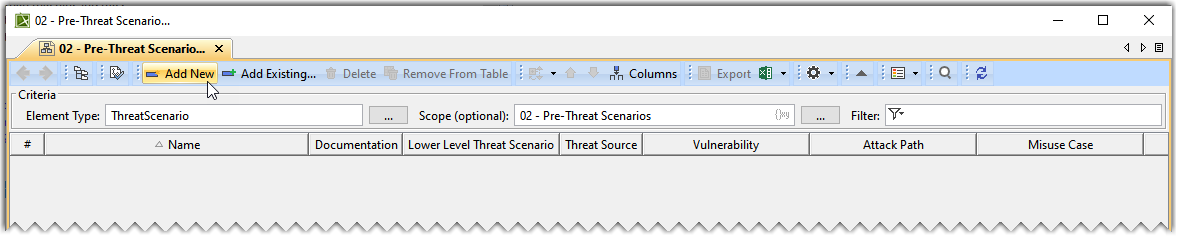
To add a new Threat Scenario to the Pre-Threat Scenario Table
- In the Pre-Threat Scenarios table, click Add New to add a new Threat Scenario.
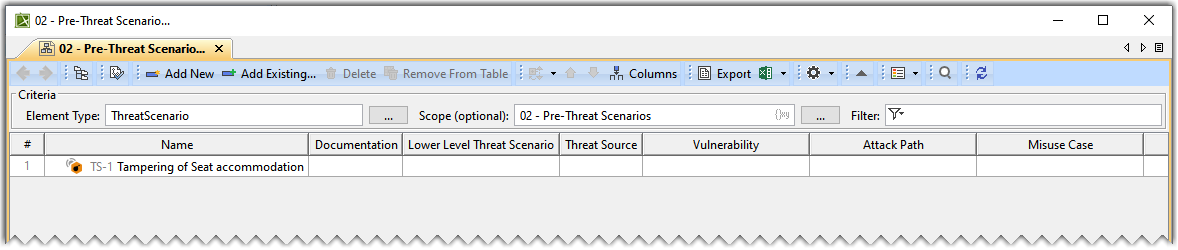
- In the newly created Threat Scenario's row and the Name column, double-click the designated cell to name the Threat Scenario.
To add an existing Threat Scenario to the Pre-Threat Scenario Table
- In the Pre-Threat Scenario Table, click Add Existing.

- From the Select Threat Scenario dialog, select the required Threat Scenario. A row is added to the Pre-Threat Scenario Table, showing the existing Threat Scenario.
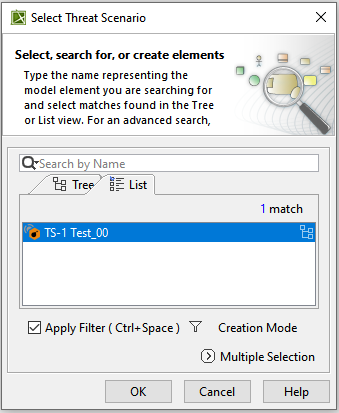
- In the existing Threat Scenario's row and the Name column, double-click the designated cell to rename the Threat Scenario.

Adding Documentation
To add documentation
- In the Threat Scenario's row and the Documentation column, double-click the designated cell and type the required data.
Adding Threat Source, Vulnerability, and Misuse Case
To add a Threat Source
- Double-click the designated cell in the Threat Source column and the required Threat Scenario's row and click
 .
.
- From the Select Elements dialog, select Threat Source and click OK.
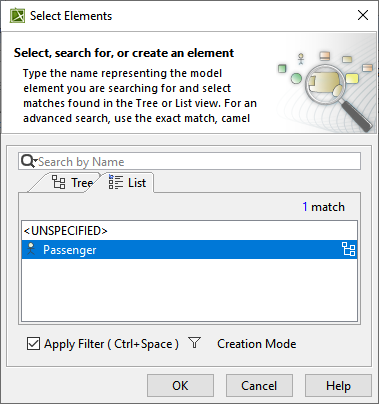
The Threat Source is added to the Pre-Threat Scenario Table.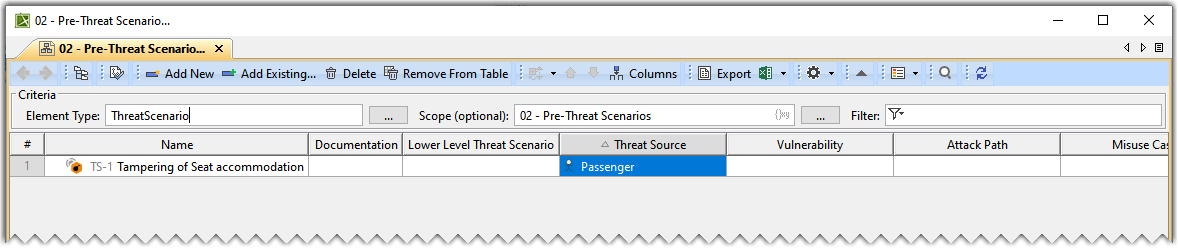
- Similarly, add the Vulnerability and Misuse Case to the Pre-Threat Scenario Table.
Adding a Threat Condition, Attack Path, and Requirement
To add a Threat Condition, Attack Path, and Requirement
- Double-click the designated cell in the Threat Condition column and the required Threat Scenario's row and click .
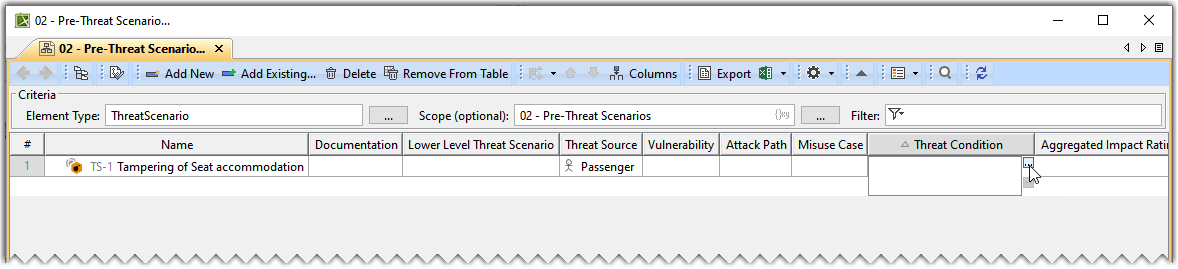
- From the Select Elements dialog, select one or more Threat Condition(s) and click OK.
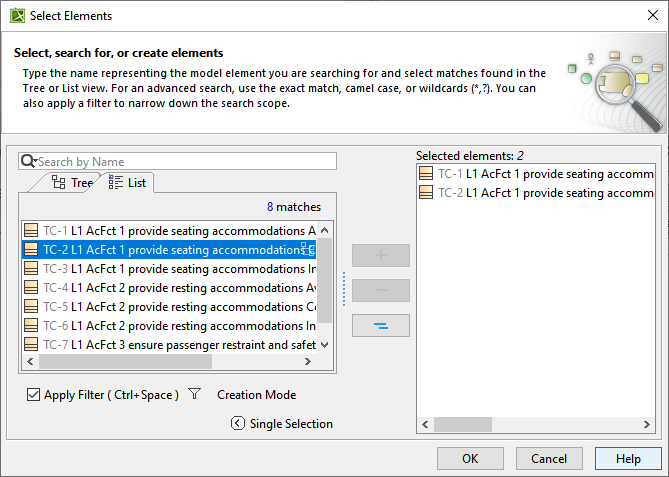
The Threat Condition(s) are added to the Pre-Threat Scenario Table.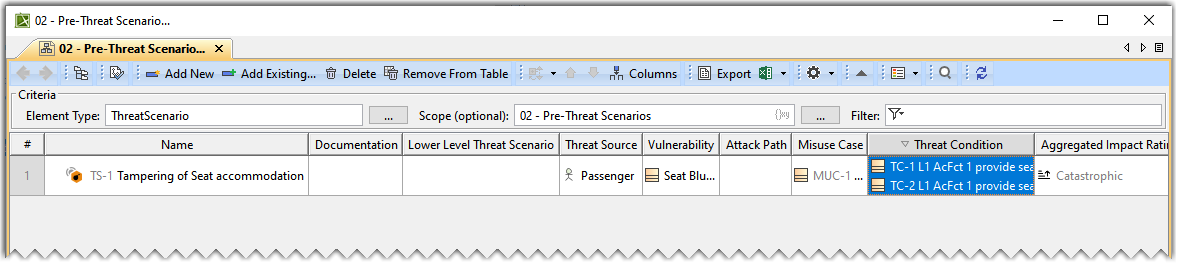
- Similarly, add the Attack Path and Requirement to the Pre-Threat Scenario Table.

The following table outlines the Severity of the Threat Condition Effect. The table represents the Acceptable, Negotiable and Unacceptable risk based upon the Level of Threat.
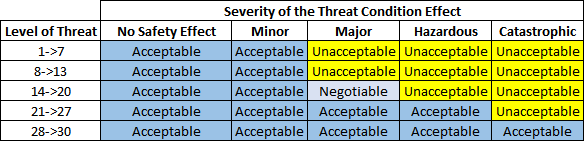
Adding a Lower Level Threat Scenario
To add a Lower Level Threat Scenario
- In the 02 - Pre Threat Scenarios package, right click a Threat Scenario and select Security>Add Lower Level Threat Scenario.
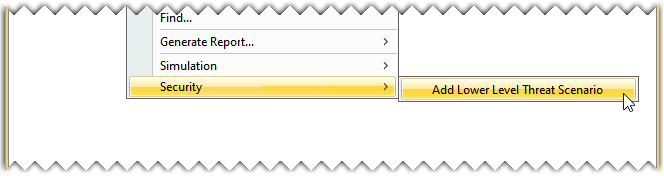
- From the Select Destination Package dialog, select the required package and click OK.
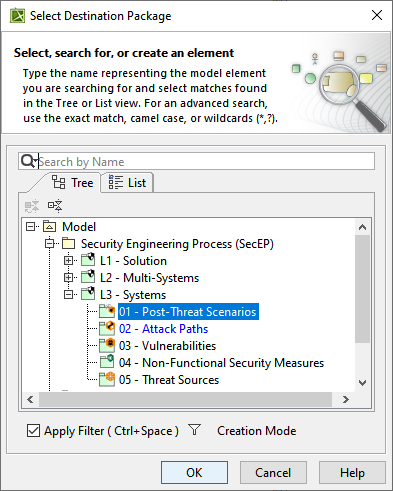
- Name the newly created Lower Level Threat Scenario under the 01 - Post Threat Scenarios package in the Containment tree.
- Refresh the Pre-Threat Scenario Table to view the newly added Lower Level Threat Scenario in the table.
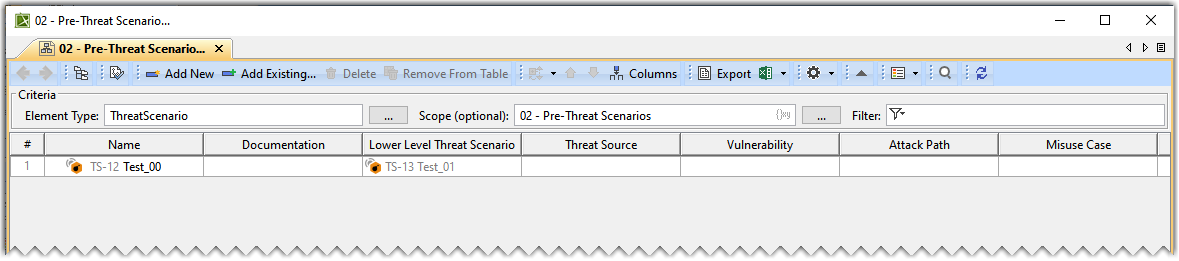
The Aggregated Impact Rating, Likelihood, and Risk values are calculated automatically based on the DO-326A standards.

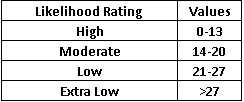
The numerical values are added together to calculate the Likelihood Rating. The formula below is used to calculate the Likelihood Rating.
- Likelihood Rating = Elapsed Time + Specialist Expertise+ Knowledge of Item/Component+ Window of Opportunity+ Equipment
The following table shows the numerical values assigned to the Likelihood.