Evaluating requirements and constraints
Using views is the quickest way to evaluate multiple requirements and constraints at once. When the evaluation is complete, the view shapes are highlighted with icons or colors to indicate if requirements and constraints are satisfied or not. Failing and passing values are highlighted as well. You can also use the Containment tree, SysML v2 Model Evaluation console, or a view to evaluate individual satisfy requirements and assert constraints.
Evaluating requirements and constraints in views
To evaluate requirements and constraints in views
- Open the view displaying the elements that have related requirements and constraints you want to evaluate.
- Click
 in the view toolbar.
- To evaluate a single element or it's attribute displayed in a view, select the element shape or an attribute in the shape compartment before completing this step.
- To evaluate an individual satisfy requirement or assert constraint, select the element shape before completing this step. The evaluation result is true or false.
The view shapes are highlighted, indicating whether related system requirements and constraints pass or fail.
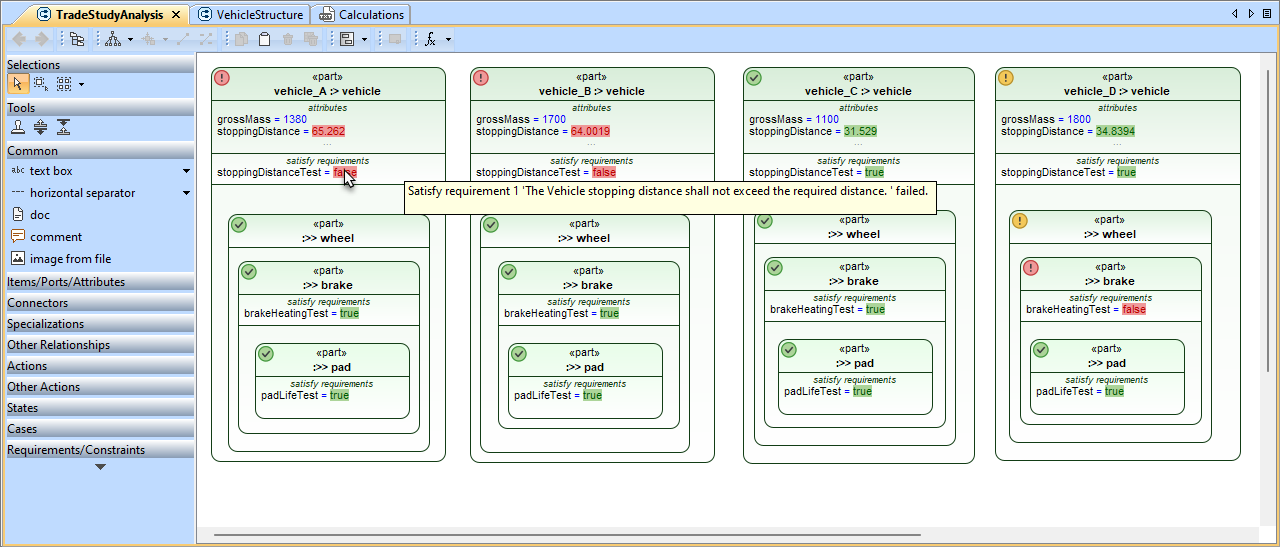
A view with requirement/constraint evaluation results.
Evaluation results in views
The following table explains the requirement and constraint evaluation results displayed on view shapes
| Annotation | Description | Tooltip |
|---|---|---|
OR A shape or its header is colored in green | The annotated elements satisfy related system requirements or constraints. | N/A |
OR A shape or its header is colored in yellow | The annotated elements indirectly fail related system requirements or constraints. This means that system requirements or constraints are failed by inner parts of the annotated element. | Hover over the icon to see which inner elements fail system requirements or constraints. |
OR A shape or its header is colored in red | The annotated elements fail related system requirements or constraints. | Hover over the icon to see which requirement or constraint failed. |
| The annotated values satisfy related system requirements or constraints. | N/A |
| The annotated values fail related system requirements or constraints. | Hover over the value to see the text of the failing requirement. |


Clearing evaluation results in views
To clear evaluation results in a view
- In the view toolbar, click an arrow next to and select Clear Values.
Customizing visual representation of evaluation results
You can customize how requirement and constraint verification results are displayed in views.
To customize visual representation of evaluation results in a view
- In the main menu, select Options > Project.
- In the Project Options dialog, select the Evaluation option group.
- Specify the following options:
- Display Verification Results As - Select Display Icons to add icons to shape headers. Select Paint Headers to color shapes or their headers.
- Propagate Deep Nested Failures - Set to true to indicate nested requirement and constraint failures. Set to false to only highlight the shapes of the elements that directly fail a requirement or constraint.
- Click OK to close the Project Options dialog.
Evaluating requirements and constraints via the Containment tree
To evaluate a requirement or constraint via the Containment tree
- In the Containment tree, right-click a satisfy requirement or an assert constraint and select Evaluate.
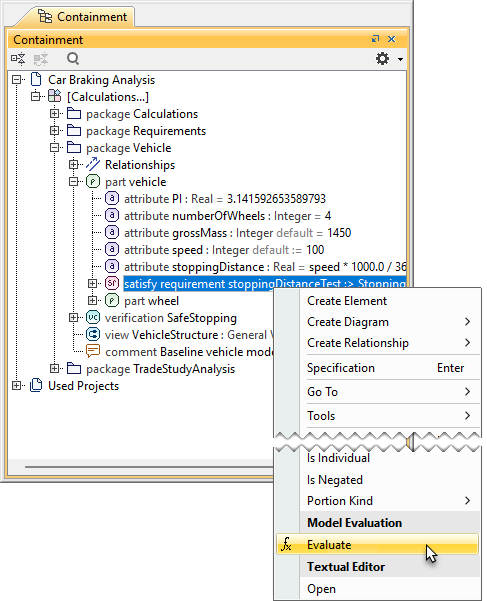
The evaluation result (true or false) is displayed in the SysML v2 Model Evaluation console.
Evaluating requirements and constraints via the SysML v2 Model Evaluation console
To evaluate a requirement or constraint via the SysML v2 Model Evaluation console
- Select Window > SysML v2 Model Evaluation to open the SysML v2 Model Evaluation console.
- In the input box of the console, type the qualified name of the satisfy requirement or assert constraint you want to evaluate and press Enter.

To save time, click
 in the toolbar of the SysML v2 Model Evaluation console to enable context selection in the Containment tree. When context selection is enabled, select the owner the element you want to evaluate and enter only the element's name to evaluate it.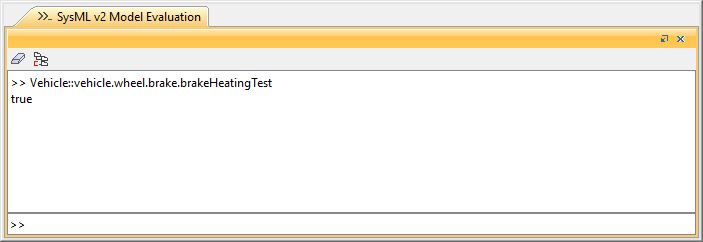
The evaluation result (true or false) is displayed in the SysML v2 Model Evaluation console.