Manipulating runtime values
Entering and modifying initial runtime values
You can use views to enter new and modify existing initial runtime values during evaluation. When an initial runtime value is changed or entered, all evaluation results are automatically recalculated and requirements are reverified.

During runtime, you can modify only initial values indicated by the ":=" sign, which means they are not bound and can be adjusted for evaluation purposes.
To enter or modify an initial runtime value
- Open a view and, in the view toolbar, click
 to evaluate it.
To evaluate only a specific element in a view, select the element shape (press and hold the Shift key to select multiple shapes), then click
. Only the selected elements will be reevaluated after changing an initial runtime value. - Select the shape of the element whose value you want to enter or change and type a new value. Editable attributes are indicated by the ":=" sign.
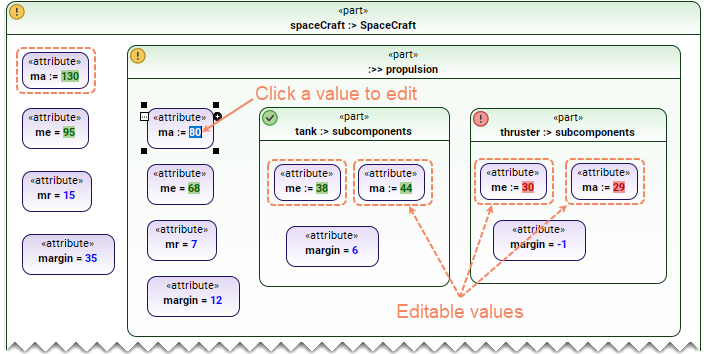
- Press Enter or click anywhere in the view to enter the change.
After an initial runtime value is entered or changed, all bound expressions and invocations are automatically recalculated. If an expression or invocation is an initial value, it is only calculated during the first evaluation and will not be recalculated afterwards.
attribute a := 1; //'a' is an initial value that can be changed during runtime.
attribute b = a * 2; //'b' is a bound expression calculated during the initial evaluation (equals 2) and recalculated each time 'a' is changed.
attribute c := b; //'c' is an initial expression calculated only during the initial evaluation (equals 2) and not recalculated at runtime (even if 'b' changes). However, 'c' can be changed during runtime.
Saving runtime values to the model
After using model views to enter or modify initial runtime values, you can save these values to the model as described below.
You can not use model views to save modified values of inherited attributes. Only directly owned or redefined attribute values can be saved to the model.
To save runtime values to the model
- In the view with new or modified runtime values, do one of the following:
- To save all modified values, click the arrow next to in the view toolbar and select Save Modified Values to Model.
If you have selected any attribute shapes with modified values in the view, only the selected values are saved.
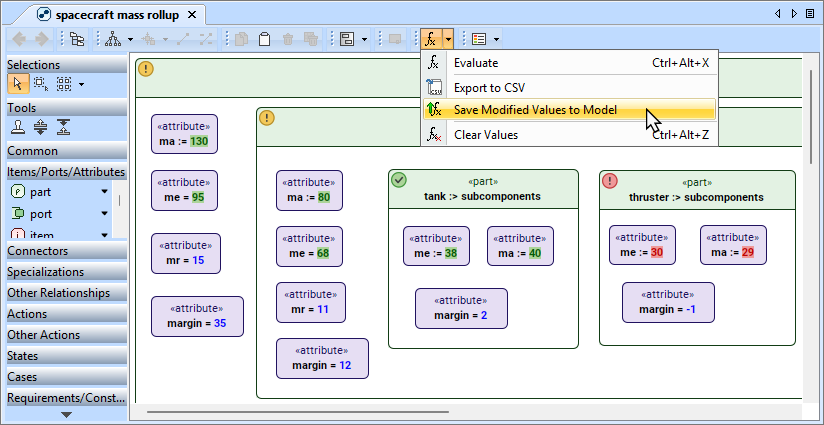
- To save the selected modified values, right-click the selected attribute shapes and select Save Modified Values to Model.
You can select multiple shapes by pressing and holding the Shift key.
- To save a single selected modified value, click
 in the smart manipulator of the selected attribute shape.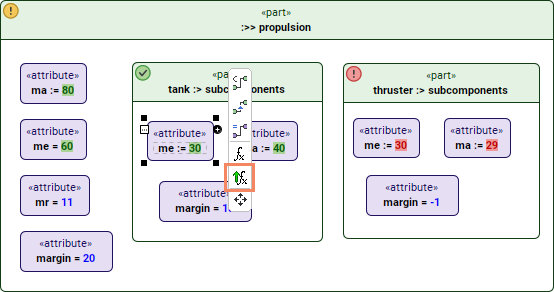
- To save all modified values, click the arrow next to
Recalculating bound values manually
When an initial runtime value is entered or changed during evaluation, all bound values are automatically recalculated, and requirements are reverified. However, this behavior can be changed by disabling the automatic bound value recalculation in the Project Options as described below.
To disable or enable bound value recalculation
- In the main menu, go to Options > Project.
- In the Project Options dialog, select Evaluation.
- On the right side of the dialog, set the Auto Recalculate Bound Values option to false or true (default) to disable or enable the automatic bound value recalculation.
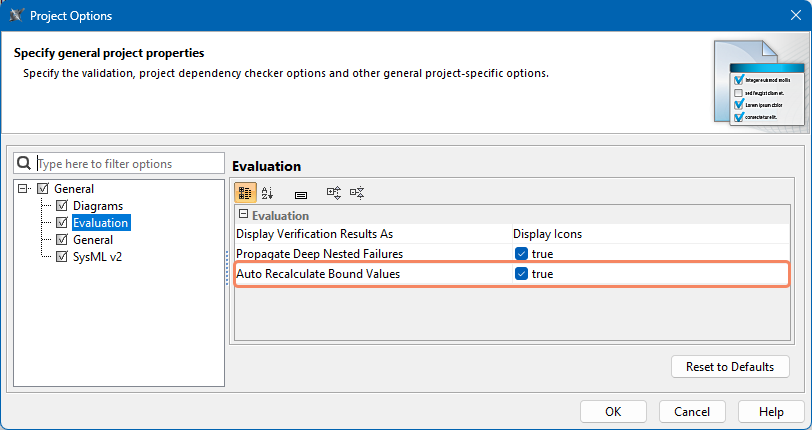
- Click OK to close the dialog.
To recalculate the evaluation results manually
- Do one of the following:
- In the view toolbar, click .
- In the view toolbar, click the arrow next to and select Refresh.
- Select any shape in the view and, in the smart manipulator, click .
- Right-click any shape in the view and select Evaluate.
- In the view toolbar, click
When invoking recalculation from a specific element shape, all of the evaluation results in the view are recalculated.