You can use REST API or Jupyter Notebook to open and modify an interactive HTML table that dynamically retrieves data based on the specified context, parameters, and/or expressions.
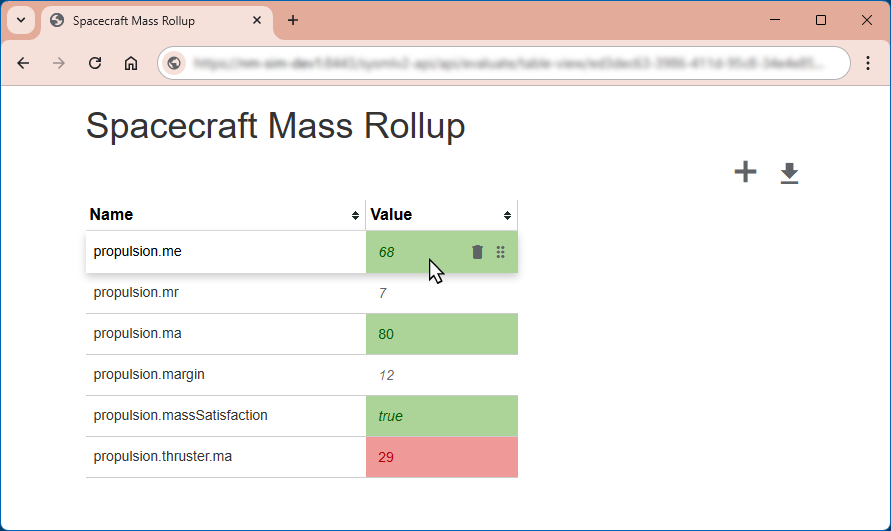
An interactive HTML table
Editing values
In an HTML table, you can edit initial values, as described below.
- Only initial values can be edited.
- Non-editable values are shown in italic font for easier identification.
To edit initial values
- Click the Value cell you want to edit.
- Change the value.
- Click anywhere on the table page to save the value.
Adding new rows
To add a new table row
- In the top right corner of the table page, click
 to add a new row at the bottom of the table.
 - Click the Name and Value cells of the new row and enter the desired property name and value.
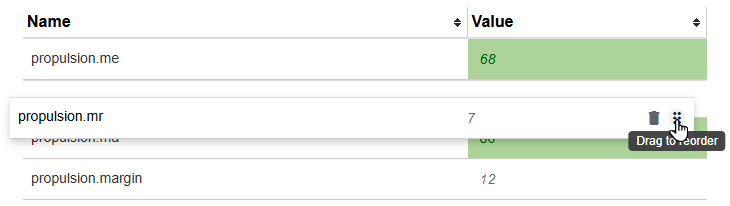
Reordering rows
To change the position of a table row
- Hover the mouse pointer over a table row to see available action icons.
- Click and hold
 .
. - Drag and drop the row to a new position.
Deleting rows
To delete a table row
- Hover the mouse pointer over a table row to see available action icons.
- Click
 to delete the row.
Exporting data
You can export HTML table data to the PNG, CSV, and JSON formats.
To export table data
- In the top right corner of the table page, click
 and select the format you want to export to.
