MATLAB 2023a and later versions have been tested for compatibility with SysML v2 projects. Support for older versions is not guaranteed.
You must use the 64-bit version of MATLAB so it will work with the 64-bit version of modeling tools.
If MATLAB was integrated before installing the SysML v2 Evaluation plugin, you must reintegrate it to ensure compatibility with SysML v2 projects.
On Windows, the application requires admin rights to complete the integration with MATLAB. If admin rights are not granted or available, you will not be able to use MATLAB with SysML v2 projects.
To integrate a modeling tool with MATLAB
In the main menu, select Tools > Integrations.
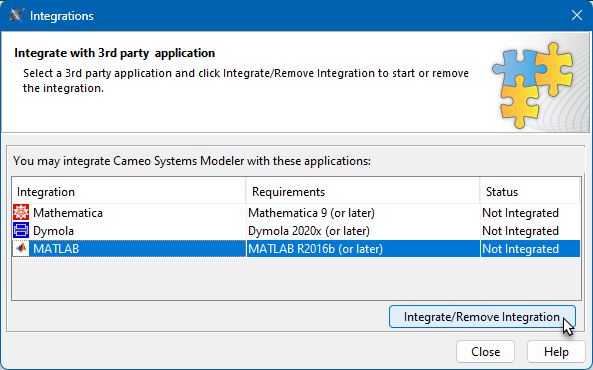
In the Integrations dialog, select MATLAB and click Integrate/Remove Integration.
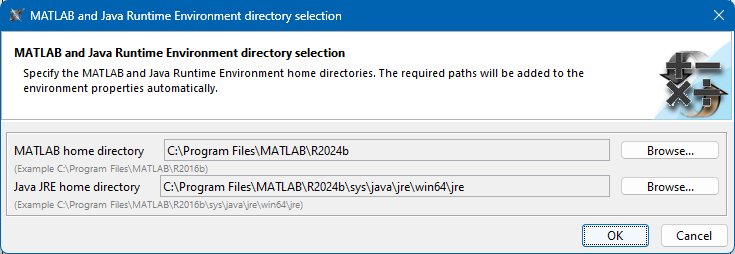
In the open dialog, specify the MATLAB home directory.
The JRE home directory is selected automatically.
Click OK.
If you use Windows, click Yes to grant the application admin rights. Otherwise, go to the next step.
When you get a message saying to restart the modeling tool, click OK and restart the modeling tool.