Dependency
A dependency is a kind of relationship between any number of client (source) and supplier (target) elements. This implies that a change to a supplier element may result in a change to a client element. Dependencies can be useful for representing relationships between elements in an abstract way. Dependencies can be binary, with one client and supplier, or n-ary, with one client and more than one supplier. The n-ary dependency is displayed as a dot symbol with segments consisting of dependency paths and client/supplier symbols.
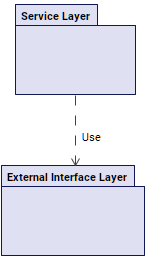
The image displays a Use dependency where the package Service Layer is the client (source) and Data Layer is the supplier (target). The supplier end of the dependency path is indicated with an arrowhead.
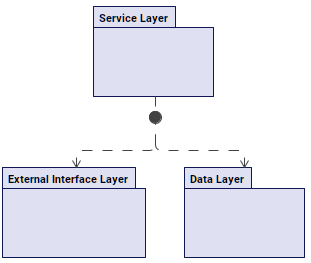
The image displays an unnamed n-ary dependency where the package Service Layer is the client (source). The packages Data Layer and External Interface Layer are the supplier (target). The supplier end of the dependency path is indicated with an arrowhead.

Dependency is deleted if client or supplier count in the dependency is reduced zero.
Creating dependencies
Creating dependencies via the Textual Editor
To create dependencies via the Textual Editor
- In the Textual Editor, place the cursor where you want to create the element and declare the dependency keyword.
- Specify the element name (optional), then the from keyword and the name of the client (source) element. Then follow with the keyword to and the name(s) of the supplier (target) element(s) listed in a comma-seperated list.
If the dependency has no name, the keyword from can be omitted.
- (Optional) Specify a body with any annotating elements owned by the dependency via annotation relationships.
- Click the Synchronize button.
package 'Data Layer';
package 'Service Layer';
package 'External Interface Layer';dependency from 'Service Layer' to 'External Interface Layer'; // unnamed dependency
dependency Use from 'Service Layer' to 'External Interface Layer'; // named dependency
dependency from 'Service Layer' to 'External Interface Layer', 'Data Layer'; // unnamed n-ary dependency (with more than one supplier (target))
dependency 'Service Layer' to 'Data Layer' { // unnamed dependency with a body
/* 'Service Layer' is the dependency client, 'Data Layer' is the supplier. */
}
Creating dependencies via the view palette
To create dependencies via the view palette
- In the view palette, under the Other Relationships group, click the dependency button.
- In the view pane, click on the client (source) and then on the supplier (target) to create a dependency path between them.
Creating dependencies via the Create Relationship command
To create dependencies via the Create Relationship command
- Right-click on the client (source) element.
- In the shortcut menu, click Create Relationship, then in the submenu, click Outgoing, and then in the submenu, click dependency. The Element Picker dialog opens.
- In the Element Picker dialog, do one of the following:
- In a view, click the element symbol you want to be the supplier (target). Hold Shift to select multiple elements.
- Click the Add
 button. The element selection dialog opens. In the element selection dialog, select the element you want to be the supplier (target) and click OK.
 - Drag and drop the needed element you want to be the supplier (target) from the Containment tree onto the Element Picker.
- In the Element Picker dialog, click OK.
Creating n-ary dependencies via the view
To create n-ary dependencies via the view
- Convert a binary dependency to a n-ary.
- Select the n-ary dot symbol and in its smart manipulator, do one of the following:
- Click the client command. Click on the element symbol you want to specify as the dependency's client. Repeat for all the needed elements.
- Click the supplier command. Click on the element symbol you want to specify as the dependency's supplier. Repeat for all the needed elements.
Converting binary and n-ary dependencies
Converting binary dependency to n-ary via the view
To convert binary dependency to n-ary via the view
- In the view pane, right-click the binary dependency you want to convert to an n-ary.
- In the shortcut menu, click Refactor, then Convert to N-ary Dot. The binary dependency is converted and the n-ary dot symbol is displayed.
Converting n-ary dependency to binary via the view
To convert n-ary dependency to binary via the view
- In the view pane, right-click the n-ary dot symbol of the dependency you want to convert to a binary.
- In the shortcut menu, click Refactor, then Convert to Path. The n-ary dependency dot symbol is converted and the binary path is displayed.
The Convert to Path command is only available if the dependency has one client and supplier.