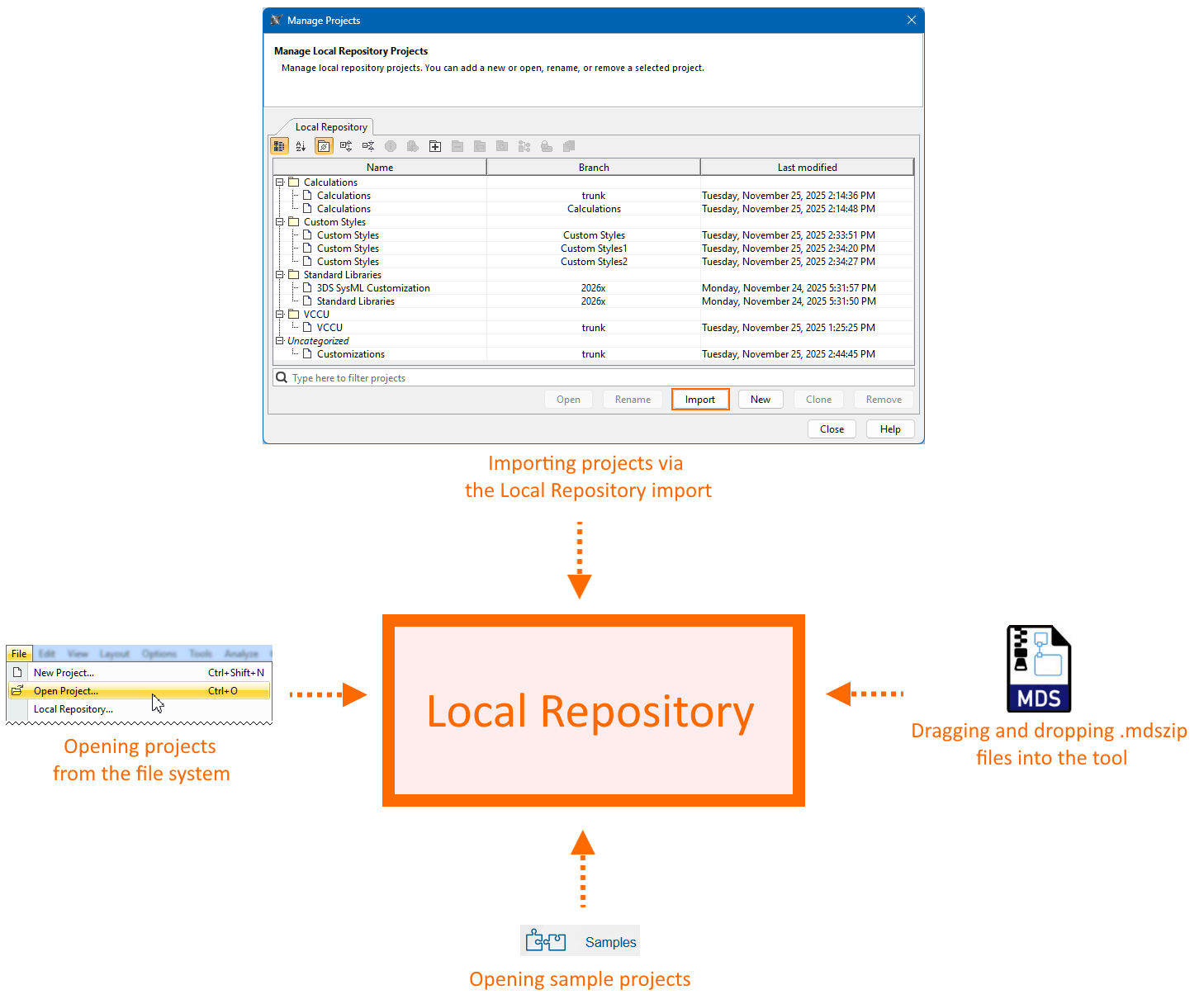
Local projects are managed via the local repository instead of working with individual files. The projects are stored in the local repository within the modeling tool’s configuration files. The local repository serves as a central storage for all your projects, their dependencies, and standard libraries. This makes it easier to keep track of your models, review your work, and smoothly transition between local and server projects. It also provides a more robust format for exchanging models in air-gapped environments between servers.

When you open a project from the file system, the tool first imports it into the local repository. After the import completes, the tool opens the project copy from the local repository, not the file in your file system. The tool handles sample projects in the same way. As a result, every project you create, open, or import is stored in the local repository, allowing you to view and modify it.

The projects can be saved in an .mdszip format, where a single file contains both the project and its used projects. This file is intended only for importing projects into your local repository or server. Once imported, all ongoing work is saved directly in the repository. You only need to export to a file again if you want to share your project or create a backup.

The Manage Projects dialog

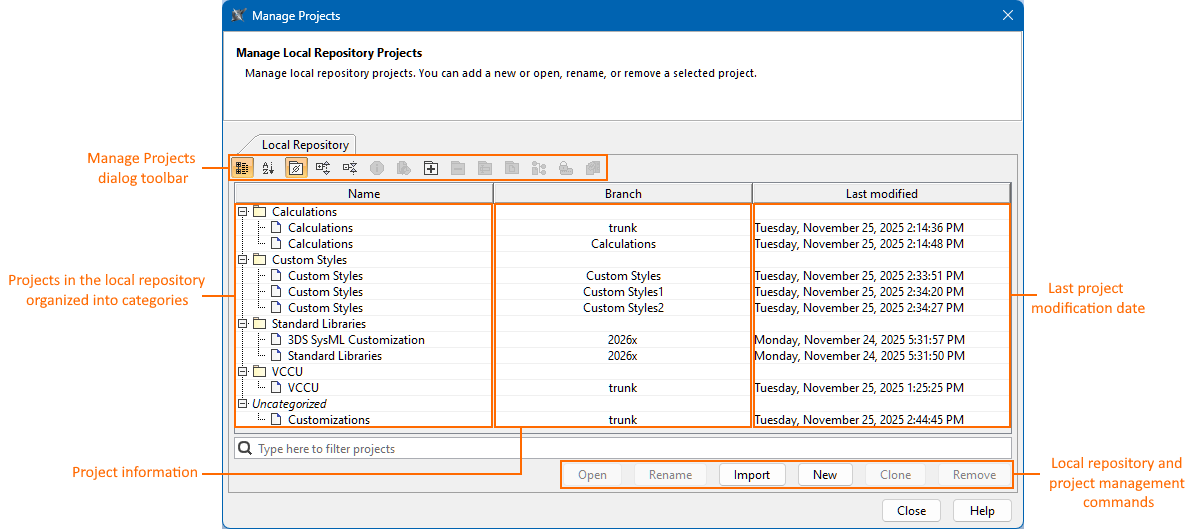
The Manage Project dialog allows you to manage projects in the local repository. It displays all the projects in the local repository and allows you to create, open, import, remove, rename, and categorize your projects.

  • The Name column in the Manage Projects dialog displays projects and project categories.
  • The Branches column displays the names of project and their imports.
  • The Last modified column displays the last project modification date and time.
Opening the Manage Projects dialog

To open the Manage Projects dialog


  • In the main menu, click File > Local Repository. The Manage Projects dialog opens.

Managing local projects 

Creating projects in the local repository

Create projects in the local repository to create your models.

To create projects in the local repository


  1. Open the Manage Projects dialog.
  2. In the dialog, click the New button. The New Project dialog opens.
  3. In the dialog, specify the project name and category, then click OK.

Opening projects from the local repository

Open projects from the local repository to view and modify them in the tool.

To open projects from the local repository


  1. Open the Manage Projects dialog.
  2. In the dialog, do one of the following:
    1. Select the needed project and click the Open button.
    2. Double-click the needed project.

Importing projects to the local repository

  • The project from the file system is first imported into the local repository, and then opened from there. Therefore, the project file you open and work on in the tool is the project copy in the local repository, not the file in your file system. 
  • Imported projects are displayed in the local repository using the following structure: <project_name> or <project_name<number>>.

To import projects to the local repository


Do one of the following:

  • Open the Manage Projects dialog. In the dialog, click the Import button. The Open dialog opens. Select the needed file from the file system and click OK.
  • In the main menu, click File > Open Project. In the Open dialog, select the project and click Open.
  • In the main toolbar, click the Open Project button.
  • On the keyboard, press Ctrl+O.
  • Drag the project from the open window of your file system to the modeling tool. The project opens.

Removing projects from the local repository

Removing the original project from the local repository removes all subsequent imports of the same project, and vice versa. Learn more in the Managing project imports in the local repository subsection.

To remove projects from the local repository


  1. Open the Manage Projects dialog.
  2. In the dialog, select the needed project and click the Remove button. In the dropdown menu, select Delete Draft or Delete Project
  3. The question dialog opens. Click the Delete button to confirm the removal of the project.

Renaming projects in the local repository

Renaming the original project in the local repository renames all of its subsequent imports, and vice versa. Learn more in the Managing project imports in the local repository subsection.

To rename projects in the local repository


  1. Open the Manage Projects dialog.
  2. In the dialog, select the needed project and click the Rename button. The Rename dialog opens.
  3. In the dialog, update the project name and click OK

Managing project imports in the local repository

Each originally created or imported project in the local repository may have multiple subsequent imports of the same project. For example, you might export a project from the local repository, share it with a colleague who makes changes while you continue working on the original, and then later import your colleague’s modified copy back into your local repository. In this case, the local repository will display both projects: the original and the subsequent import of the same project. You can modify both projects independently, and although they are displayed as separate projects, they are treated as distinct but still interdependent instances of the same project. 

  • The original project is the first instance of the project that exists in the local repository, which can be created in or imported into the local repository. 
    • If the original project was created in the local repository, it is displayed as trunk
    • If the original project was imported into the local repository, it is displayed as <imported_file_name>.
  • Subsequent imports of the same project are any later instances of the project that are imported into the local repository.
    • Subsequent imports of the same project originate only by importing a project into the local repository. They are displayed as: <imported_file_name>.
      • If there already is an import with the same name, a number is added: <imported_file_name<number>>.
  • Renaming the original project in the local repository renames all of its subsequent imports, and vice versa.
  • Removing the original project from the local repository removes all subsequent imports of the same project, and vice versa.
  • Moving the original project to another project category in the local repository moves all of its subsequent imports, and vice versa.

You can view the project details in the Manage Projects dialog.

Saving local projects

There are three ways to save a local project:

  • As a draft. Recommended for ongoing work. Uses less disk space than saving as a new version in the local repository.

  • As a new version. Saves the project's new version in the local repository. This option is required if you want to export the project to a file or to create a reusable baseline for other projects. Note that it consumes more disk space than saving as a draft.

  • As an exported file. Exports the project as an .mdszip file, which can be stored anywhere on your file system and shared with colleagues.

Use Change Sets to track project modifications. The latest changes are compared against the most recent project version saved in the local repository.

  • The panel legend explains the modification markings.
  • Click the Refresh icon to update the display.

Saving projects as drafts in the local repository

To save projects as drafts in the local repository


  1. Do one of the following:
    1. In the main menu, click File > Save Project.
    2. On the keyboard, press Ctrl+S. 
    3. In the main toolbar, click the Save Project button.
      Projects saved as drafts are displayed with the asterisk symbol on the project icon in the local repository.

Saving projects as new versions in the local repository

To save projects as new versions in the local repository


  1. Do one of the following:
    1. In the main menu, click File > Save As New Version.
    2. On the keyboard, press Ctrl+K.
      The question dialog opens. 
  2. In the dialog, click the Save As New Version button to confirm. The Save As New Version dialog opens.
  3. In the dialog, specify a comment (optional) and click Save.

Exporting projects from the local repository as .mdszip files

To export projects from the local repository as .mdszip files


  1. In the main menu, click File > Save Project As

    To export a project to a file, its new version must first be saved in the local repository. If it is not, clicking the Save As Project command opens the Save As New Version dialog. Click Save in the dialog to store the new version in the local repository and enable the project export to a file.

  2. The Save dialog opens. Select the file location in the file system and click Save.

Managing local project categories

Project categories in the local repository help you organize and structure your local projects, providing a more efficient project management experience. You can create, delete, rename, and move projects between them. Category management commands are available in the toolbar of the Manage Projects dialog and the shortcut menus of categories and projects.

The Standard Libraries category is pre-populated with the SysML v2 standard libraries required for modeling. It is created automatically when the SysML v2 Plugin is first launched and cannot be edited or deleted.

The project categories are highlighted in the image.  

Creating new project categories in the local repository

To create new project categories in the local repository


  1. Open the Manage Projects dialog and do one of the following:
    1. In the dialog's toolbar, click the Create Category button. The Create Category dialog opens.
    2. Right-click a category and in the shortcut menu, click the Create Category command. The Create Category dialog opens.
  2. In the dialog, specify the parent category and the name for the new category, then click OK.

Deleting project categories in the local repository

To delete project categories in the local repository


  1. Open the Manage Projects dialog and do one of the following:
    1. Select the needed category and in the dialog's toolbar, click the Delete Category button. The Delete Category question dialog opens. 
    2. Right-click a category and in the shortcut menu, click the Delete Category command. The Delete Category question dialog opens. 
  2. In the Delete Category dialog, click Yes to confirm the deletion.

Renaming project categories in the local repository

To rename project categories in the local repository


  1. Open the Manage Projects dialog and do one of the following: 
    1. Select the needed category and in the dialog's toolbar, click the Rename Category button. The Rename Category dialog opens.
    2. Right-click a category and in the shortcut menu, click the Rename Category command. The Rename Category dialog opens.
  2. In the Rename Category dialog, specify the new name and click OK.

Moving projects to other project categories in the local repository

Moving the original project to another project category in the local repository moves all of its subsequent imports, and vice versa. Learn more in the Managing project imports in the local repository subsection.

To move projects to other project categories in the local repository


  1. Open the Manage Projects dialog and do one of the following:
    1. Select the needed project and in the dialog's toolbar, click the Move To Category button. The Move To Category dialog opens.
    2. Right-click the project and in the shortcut menu, click the Move To Category command. The Move To Category dialog opens.
  2. In the Move To Category dialog, select the needed category and click OK.

Managing empty project categories in the local repository

To manage empty project categories in the local repository


  1. Open the Manage Projects dialog.
  2. In the dialog's toolbar, click the Show empty categories button to enable or disable the display of empty categories. 

Local repository information

Locally saved projects are stored in the local repository within the modeling tool’s configuration files. You can access this repository in your file system; however, the projects are saved in a format readable only by the modeling tool and should be opened only as described in the Opening projects from the local repository procedure.

To access the local depository within the modeling tool’s configuration files in your file system


  1. In the modeling tool's main menu, go to Help > About <modeling tool name>.
  2. In the Environment tab, click the file path next to Configuration Files. The opened repository contains the localRepository with the local projects (e.g., ...\AppData\Local\.<modeling tool name>\2026x\localRepository).

Some buttons in the Manage Projects dialog are either disabled or not recommended for usage (e.g., Clone, Version Properties, Project History, Edit Branches, Set Password, and Update from Local Project) as they will be removed in future releases.

2026x HotFix1 version

This documentation page is for the 2026x HotFix1 version of the SysML v2 Plugin. If you are working with the 2026x version, expand the section above. However, we highly advise upgrading to the 2026x HotFix1 version.

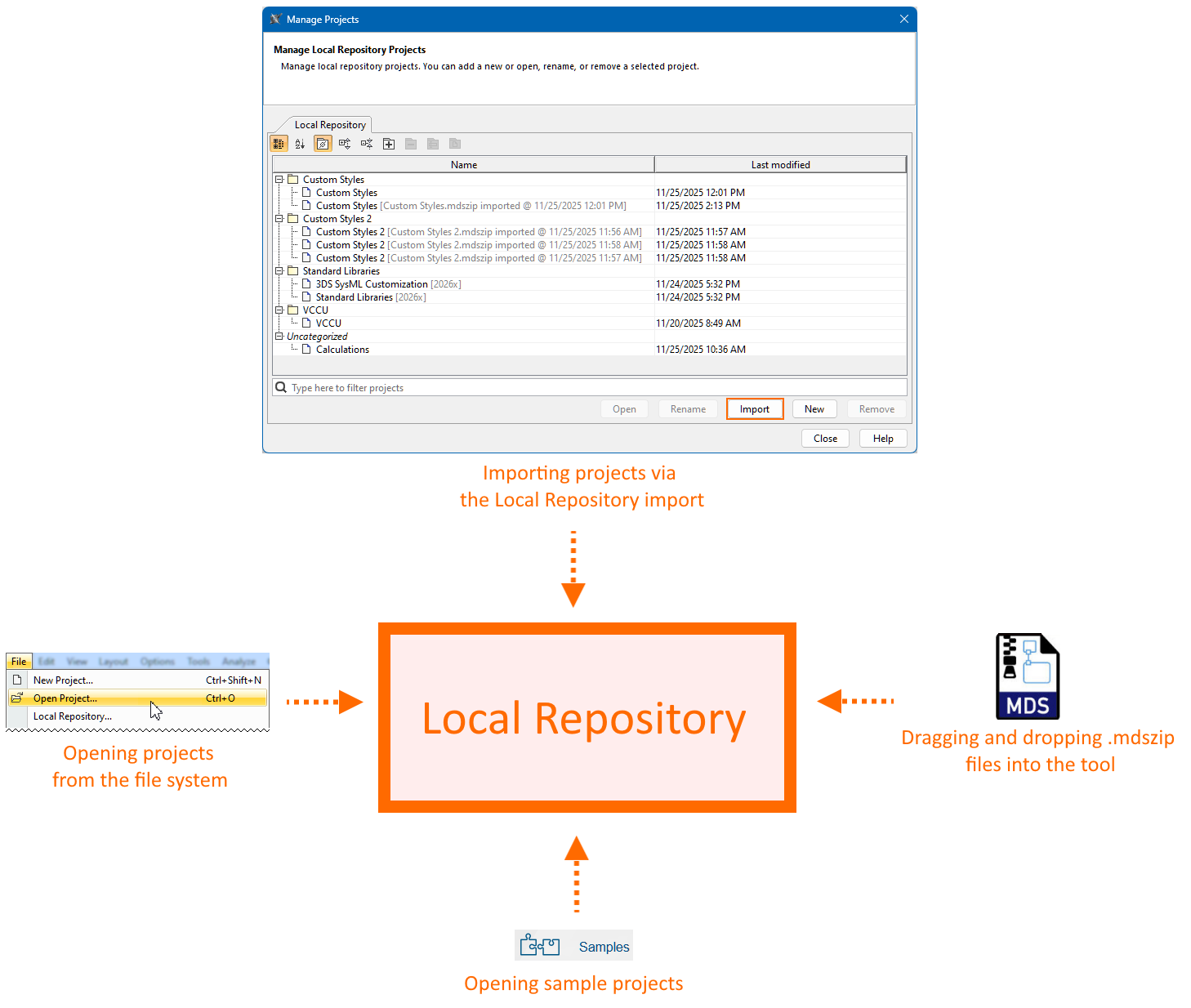
Local projects are managed via the local repository instead of working with individual files. The projects are stored in the local repository within the modeling tool’s configuration files. The local repository serves as a central storage for all your projects, their dependencies, and standard libraries. This makes it easier to keep track of your models, review your work, and smoothly transition between local and server projects. It also provides a more robust format for exchanging models in air-gapped environments between servers.

When you open a project from the file system, the tool first imports it into the local repository. After the import completes, the tool opens the project copy from the local repository, not the file in your file system. The tool handles sample projects in the same way. As a result, every project you create, open, or import is stored in the local repository, allowing you to view and modify it.

The projects can be saved in an .mdszip format, where a single file contains both the project and its used projects. This file is intended only for importing projects into your local repository or server. Once imported, all ongoing work is saved directly in the repository. You only need to export to a file again if you want to share your project or create a backup.


The Manage Projects dialog

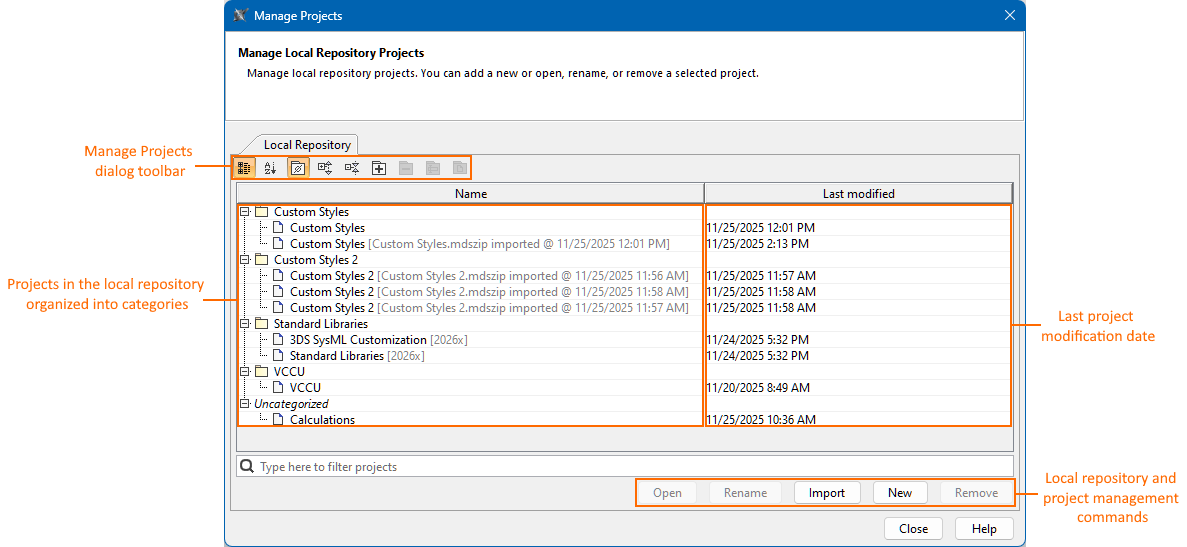
The Manage Project dialog allows you to manage projects in the local repository. It displays all the projects in the local repository and allows you to create, open, import, remove, rename, and categorize your projects.

  • The Name column in the Manage Projects dialog displays projects and project categories. Additionally, projects are displayed with the information about their imports.
  • The Last modified column displays the last project modification date and time.
Opening the Manage Projects dialog

To open the Manage Projects dialog


  • In the main menu, click File > Local Repository. The Manage Projects dialog opens.

Managing projects in the local repository

Creating projects in the local repository

Create projects in the local repository to create your models.

To create projects in the local repository


  1. Open the Manage Projects dialog.
  2. In the dialog, click the New button. The New Project dialog opens.
  3. In the dialog, specify the project name and category, then click OK.

Opening projects from the local repository

Open projects from the local repository to view and modify them in the tool.

To open projects from the local repository


  1. Open the Manage Projects dialog.
  2. In the dialog, do one of the following:
    1. Select the needed project and click the Open button.
    2. Double-click the needed projects.

Importing projects to the local repository

  • The project from the file system is first imported into the local repository, and then opened from there. Therefore, the project file you open and work on in the tool is the project copy in the local repository, not the file in your file system. 
  • Imported projects are displayed in the local repository using the following structure: [<file_name>.mdszip imported @<date and time of the import>].

To import projects to the local repository


Do one of the following:

  • Open the Manage Projects dialog. In the dialog, click the Import button. The Open dialog opens. Select the needed file from the file system and click OK.
  • In the main menu, click File > Open Project. In the Open dialog, select the project and click Open.
  • In the main toolbar, click the Open Project button.
  • On the keyboard, press Ctrl+O.
  • Drag the project from the open window of your file system to the modeling tool. The project opens.

Removing projects from the local repository

Removing the original project from the local repository removes all subsequent imports of the same project. Removing any subsequent import of the same project does not affect the original project. Learn more in the Managing project imports in the local repository subsection.

To remove projects from the local repository


  1. Open the Manage Projects dialog.
  2. In the dialog, select the needed project and click the Remove button. The question dialog opens. Click the Delete button to confirm the removal of the project.

Renaming projects in the local repository

Renaming the original project in the local repository renames all of its subsequent imports, and vice versa. Learn more in the Managing project imports in the local repository subsection.

To rename projects in the local repository


  1. Open the Manage Projects dialog.
  2. Select the needed project and click the Rename button. The Rename dialog opens.
  3. In the dialog, update the project name and click OK

Saving projects in the local repository

To save a local project in the local repository


Do one of the following:

  1. In the main menu, click File > Save Project.
  2. On the keyboard, press Ctrl+S. 
  3. In the main toolbar, click the Save Project button.

Use the Change Sets tab to track project modifications. The latest changes are compared against the latest project version saved in the local repository.

  • The panel legend explains the modification markings.
  • Click the Refresh icon to update the display.

Exporting projects from the local repository as .mdszip files

Export projects from the local repository as .mdszip files, which can be stored anywhere on your file system as a backup or shared with colleagues.

To export projects from the local repository as .mdszip files


  1. In the main menu, click File > Save Project As

    To export a project to a file, its changes must first be saved in the local repository. If it is not, clicking the Save As Project command opens a question dialog. Click Save in the dialog to save changes in the local repository and enable the project export to a file.

  2. The Save dialog opens. Select the file location in the file system and click Save.

Managing project imports in the local repository

Each originally created or imported project in the local repository may have multiple subsequent imports of the same project. For example, you might export a project from the local repository, share it with a colleague who makes changes while you continue working on the original, and then later import your colleague’s modified copy back into your local repository. In this case, the local repository will display both projects: the original and the subsequent import of the same project. You can modify both projects independently, and although they are displayed as separate projects, they are treated as distinct but still interdependent instances of the same project. 

  • The original project is the first instance of the project that exists in the local repository, which can be created in or imported into the local repository. 
    • If the original project was created in the local repository, it is displayed only by indicating the project name. 
    • If the original project was imported into the local repository, it is displayed using the following structure: [<file_name>.mdszip imported @<date and time of the import>].
  • Subsequent imports of the same project are any later instances of the project that are imported into the local repository.
    • Subsequent imports of the same project originate only by importing a project into the local repository. They are displayed using the following structure: [<file_name>.mdszip imported @<date and time of the import>].
  • Renaming the original project in the local repository renames all of its subsequent imports, and vice versa.
  • Removing the original project from the local repository removes all subsequent imports of the same project. Removing any subsequent import of the same project does not affect the original project.
  • Moving the original project to another project category in the local repository moves all of its subsequent imports, and vice versa.

You can view the project details in the Manage Projects dialog.

Managing project categories in the local repository

Project categories in the local repository help you organize and structure your local projects, providing a more efficient project management experience. You can create, delete, rename, and move projects between them. Category management commands are available in the toolbar of the Manage Projects dialog and the shortcut menus of categories and projects.

The Standard Libraries category is pre-populated with the SysML v2 standard libraries required for modeling. It is created automatically when the SysML v2 Plugin is first launched and cannot be edited or deleted.

The project categories are highlighted in the image. 

Creating new project categories in the local repository

To create new project categories in the local repository


  1. Open the Manage Projects dialog and do one of the following:
    1. In the dialog's toolbar, click the Create Category button. The Create Category dialog opens.
    2. Right-click a category and in the shortcut menu, click the Create Category command. The Create Category dialog opens.
  2. In the dialog, specify the parent category and the name for the new category, then click OK.

Deleting project categories in the local repository

To delete project categories in the local repository


  1. Open the Manage Projects dialog and do one of the following:
    1. Select the needed category and in the dialog's toolbar, click the Delete Category button. The Delete Category question dialog opens. 
    2. Right-click a category and in the shortcut menu, click the Delete Category command. The Delete Category question dialog opens. 
  2. In the Delete Category dialog, click Yes to confirm the deletion.

Renaming project categories in the local repository

To rename project categories in the local repository


  1. Open the Manage Projects dialog and do one of the following: 
    1. Select the needed category and in the dialog's toolbar, click the Rename Category button. The Rename Category dialog opens.
    2. Right-click a category and in the shortcut menu, click the Rename Category command. The Rename Category dialog opens.
  2. In the Rename Category dialog, specify the new name and click OK.

Moving projects to other project categories in the local repository

Moving the original project to another project category in the local repository moves all of its subsequent imports, and vice versa. Learn more in the Managing project imports in the local repository subsection.

To move projects to other project categories in the local repository


  1. Open the Manage Projects dialog and do one of the following:
    1. Select the needed project and in the dialog's toolbar, click the Move To Category button. The Move To Category dialog opens.
    2. Right-click the project and in the shortcut menu, click the Move To Category command. The Move To Category dialog opens.
  2. In the Move To Category dialog, select the needed category and click OK.

Managing empty project categories in the local repository

To manage empty project categories in the local repository


  1. Open the Manage Projects dialog.
  2. In the dialog's toolbar, click the Show empty categories button to enable or disable the display of empty categories. 

Local repository information

Locally saved projects are stored in the local repository within the modeling tool’s configuration files. You can access this repository in your file system; however, the projects are saved in a format readable only by the modeling tool and should be opened only as described in the Opening projects from the local repository procedure.

To access the local depository within the modeling tool’s configuration files in your file system


  1. In the modeling tool's main menu, go to Help > About <modeling tool name>.
  2. In the Environment tab, click the file path next to Configuration Files. The opened repository contains the localRepository with the local projects (e.g., ...\AppData\Local\.<modeling tool name>\<modeling tool version>\localRepository).