Satisfy requirement
Requirement satisfaction is modeled via the satisfy requirement usage element, which asserts that a requirement is satisfied when a given feature is bound to the subject parameter of the requirement. Other parameters or features of the requirement may also be bound in the body of the satisfy requirement usage. A satisfy requirement usage can also be negated. A negated satisfy requirement usage asserts that some entity does not satisfy the given requirement.
There are two ways a requirement can be satisfied by another element:
- by referencing the requirement usage defined elsewhere in the model.
- The element symbol is displayed with the satisfy keyword (unnamed element) or the satisfy requirement keyword (named element).
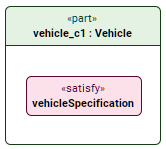
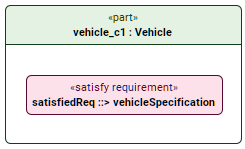
- See the procedures:
- The element symbol is displayed with the satisfy keyword (unnamed element) or the satisfy requirement keyword (named element).
- by containing an owned satisfy requirement usage, i.e., the satisfied requirement is the satisfy requirement usage itself.
- The element symbol is displayed with the satisfy requirement keyword.
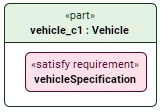
- See the procedures:
- The element symbol is displayed with the satisfy requirement keyword.
Satisfying a requirement by referencing a requirement usage defined elsewhere in the model
Satisfying requirements via the Textual Editor
To satisfy a requirement via the Textual Editor
- In the Textual Editor, place the cursor within the curly braces of the part element and do one of the following:
- For an unnamed satisfy requirement usage, declare the satisfy keyword followed by the name of the requirement the part satisfies.
- For a named satisfy requirement usage, declare the satisfy requirement keyword, specify the element name, then reference subset the requirement the part satisfies.

To negate a satisfy requirement usage, specify the not keyword before the satisfy keyword, e.g., not satisfy.
- (Optional) To specify a requirement with an explicit satisfying feature, state the by keyword and the name of the subject element that satisfies the requirement.
- Click the Synchronize button.
requirement vehicleSpecification {
subject vehicle : Vehicle;
actor environment : Environment;
requirement fullVehicleMassLimit : MassRequirement {
subject vehicle : Vehicle;
attribute :>> massRequired = 2000 [kilogram];
}
}// step 1.a - unnamed satisfy requirement usage with an implicit satisfying feature
part vehicle_c1 : Vehicle {
satisfy vehicleSpecification.fullVehicleMassLimit; // the satisfying feature is implicitly the part vehicle_c1
}// step 1.b - named satisfy requirement usage with an implicit satisfying feature
part vehicle_c1 : Vehicle {
satisfy requirement satisfiedReq ::> vehicleSpecification.fullVehicleMassLimit; // the satisfying feature is implicitly the part vehicle_c1
}// step 2 - unnamed satisfy requirement usage with an explicit satisfying feature
part vehicle : Vehicle {
part vehicle_c2 : Vehicle;
satisfy vehicleSpecification.fullVehicleMassLimit by vehicle_c2;
}// negated satisfy requirement usage
part vehicle_c1 : Vehicle {
not satisfy vehicleSpecification.fullVehicleMassLimit;
}
Satisfying requirements via the Drag and Drop handler in a view
To satisfy a requirement via the Drag and Drop handler in a view
- Drag and drop a requirement element from the Containment tree or use its symbol's Drag and Drop handler on a part element symbol that satisfies the requirement executing the Create Satisfy Requirement command.
Satisfying a requirement via the owned satisfy requirement usage itself as the satisfied requirement
Satisfying requirements via the Textual Editor
To satisfy a requirement via the Textual Editor
- In the Textual Editor, place the cursor within the curly braces of the part element and do one of the following:
- To specify a requirement without the satisfying feature, declare the satisfy requirement keyword followed by the qualified name of the requirement the part satisfies.
- To specify a requirement with the satisfying feature declare the satisfy requirement keyword followed by the qualified name of the satisfied requirement, then state the by keyword and the name of the subject element that satisfies the requirement.
To negate a satisfy requirement usage, specify the not keyword before the satisfy keyword, e.g., not satisfy.
- Click the Synchronize button.
part vehicle_c1 : Vehicle {
satisfy requirement vehicleSpecification; // satisfied requirement is the defined satisfy requirement usage itself contained by the parent part that is the implicit satisfying feature
}
Satisfying requirements via the Create Element command
To satisfy a requirement via the Create Element command
In the Containment tree, right-click an element, and in the shortcut menu, click Create Element.
- In the Create Element dialog, select satisfy requirement.
- Name the element.
- (Optional) Specify the satisfy requirement.
Satisfying requirements via the view palette
To satisfy a requirement via the view palette
- In the view palette, under the Requirements/Constraints group, click satisfy requirement.
- Click in the view pane where you want to create the element symbol.
- (Optional) Specify the satisfy requirement.