Specification window
The Specification window allows you to review all properties of the specific element.
The Specification window is comprised of two columns:
- The Property column displays the name of the property.
- The Value column displays the corresponding value of the property.
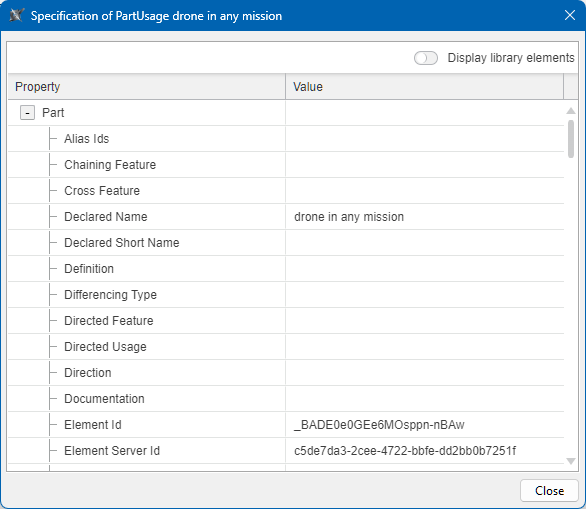 Example of a Specification window for a drone in any mission part.
Opening the Specification window
To open the Specification window
- Open the Specification panel.
- In the Navigation bar of the Specification panel, click the All Properties
 button. The Specification window opens.
Sorting element properties alphabetically
To sort element properties alphabetically
- In the Specification window, click the Property column header. The Sorting icon is displayed in the header indicating the current sorting order.

Sorting order types
 indicates that properties are sorted alphabetically in ascending order. This is the default mode.
 indicates that properties are sorted alphabetically in descending order.
 - Click the Property column header to change the sorting order.
Filtering element properties and values
The Specification window filter allows you to filter element properties and values, allowing you to locate and display specific properties and their values in the Specification window.
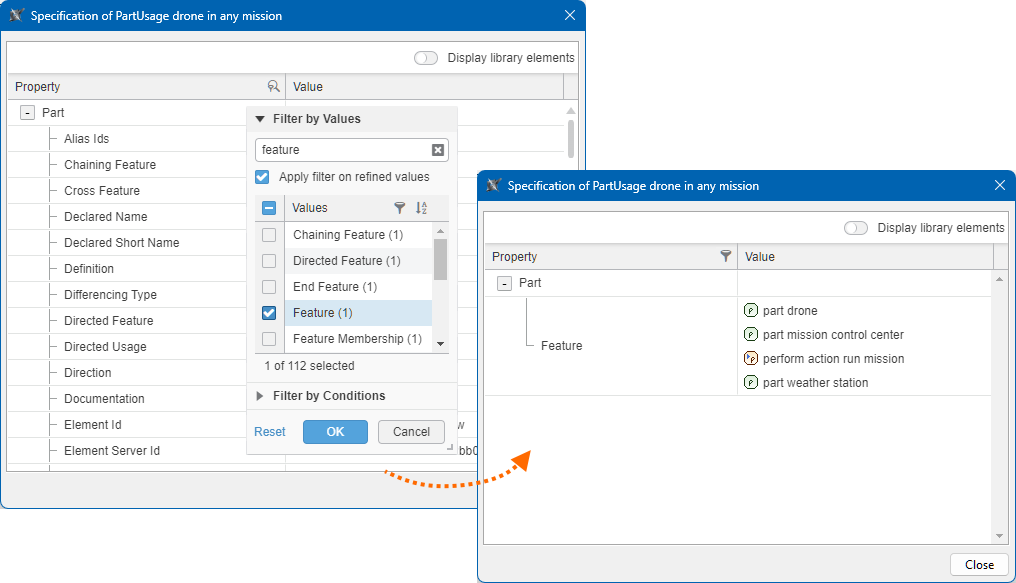
Filtering element properties
To filter element properties
- In the Specification window, right-click the Property column header and click Filter Column in the shortcut menu.
- Do one of the following:
- Expand the Filter by Values section. Do one of the following:
- In the Values column, select the check boxes for the properties you want to display in the Specification window.
- Type the property name in the input field to narrow the search, select the Apply filter on refined values check box, and select the check boxes for the properties you want to display in the Specification window.
- Expand the Filter by Conditions section.
- Select the condition from the dropdown menu and type the keyword for the property you are looking for in the input field.
- Expand the Filter by Values section. Do one of the following:
- Click OK.
Filtering element property values
To filter element property values
- In the Specification window, right-click the Value column header and click Filter Column in the shortcut menu.
- Do one of the following:
- Expand the Filter by Values section. Do one of the following:
- In the Values column, select the check boxes for the property values you want to display in the Specification window.
- Type the property value in the input field to narrow the search, select the Apply filter on refined values check box, and select the check boxes for the property values you want to display in the Specification window.
- Expand the Filter by Conditions section.
- Select the condition from the dropdown menu and type the keyword for the property value you are looking for in the input field.
- Expand the Filter by Values section. Do one of the following:
- Click OK.
Resetting the filter
To reset the filter
- Right-click the column header with the applied filter.
- In the shortcut menu, do one of the following:
- Click Reset Column Filter.
- Click Filter Column, then Reset. Click OK.
Modifying element properties via the Specification window
You can modify string, number, and boolean values for properties in the Specification window
To modify element properties via the Specification window
- Open the Specification window.
- Locate the property you want to modify.
- In the Value column, do one of the following:
- To modify a string or number value, click the cell and type the needed value.
- To modify a boolean value, select the check box to set the value to true or deselect it to set the value to false.
Read-only properties cannot be modified.
- Click Close.
Toggling library elements' visibility in the Specification Window
To toggle library elements' visibility in the Specification Window
- Open the Specification window.
- Toggle the Display library elements button at the top of the window.