Using Model Patch

Before creating a patch
Since model elements are usually related to and depend on other elements, you must include the necessary elements in the patch scope. The Model Patch mechanism does not automatically check dependencies or include them in the patch data.
To avoid data loss, do one of the following:
- Check if all the elements that the elements in a patch depend on are also included in the patch.
- Make sure that the target model already has the dependencies of the elements included in the patch.
Creating a model patch
To create a model patch
- Open the source project.
- In the Containment tree, right-click the element you want to include in the patch and select Tools > Create Patch.
 The element from which you initiate the Create Patch command is set as the patch scope. All the elements under the patch scope element are automatically included in the patch.
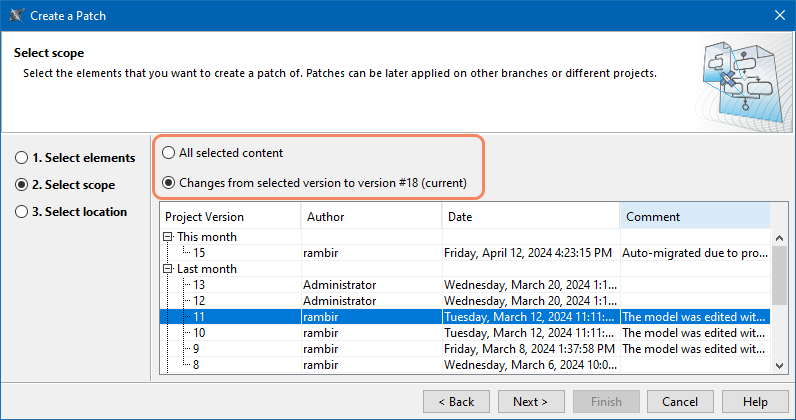
 - In the Create a Patch dialog, select the type of patch you want to create:
- All selected content - This type of patch brings all the selected scope to the target project potentially overriding existing elements.
- Changes from specific version. This type of patch adds the selected scope to the target project as concurrent changes. If you select this patch type, also select a project version. All changes from the selected version, subsequent versions, and the current project version will be included in the patch.
This patch type is only available for Teamwork Cloud projects.
- Click Next.
- Click
 and select the location where you want to save the patch file.
 - Click Save.
Applying model patch
To apply a model patch
- Open the target project.
- In the main menu, select Tools > Patch > Apply Patch.
- Select the patch file and click Open.
- In the Apply Patch window, review the changes that will be applied to the project.
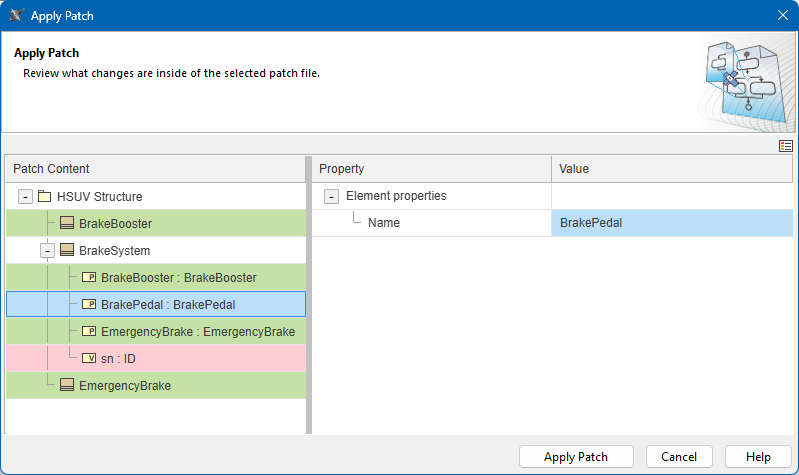
- Click the Apply Patch button.
- Investigate the results:
If you receive a massage that the patch is applied successfully, it means all changes from the patch were successfully applied.
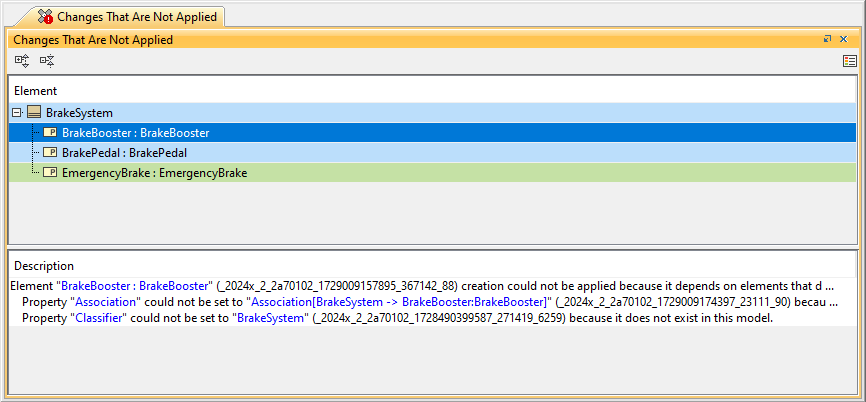
If you receive a warning that the patch has been applied, but some changes could not be applied, click OK and review the changes that were not applied in the open Changes That Are Not Applied pane.
In the Changes That Are Not Applied pane, select each change and read the description explaining the reason of the issue. To avoid such issues, remember to check element dependencies before creating a model patch.