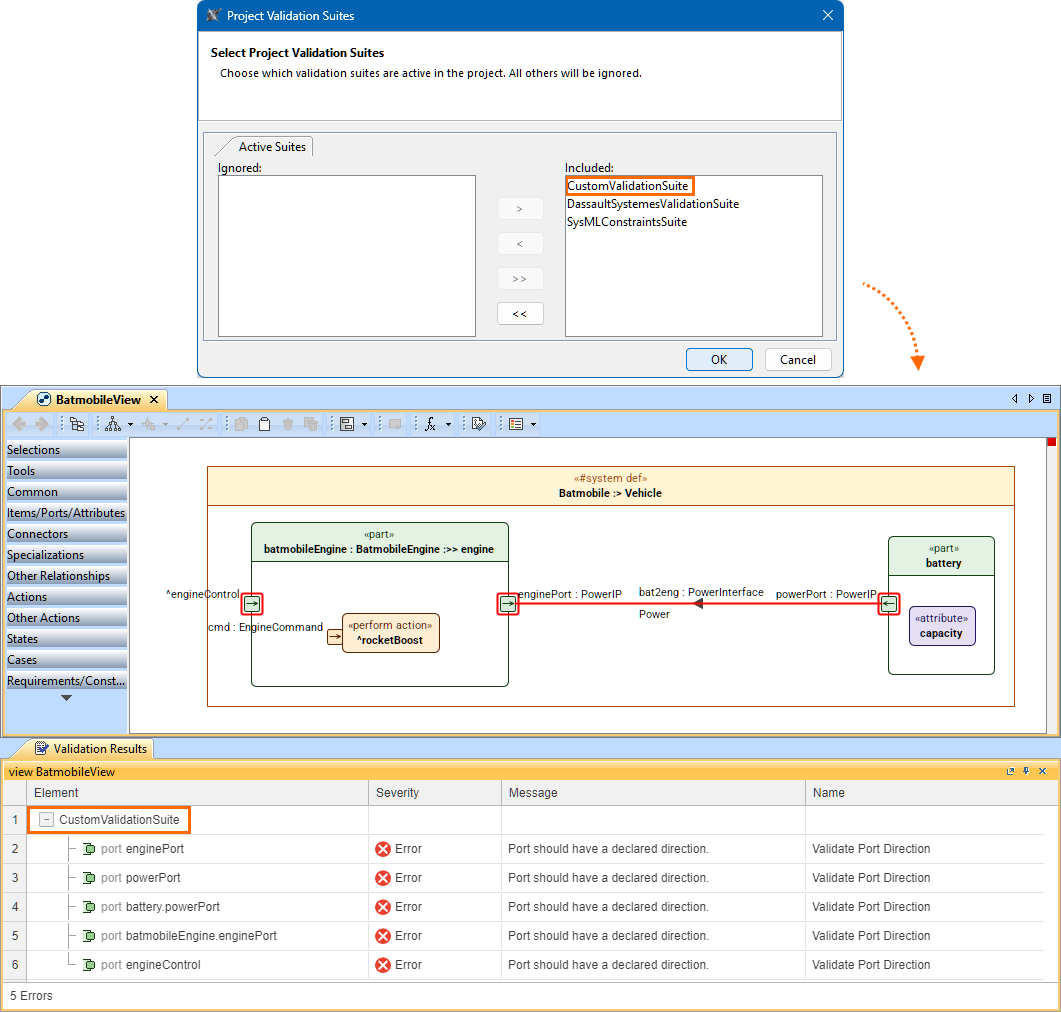
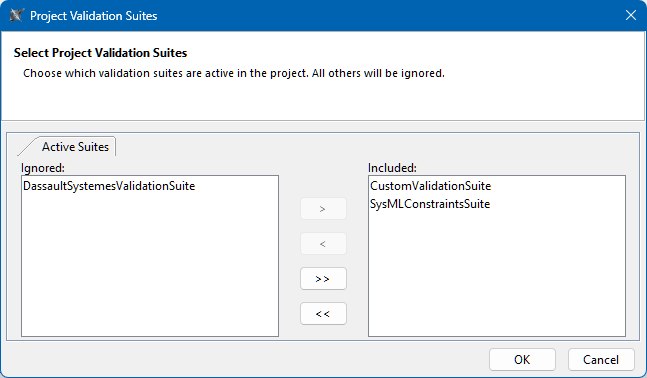
The model is only validated against validation suites enabled for the project. While predefined validation suites are active by default, you can choose which suites, including custom ones, should be activated or ignored. 

There are two modes you can specify for the validation suites:

  • Active. The validation suite is only run for active (automatically triggered) validation.
  • Ignored. The validation suite is ignored for the project.

Enabling validation suites

Enabling a validation suite for the project via the Project Validation Suites dialog automatically creates a new package ProjectValidationConfig with the enabled project validation suites configuration. The package is created in a root namespace dedicated to configurations that activate style sheets, creation dialogs, and validation suites. If no such namespace exists in the model, it is automatically created with the ProjectValidationConfig package. The root namespace's name depends on the name of the package first created in the namespace. 
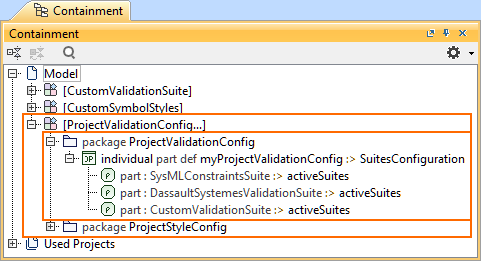
Enabling validation suites via the Project Validation Suites dialog 

To enable validation suites via the Project Validation Suites dialog 


  1. In the main toolbar, click Analyze > Validation > Project Validation Suites. The Project Validation Suites dialog opens.
  2. To enable validation suites as active:
    1. In the Project Validation Suites dialog's Ignored section on the left, double-click or use the arrow buttons to add the needed validation suites to the Included section on the right.
  3. To ignore validation suites:
    1. In the Project Validation Suites dialog's Included section on the right, double-click or use the arrow buttons to remove the needed validation suites, moving them to the Ignored section on the left.
  4. Click the OK button.