You can interact with the simulation data displayed in views to improve understanding and analysis of system behavior during execution. Simulation views allow inspection and modification of runtime information without interrupting the simulation. Manipulating simulation data provides a practical way to observe how a model responds to changing conditions, supporting both debugging and behavioral analysis.
During simulation, initial runtime values (indicated by “:=”) can be changed directly in the views. This allows you to observe how the system’s behavior responds to changing values while the simulation is running.
To change runtime values on element shapes
- During model simulation, select a part, attribute, or reference shape in a view.
- Select the initial runtime value (indicated by ":=") you want to change.
- Do one of the following depending on the value type:
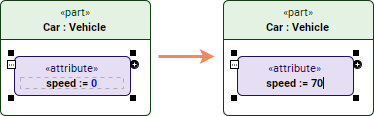
- For a numerical runtime value, type a new value.
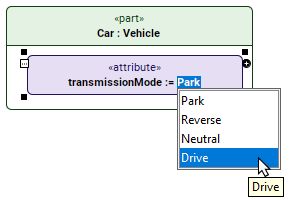
- For an enumeration runtime value, click the value and select a new value from the drop-down list.
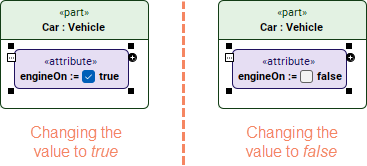
- For a Boolean value, click the value several times until the desired value is set.
- Press Enter to save the change.
When runtime values are changed, the simulation data is automatically updated.
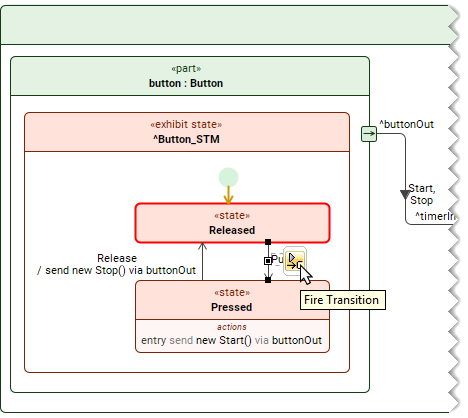
A payload can be sent directly from a state transition in a view during model simulation. If sending a payload is supported for a transition, a smart manipulator icon appears next to the selected transition symbol.
To send a payload from a transition symbol
- Select the transition symbol that has the payload you want to send.
- Click the Fire Transition icon.