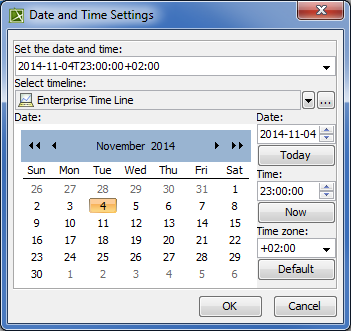
The Date and Time Settings dialog is provided for defining a particular date and time. The dialog supports ISO8601, the International Standard for the representation of date and time.
The dialog can be used for elements or views that have date and time properties (e.g. Actual Project Milestone, Actual Project Enterprise Phase, etc.).
To open the Date and Time Settings dialog
Open element's Specification window.
Select the Date property value cell and click . The Date and Time Settings dialog opens.
Dialog element
Element type
Description
Set the date and time
Drop-down list
A date and time value that exists in the model.
Select a new date and time value from the drop-down list.
Select timeline
Text box
A package for the data grouping.
Date
Visual calendar
A date value in the visual calendar.
To select a day, click the day on the calendar.
To move through months, use arrows on the left and on the right in the title section of the calendar.
To move through years, use double-arrows on the left and on the right in the title section of the calendar.
Date
Spin box
A date value in the text format (“YYYY-MM-DD”).
To change the time value you can do one of the following
Type a new valid date value.
Click up and down arrows to increase or decrease the current value.
Time
Spin box
A time value in the text format (“hh-ss-mm”).
To change the time value you can do one of the following
Type a new valid time value.
Click up and down arrows to increase or decrease the current value.
Time zone
Drop-down list
A time zone value.
Select a new time zone value from the drop-down list.
The default time zone value is the one of your computer regional settings.
Button
Description
[...] (by the Select timeline box)
Click to select or create a new Timeline. The Select Timeline dialog opens.
Today
Click to set the Date box value to the current date of your computer.
Now
Click to set the Time box value to the current time of your computer.
Default
Click to set the Time zone box value to the value that is set in your computer.