In addition to creating DHTrace, the Create DHTrace operation enables you to create OSLC links instead of using the Create OSLC link operation in earlier versions of Cameo DataHub 19.0. |
Create DHTrace operation
This DataHub operation mode does not copy data. It only creates a DHTrace link from a source to a target. When the source has any changes, the DHTrace link becomes Suspect.
To create DHTrace
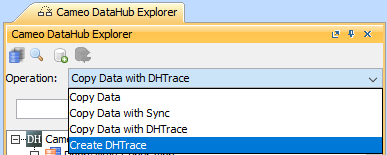
- From the Operation drop-down list in DataHub Explorer, select Create DHTrace.
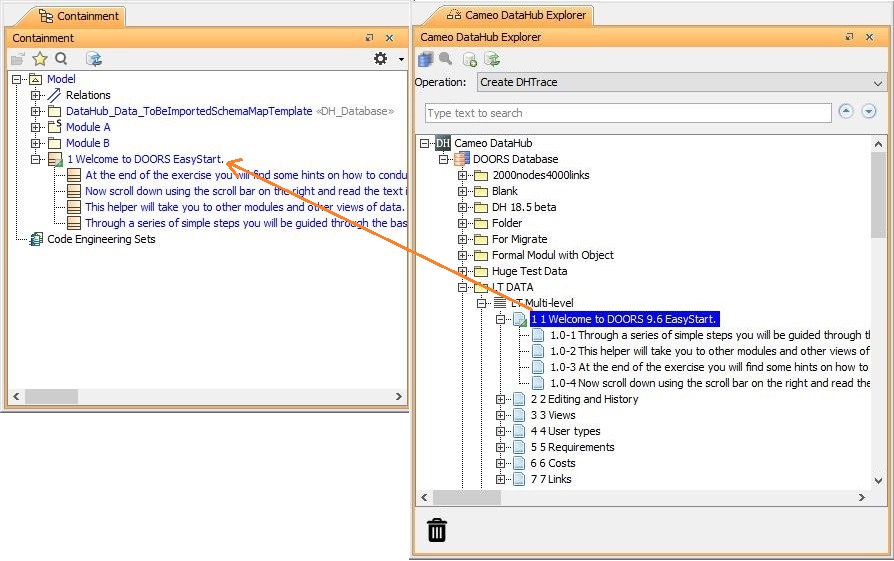
- Drag any nodes from DataHub Explorer to the MagicDraw Containment tree.
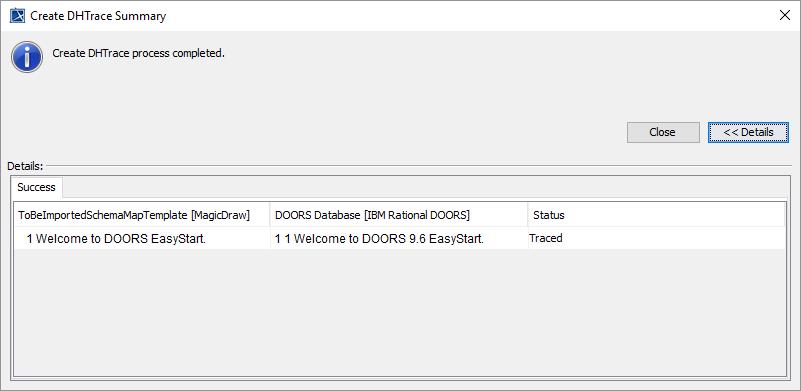
The Create DHTrace Summary dialog opens.
Make some changes to any nodes on either of the source or target side, e.g., editing a node properties or deleting a node.
Right-click the changed node on either of the source or target side and select Check Changes > Check DHTrace Changes or Check DHTrace Changes Recursively. The DHTrace Summary dialog opens and shows the Suspect status of the traced link.
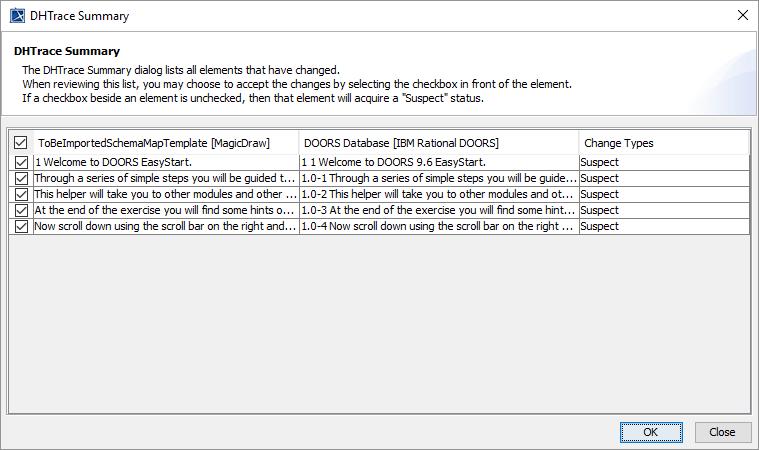
To clear the Suspect status of a Suspect DHTrace link, do one of the following
- In the DHTrace Summary dialog, select the Suspect DHTrace check box and click OK.
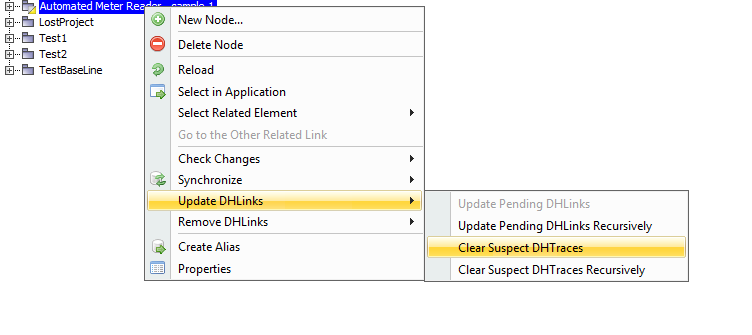
- In the MagicDraw Containment tree, right-click a Suspect DHTrace link and click Update DHLinks > Clear Suspect DHTraces or Clear Suspect DHTraces Recursively.
Creating OSLC links through the Create DHTrace operation
In the 19.0 and later versions, the Create OSLC link operation is not displayed and is used through the Create DHTrace operation instead from the Operation drop-down list in Cameo DataHub Explorer (for IBM® Rational® DOORS® Next Generation Data Source). |
OSLC links can be created when you open an IBM® Rational® DOORS® Next Generation Data Source in DataHub.
To create an OSLC link
- From the Operation drop-down list in DataHub Explorer, select Create DHTrace.
From an IBM® Rational® DOORS® Next Generation Data Source, drag a node into the MagicDraw® Containment area.
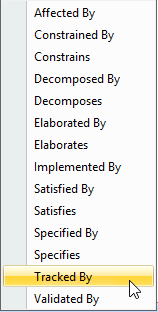
A shortcut menu prompts you to choose the type of link. Select one from the shortcut menu. The link of the selected type is created.
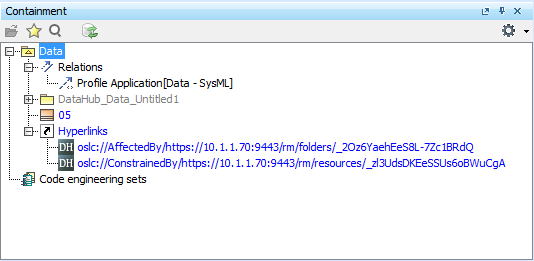
The newly created OSLC hyperlinks in the MagicDraw® Containment tree.
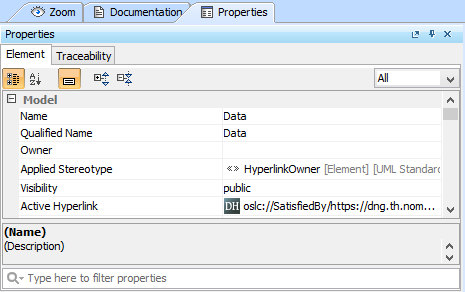
The OSLC hyperlink's Properties.
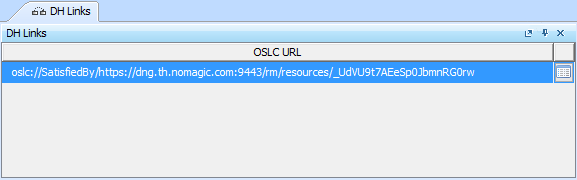
The OSLC hyperlink in the DH Links panel.