On this page
If you publish a Cameo Collaborator document for editing, you can decorate it by adding images. Images are added as new document paragraphs, allowing you to update them or change their location anytime.
To add images to a Cameo Collaborator document:
|
To add an image to a Cameo Collaborator document
Click
 on the bottom right corner of the content pane.
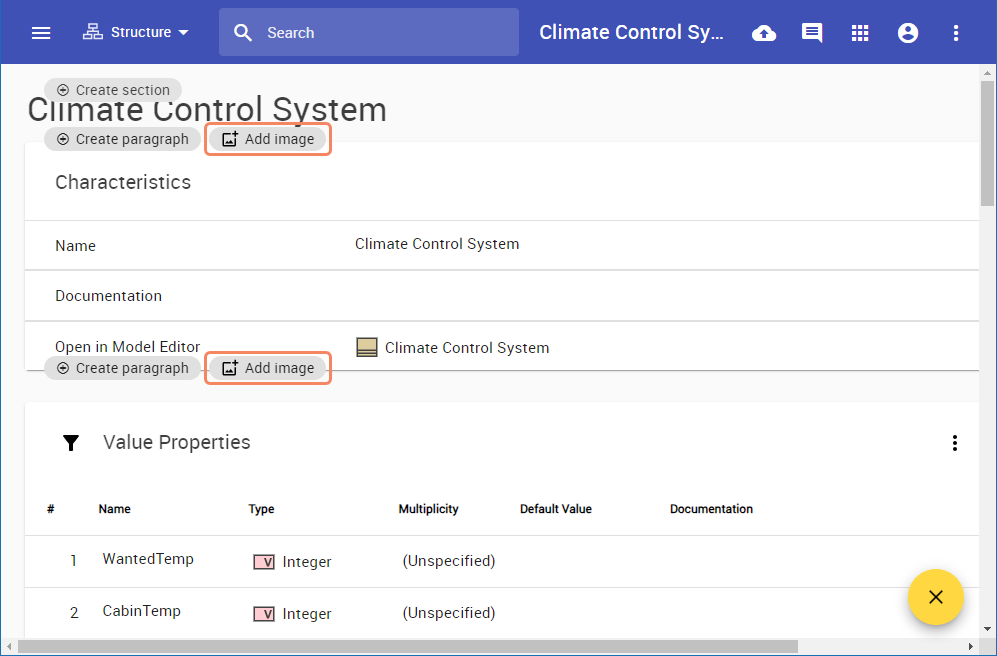
Click the Add image icon in the location of an open document section where you want to add an image.
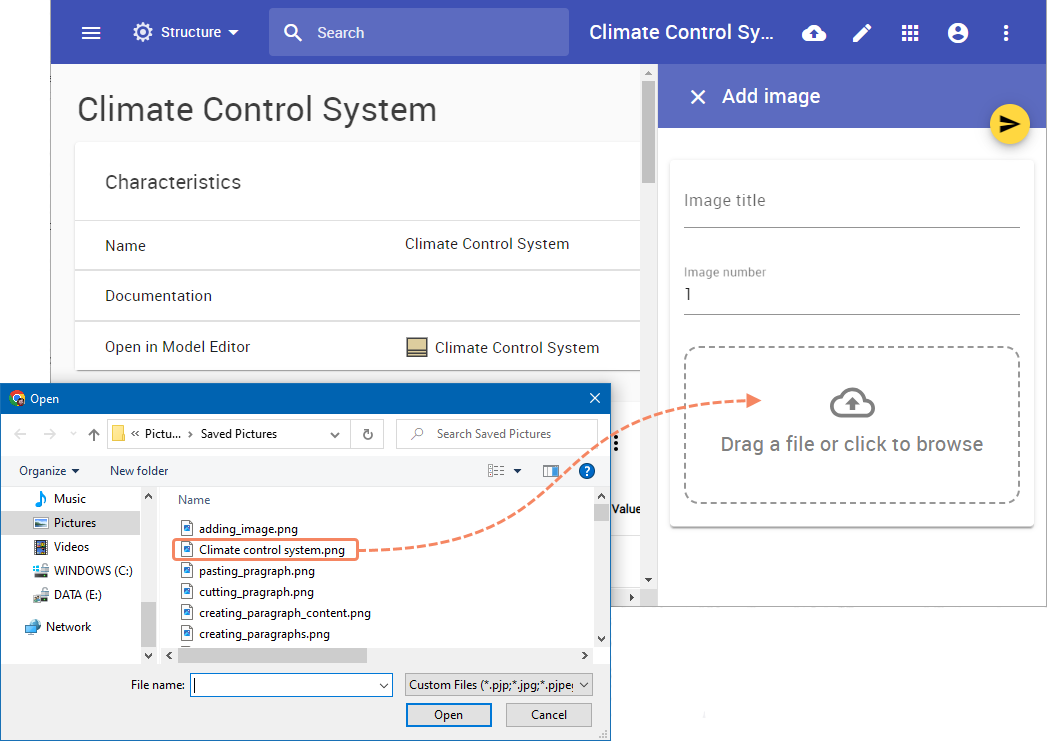
- In the Add image pane, do the following:
- Optionally enter the image title in the Image title field. If you skip this step, the image file name will be used as the image title.
- If needed, change the image number in the Image number field.
- Drag the image file to the box at the bottom of the Add image pane, or click the box and select the image file from your computer.
- Click
 on the top right corner of the Add image pane.
Changing image location
You can change the location of an image added to a Cameo Collaborator document by cutting and pasting it in a new location.
To change an image location
Click
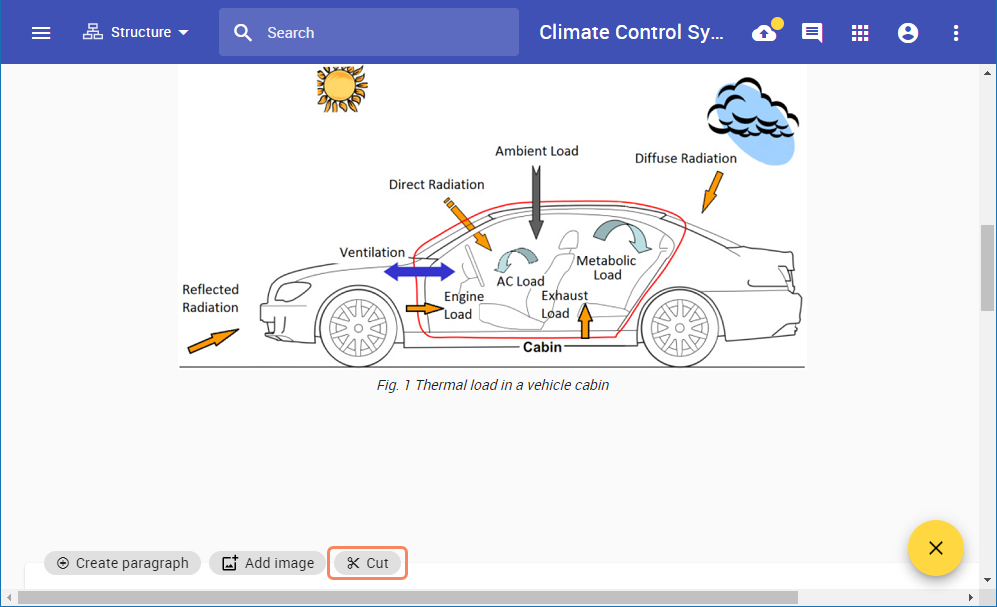
on the bottom right corner of the content pane.- Click the Cut icon under the image whose location you want to change.
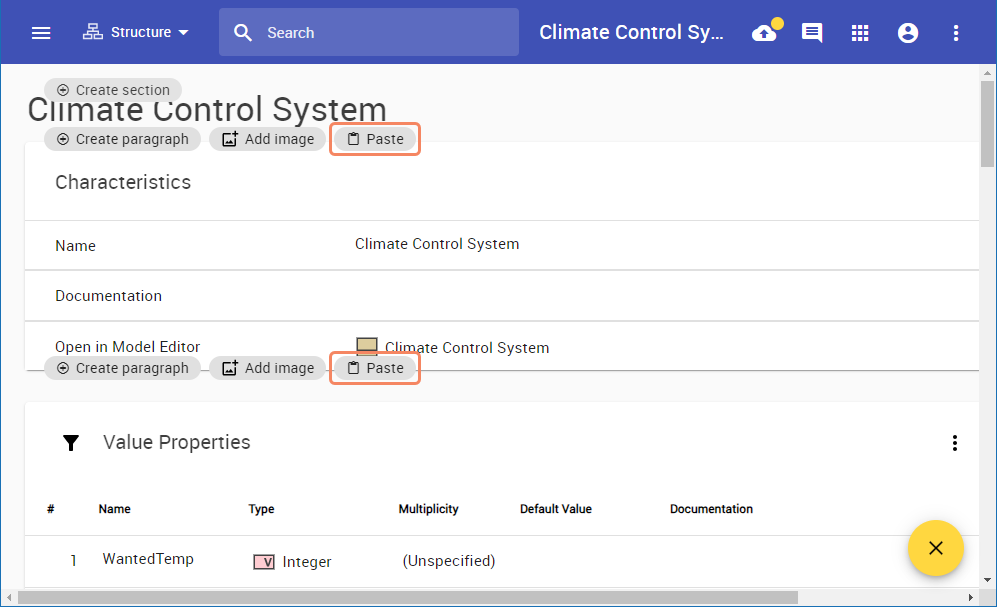
Click the Paste icon in the location of an open document section where you want to move the image.
If you want to move the image from one document section to another, use the navigation pane to open a different section of the same document view and then paste the image.