Before running the Web Application Platform with services, you need to: Before starting the installation, you should know the following: - It is recommended to run Web Application Platform and Teamwork Cloud on different machines.
- Before running Web Application Platform, make sure to note down Zookeeper, Cassandra, Teamwork Cloud, and the FlexNet server information (e.g., hostname and port), as well as the KeyStore file location.
- If Web Application Platform runs on a separate machine, it is recommended to stop the WebApp service on the machine where Teamwork Cloud is running.
|
To run Web Application Platform by using the no-install package
- Download and extract the Web_App_Platform_<version number>_<operating system>_no_install.zip file.
- Go to the <no-install_root>/CATIANoMagicServices/WebAppPlatform/shared/conf directory.
Open to edit the webappplatform.properties file, read the comments with property descriptions, and specify the following: - Web Application Platform properties
- Authentication server properties
- Teamwork Cloud server properties
- FlexNet/DSLS server properties
- Platform service discovery-related properties
In your computer settings, specify the JRE_HOME and CATALINA_HOME_WEBAPP variables as shown below: CATALINA_HOME_WEBAPP=/<no-install_root>
JRE_HOME=/<Java_install_directory> |
- If you want Web Application Platform to use SSL certificates, do the following:
- Generate the SSL certificate file.
- Go to the <no-install_root>/CATIANoMagicServices/WebAppPlatform/conf directory and open to edit the server.xml file.
- In the server.xml file, change the default values of the following properties to the actual path to the certificate file and password:
| The certificateKeystorePassword property value must be the same as the -storepass and -keypass property values that you specified when creating the SSL certificate. |
- Start Zookeper.
- Go to the <no-install_root>/CATIANoMagicServices/WebAppPlatform/bin directory and run
- If you installed Cameo Collaborator for Teamwork Cloud, apply the Cameo Collaborator license.
In this section, you can learn how to specify the JRE_HOME and CATALINA_HOME_WEBAPP variables in different operating systems.
To specify variables on Linux
- Go to the /etc directory and open the profile file.
Copy the following lines to the profile file and replace the placeholders between angle brackets (<>) with actual paths: export CATALINA_HOME_WEBAPP=/<path_to_Web_App_Platfrom_extratcted_no-install_root>
export JRE_HOME=/<path_to_Java_install_directory>
|
export CATALINA_HOME_WEBAPP=/Users/admin/Desktop/Web_App_Platform_190_noinstall export JRE_HOME=/usr/java/jdk1.8.0_172-amd64/ |
Open the Terminal application and execute the following command:
- Open Control Panel and go to System and Security > System.
- Select the Advanced system settings option on the left side of the System dialog.
- In the System Properties dialog, click the Environment Variables button.
In the System variables area of the Environment Variables dialog, specify the values for the JRE_HOME and CATALINA_HOME_WEBAPP variables as shown below: CATALINA_HOME_WEBAPP=/<no-install_root>
JRE_HOME=/<Java_install_directory> |
- Click OK.
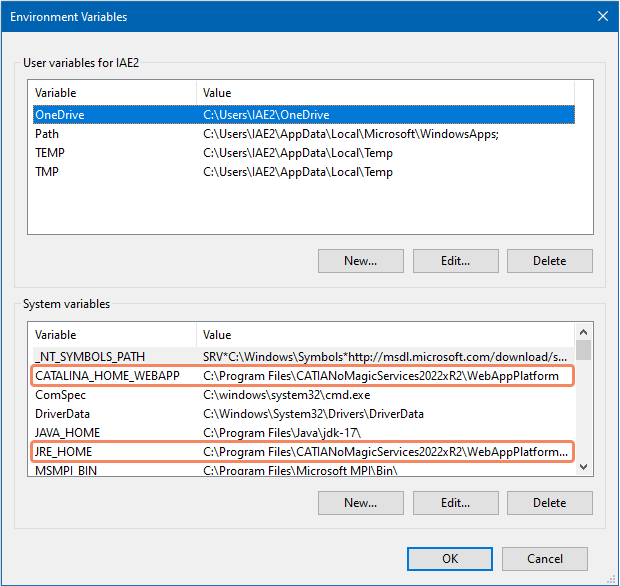
System variables in the Environment Variables dialog on Windows |