Only a user with a Server Administrator role can change the license.
To get a new Magic Collaboration Studio license from the current license server
- In a web browser, go to http(s)://<domain_name>:<port>/webapp to open the authentication page.
- Sign in to the Administrator account or a user account with a Server Administrator role
- Open the .
- Click the Change License button. A dt you are about to delete the license you are currently using will open.
Click Update. You cannot undo your action after clicking Update. |
- Your curense server in tabular form:
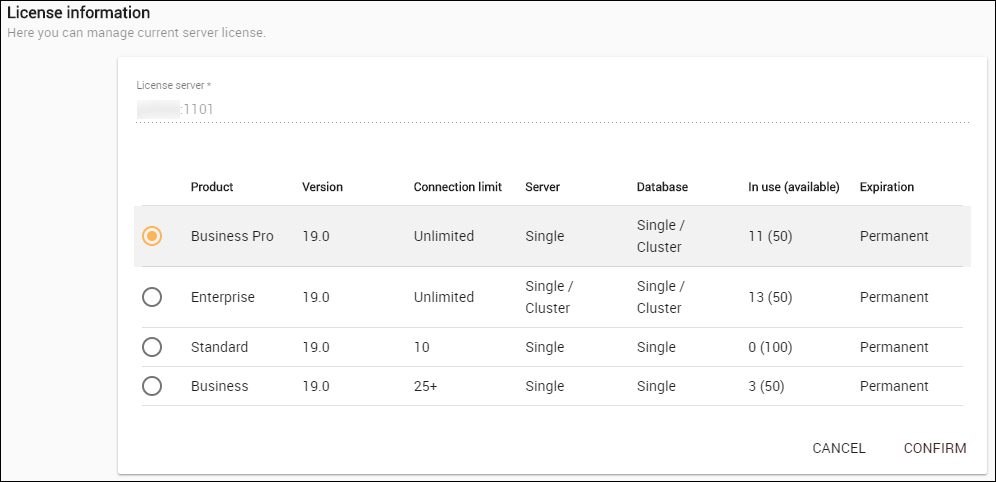
- a new license key from the table and click Confirm button. Your new license will be applied and appear in the Server section.
Getting a new Magic Collaboration Studio license from another license server
- Log into the Teamwork Cloud Admin with an Administrator account.
- Using App bar, navigate to Settings application.
- Click the Change License button. A dialog informing that you are about to delete your current license will open.
- Click the Yes button.
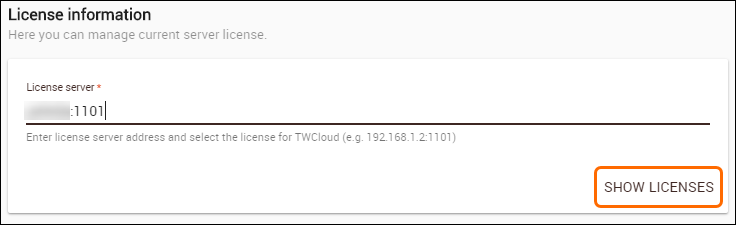
- Type the address and port of another license server in the Server license box.
- Click the Show License button. All available license keys on the new server license will appear in tabular form.
- Select a new license key from the table and click Confirm. Your new license will be applied and appear in the License Information section.
|