On this page
Creating Personnel Processes Flow diagram
Before creating this diagram, the Personnel Process diagram must be created first. |
To create a Personnel Process Flow diagram for Function Action flows
- Do one of the following:
In the diagram palette, click the Swimlanes and then click the diagram pane. The Select Swimlane Representatives dialog opens. In the dialog, you can choose the Organizational Resource or Resource Role to be represented by the swimlane.
If you click Cancel in the dialog, the empty Swimlanes will be created. - Drag the Organizational Resource or Resource Role from the Containment tree directly to the diagram pane to create the Swimlane.
- Create Function Action or drop them from the Containment tree directly to the diagram pane.
- Connect Function Action with Function Control Flow or Function Object Flow.
- Display the possible Resource Exchanges on Function Control Flow or Function Object Flow.
Creating the inner Process Flow diagrams
Before creating the inner Process Flow diagram, the Process diagram should be created, and the resource structure should be defined there.
Let's say you have a defined structure and create the Personnel Process Flow diagram with the top element - Organization UK SAR Organization as a Swimlane representative.
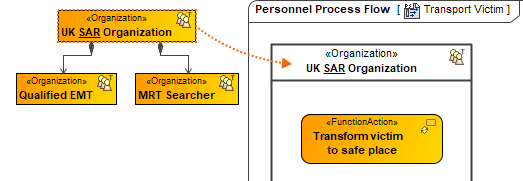
The Personnel Process Flow diagram is created. In the Swimlane, you can add either Function Action or Resource Action. In both cases, you can create an inner Personnel Process Flow diagram for a Function Action or Resource Action Smart Manipulator toolbar.
To create a Personnel Process Flow diagram from Smart Manipulator of a Function Action or Resource Action
- In the Swimlane, select a needed Function Action or Resource Action.
- In the Smart Manipulator toolbar, click Personnel Process Flow.
The Select Swimlane Representatives dialog opens. In the dialog, you can choose the Organizational Resource or Resource Role to be represented by the swimlane.
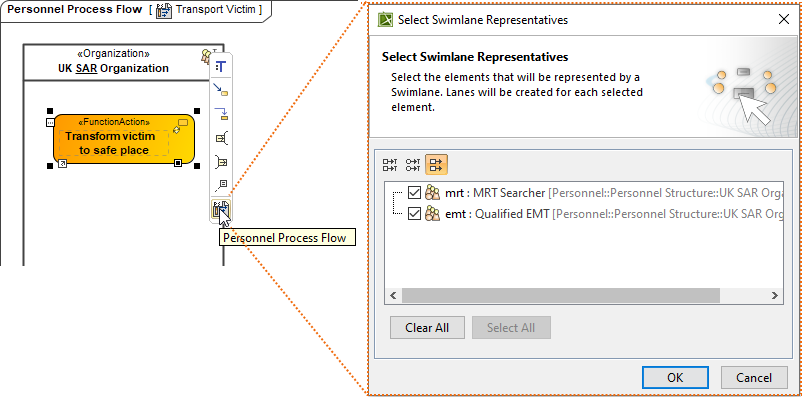
- The Select Swimlane Representatives dialog is displayed only when you have a resource structure defined in the Process diagram.
- If you click Cancel, the empty diagram will be created.
Click OK.
A new Personnel Process Flow diagram is created with a Swimlane and the selected performers as the representatives.
When the Function Action is created in the Swimlane, the IsCapableToPerform relationship is created between the Organizational Resource and Function (the behavior of the Function Action).
Creating Resource Exchange in Personnel Processes Flow diagram
To create a Resource Exchange in the Personnel Processes Flow diagram
- Open the Realized Resource Exchange wizard by doing one of the following:
- Select Function Control Flow or Function Object Flow, and on the smart manipulator toolbar, click
 .
. - On the diagram palette, click
 and then click Function Control Flow or Function Object Flow.
- Select Function Control Flow or Function Object Flow, and on the smart manipulator toolbar, click
- Select the Resource Exchange Kind from one of the following:
- Command (between Organizational Resources)
- Control (between Physical Resources)
- Resource Exchange
Specify the Resource Exchange, Conveyed Item, and Direction.
Only Data Element can be a Conveyed Item for the Command and Control relationships.
- Click Next to specify Producing and Consuming Functions.
- Click Finish when you are done.
You can use Resource Exchange Manager dialog to analyze and manage the Resource Exchanges data. |
Related pages