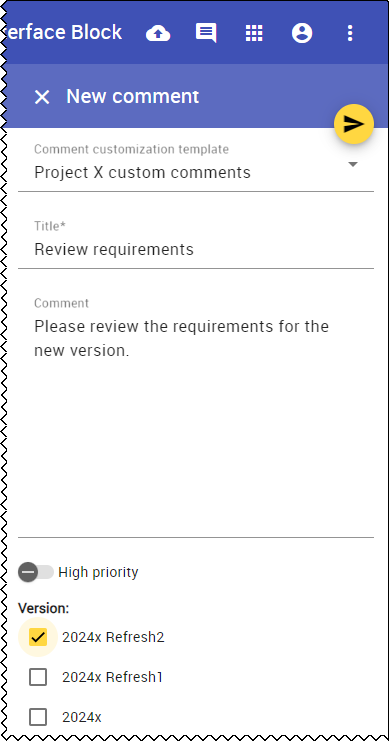
You can use the Profile Diagram to customize Cameo Collaborator comment templates according to your needs or specific project requirements. Add additional input fields and properties, such as version selection checkboxes or a Jira issue input field, which users can see in the web interface comments panel.
To create a Cameo Collaborator comment template
- Open the project where you want to create a custom Cameo Collaborator comment template.
- Create a profile diagram. To see the Profile Diagram option when creating a new diagram, click
 at the bottom of the dialog to enable the Expert mode.
 - In the Containment tree, navigate to Project Usages > Model [Document View Collaborator Profile] > Document View Collaborator Profile > Stereotypes.
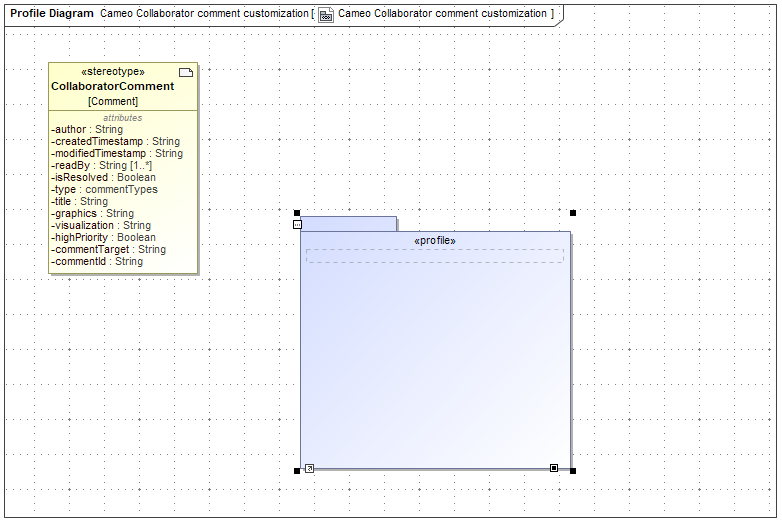
- Find the CollaboratorComment [Comment] stereotype and drag it into the Profile Diagram you created.
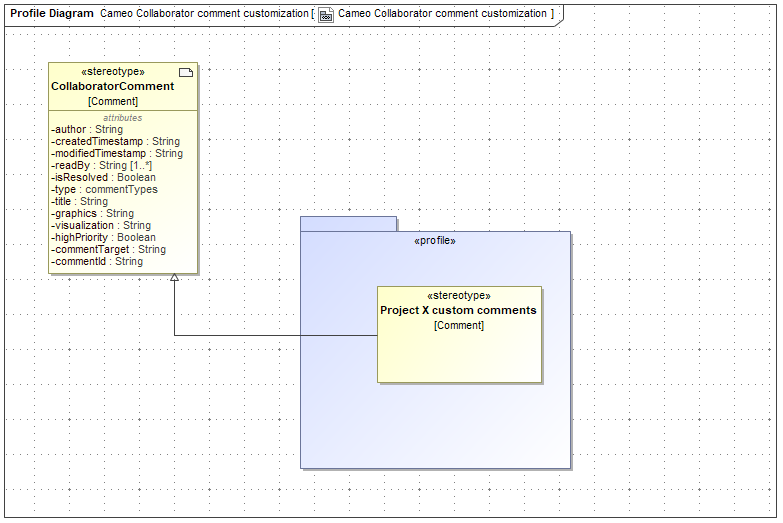
- CollaboratorComment [Comment] stereotype applied and an empty profile created,
-
- In the name field of the stereotype, . This name will be displayed in the Cameo Collaborator user interface when a user creates a new comment and selects a comment template.
- Click the Create Property button
 to add . Supported property types:
| Type | Multiplicity | Result |
|---|
| String | 0 | Not required |
| String | 0..1 | Not required |
| String | 0..* | Not required |
| String | 1 | Required |
| String | 1..* | Required |
| String | Default | Required |
| Boolean | - | Shown |
| Enumeration | 0 | Not shown |
| Enumeration | 0..1 | List, value is not required |
| Enumeration | 0..* | Checkbox, value is not required |
| Enumeration | 1 | List, value is required |
| Enumeration | 1..* | Not shown |
| Enumeration | Default | List, value is required |
Explanation:- If you add a String type, it shows in Cameo Collaborator as an input field;
- If you add a Boolean type, it shows in Cameo Collaborator as a switch (with a true/false value);
- If you add an Enumeration type, it shows in Cameo Collaborator as either a selection list or checkbox(es), depending on the multiplicity.
Once you've finished editing the diagram, commit the project to the server. Now, users can use the template you created when adding comments in Cameo Collaborator.
Example
Let‘s display checkboxes with the label Version and the following values:
2024x
2024x Refresh1
2024x Refresh2
- We need to create an Enumeration type element and set the checkbox values as its properties:
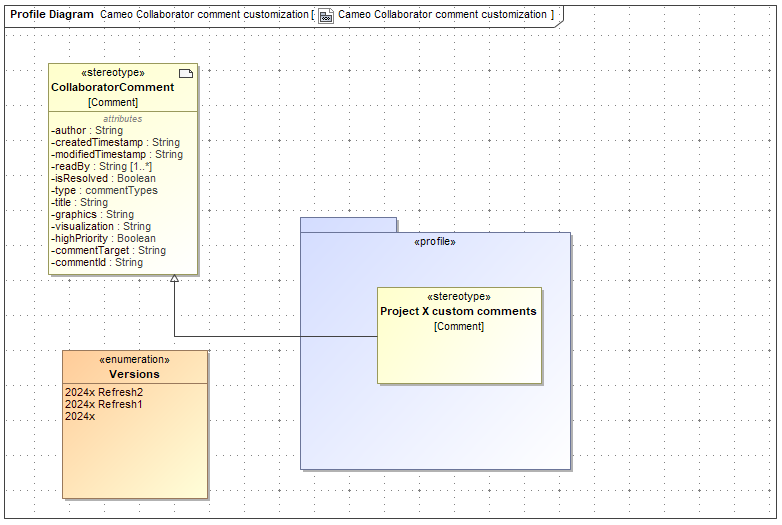
- Then, we add a property, e.g. Version, to the Project X custom comments stereotype, set its type to Versions, and its multiplicity to 0..* to display checkboxes.
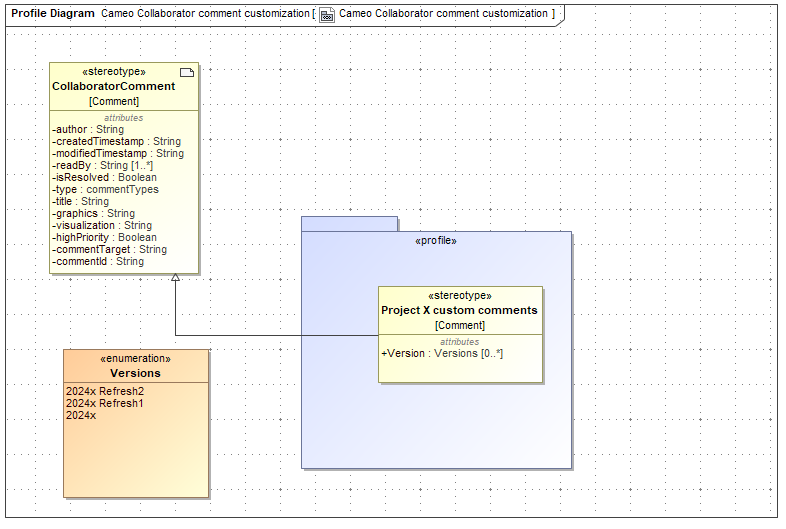
- After we commit the project to the server, users can see the Project X custom comments template with checkboxes in Cameo Collaborator web interface: