After exporting Teamwork Cloud projects to the server project file (.szip) format, you can import them to the 3DEXPERIENCE platform. You can also use .szip files to update the projects already stored on the platform.
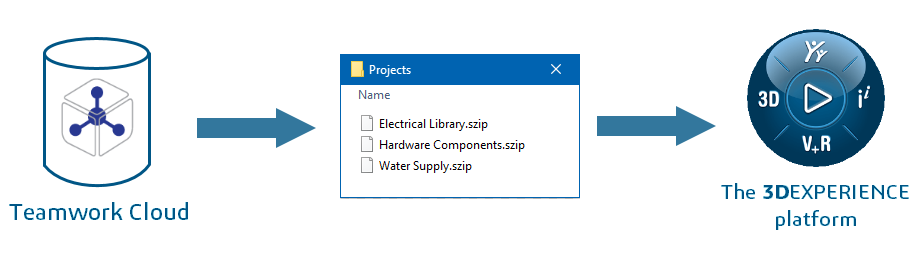
Moving projects to the 3DEXPERIENCE platform by using the server project file format.
Prerequisites
To be able to import projects to the 3DEXPERIENCE platform using the server project file format, the exported Teamwork Cloud projects must meet the following criteria:
- Exported projects cannot have cyclic project usages.
A cyclic project usage is the kind of usage where a project uses itself through other used projects and forms a usage loop. You can use the Resource Usage Map application to identify cyclic project usages.
- Exported projects cannot have version conflicts in project usages.
A version conflict occurs when a project uses different versions of the same project directly and through other used projects. Learn to troubleshoot used project version conflicts.
- Exported projects cannot have recovered elements.
A recovered element is an indication of a dangling reference. It means that a project has a reference to the element in a used project which can no longer be found. In this case, a modeling tool recovers the missing element to maintain model integrity. Learn to resolve dangling references.
- Standard/system profiles used by exported projects (including used projects) must be imported to the 3DEXPERIENCE platform. Learn to add standard/system profiles to the 3DEXPERIENCE platform.
In addition, used projects must be committed with the same modeling tool version that you use to work with your main project
- If a server exchange file is exported without used projects, all of these used projects must be already imported to the 3DEXPERIENCE platform (the versions of all used projects must match the used project versions on the platform).
Importing Teamwork Cloud projects
To import/update projects from a server project file
- Log in to the 3DEXPERIENCE platform.
- In the main menu, select File > Import From > Server Project File.
- In the open dialog, select the .szip file you want to import and click the Open button. The Import Project to the Server dialog opens.
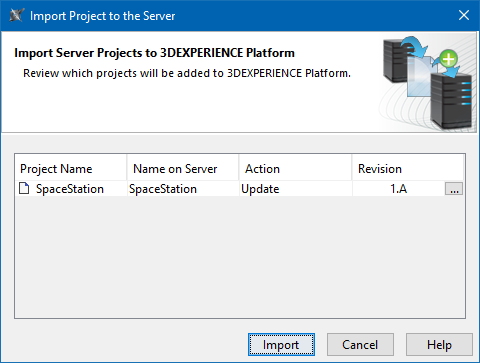
- If the imported project is new, the action displayed in the Action column is Add to Sever. If the project already exists on the platform, the action is Update, meaning the existing project will be updated.
- If you import a new project, you can manually change its name in the Name on Server column
|
- If the project already exists on the 3DEXPERIENCE platform, optionally change the revision that you want to update:
- In the Revision column, click
 .
. - In the Select Revision dialog, select the revision you want to update and click OK.
- Click the Import button.
When the import is complete, the Notification Window opens with the message that projects were imported successfully.