On this page
An integrated MDZipX plugin helps you improve the display of diagrams on the 3DEXPERIENCE platform by exporting them to an MDZipX file. You can use different export options for different types of projects as described below.
Exporting diagrams to an MDZipX file
You can export diagrams from a local project to an MDZipX file either with or without used project data.
Publishing diagrams to an MDZipX file works only with local projects. |
To export diagrams to an MDZipX file
- Open a local project
- In the main menu, select 3DEXPERIENCE > CATIA Systems Synthesis Analysis.
- Select one of the following commands:
- Export to MDZipX File - exports the .svg file for each diagram.
- Export to MDZipX File Including Data from Used Projects - exports the .svg file for each diagram and the data from used projects.

- In the open dialog, select the target directory for the exported file.
- Click the Save button.
The exported MDZipX file is saved in the specified target directory.
Publishing MDZipX files to Teamwork Cloud
When working with Teamwork Cloud projects, you can publish all model diagrams to Teamwork Cloud as an MDZipX file. During publishing, each diagram from every project version is saved as an SVG file.
Publishing MDZipX files to Teamwork Cloud works only with Teamwork Cloud projects. |
To publish MDZipX to Teamwork Cloud
- Open a Teamwork Cloud project.
- In the main menu, click 3DEXPERIENCE > CATIA Systems Synthesis Analysis.
- Select Publish MDZipX File to Teamwork Cloud.

Publishing diagrams as project assets to the 3DEXPERIENCE platform
When working with projects stored on the 3DEXPERIENCE platform, you can export model diagrams to the SVG format and store them as auxiliary resources inside the model. The SVG files are then retrieved from the model and displayed in the CATIA Systems Traceability Application.
|
To publish diagrams as project assets to the 3DEXPERIENCE platform
- Open a project stored in the 3DEXPERIENCE platform.
- In the main menu, select 3DEXPERIENCE > CATIA Systems Synthesis Analysis > Publish Diagrams as Assets. A new Assets package with the SVG package inside it is created under the Model element. All diagrams marked as complete are exported to SVG and stored under the SVG package.
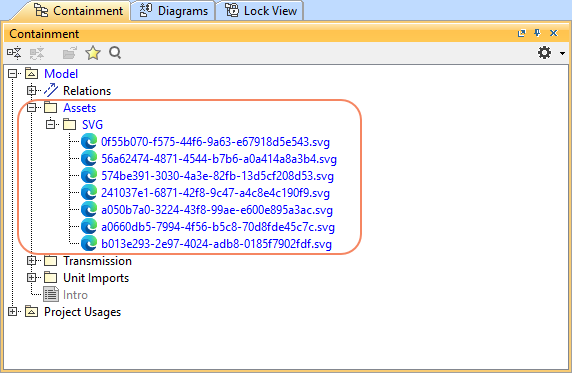
- Commit changes to the 3DEXPERIENCE platform.
Environment Options
You modify the behavior of the MDZipX plugin by changing the environment options under the CATIA Systems Synthesis Analysis group. For example, you can include diagrams from used projects to exported MDZipX files or choose to publish an MDZipX file to Teamwork Cloud automatically upon every project commit.
You can specify the diagram export options, such as dimensions and building time (the latter applies only to tables and matrices), in the Project Options dialog. See the Diagram image export page to learn more. |
To include diagrams from used projects to an MDZipX file or project assets
- In the main menu, select Options > Environment.
- In the left-side panel, select the Collaboration option group.
- Set the Publish Diagrams from Used Projects option to true.
- Click OK.
Publish an MDZipX file to Teamwork Cloud automatically upon project commit
- In the main menu, select Options > Environment.
- In the left-side panel, select the Collaboration option group.
- Set the Publish MDZipX Upon Commit option to true.
- Click OK.
| For more information, please refer to MagicDraw and NoMagic Teamwork Cloud Connectors Configuration. |