On this page:
The Item Flow Manager dialog enables you to analyze and manage Item Flow data. You can:
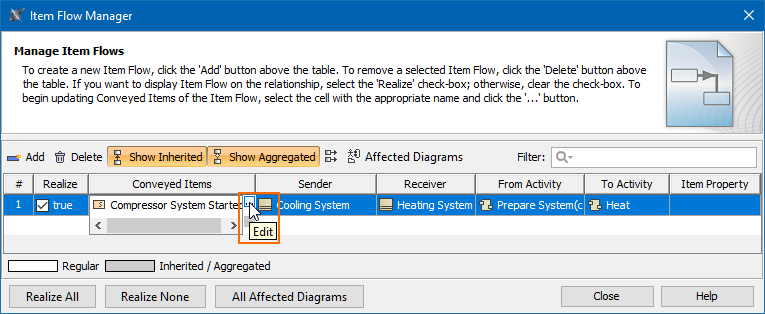
To open the Item Flow Manager dialog
 .
.| Button | Description | |
|---|---|---|
| Click to add a new Item Flow. | |
| Click to delete an Item Flow.
| |
| Toggle to either show or hide inherited Item Flows.
| |
| Toggle to either show or hide aggregated Item Flows.
| |
| Toggle to either show or hide full element paths. | |
| Select to review, preview, or update diagrams in which the realizing elements are shown. Clicking the button opens the Affected Diagrams dialog, which displays the diagrams that use the elements realizing the selected Item Flow. To learn more about previewing affected diagrams, see Preview Affected Diagrams dialog.
| |
| Enter keyword(s) to filter the data displayed in the dialog.
| |
| Click to realize all Item Flows displayed in the dialog. | |
| Click not to realize any Item Flows displayed in the dialog. | |
| Select to review, preview, or update diagrams in which the realizing elements are shown. Clicking the button opens the All Affected Diagrams dialog, which displays the diagrams that use the elements realizing the Item Flows displayed in the Item Flow Manager. To learn more about previewing affected diagrams, see Preview Affected Diagrams dialog.
|



 Show Full Paths

 button in the Filter box.