On this page
The Results Player displays numerical values from a CSV file directly in composite structure diagrams, such as Internal Block Diagram, Parametric, etc. This allows you to review the simulation results, specific time steps, and display results of an external simulation (for example, a SSP export).
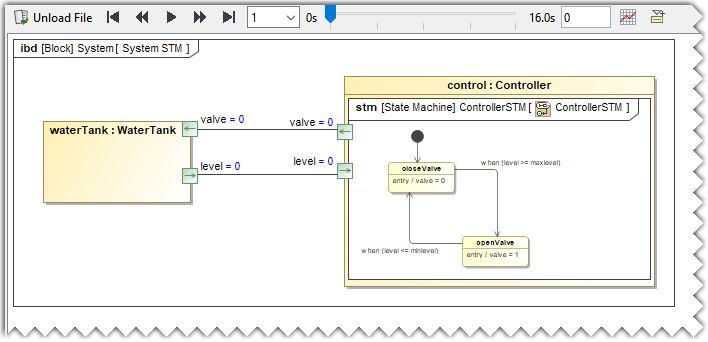
The Results Player when a file is loaded.
Understanding the UI components of the Results Player
The following table describes the UI components of the Results Player:
| Icon | Name | Description |
|---|---|---|
| Load/Unload File | Selects a CSV export file to load/Deselects the CSV export file. |
| Beginning | Stops the play and jumps to the first step. |
| Step Backward | Jumps to the previous step. |
| Play | Starts automatic playback of time values in real-time. |
| Step Forward | Jumps to the next step. |
| End | Stops the play and jumps to the last step. |
| Playback speed | Controls the playback speed. |
| Slider | Displays the current position and allows you to manually scroll through the values. |
| Time indicator | Shows the current step and allows you to manually enter the desired time value. |
| Time Series Chart | Generates the Time Series Chart. |
| Export to Instance | Generates the Instance. |





Launching the Results Player
You can launch the Results Player both through the Containment tree and the composite structure diagram.
To launch the Results Player
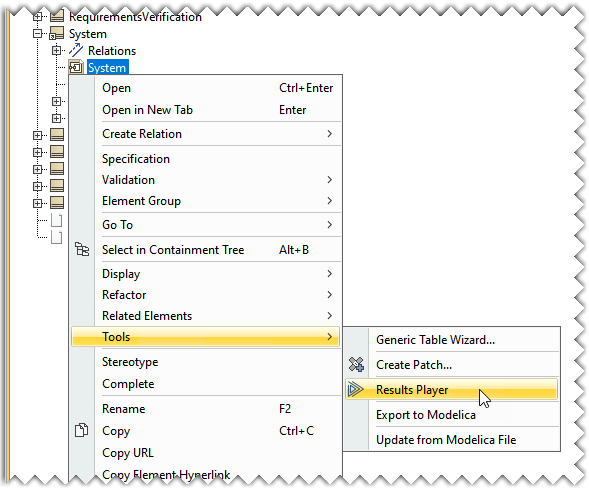
- In the Containment tree, right-click the composite structure diagram and select Tools> Results Player.
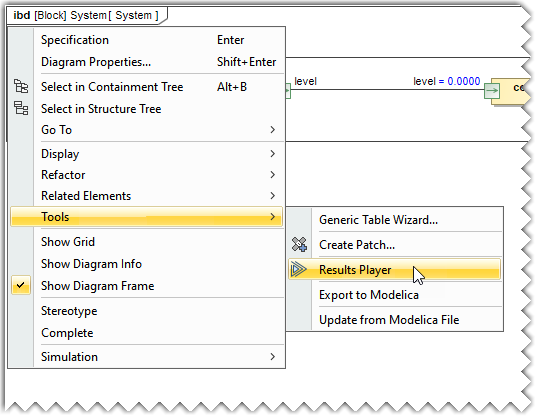
- In the composite structure diagram, right-click anywhere and select Tools>Results Player.
Loading CSV export file
|
You must load the CSV export file to be able to use the Results Player. You can load the CSV export file either manually or automatically after the simulation terminates.
To load the CSV export file manually
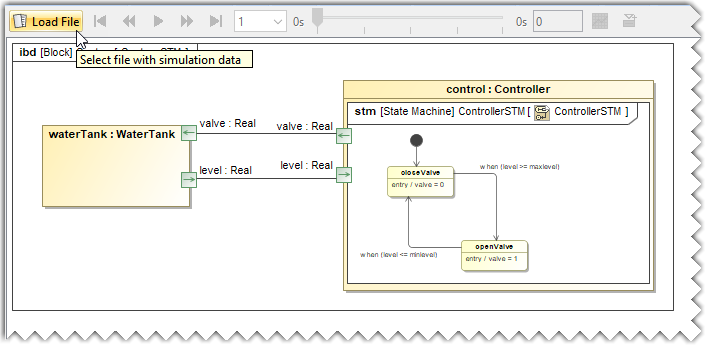
- Click on the Load File command in the Results Player.
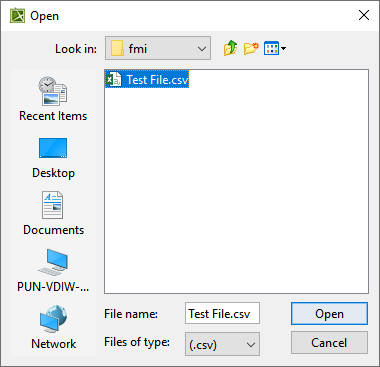
- In the Open dialog, select the CSV file and click Open.
|
To load a CSV export file automatically when a simulation terminates:
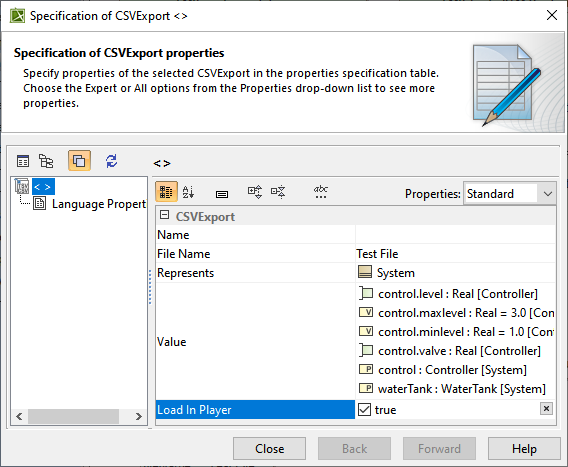
- In the Specification of CSV export dialog, set the Load in Player property to true.
Generating a Time Series Chart
You can generate a Time Series Chart with help of Results Player.
To generate a Time Series Chart
- Click the
 icon, found on the Result Player.
 - From the contextual menu, select the required values and click OK.
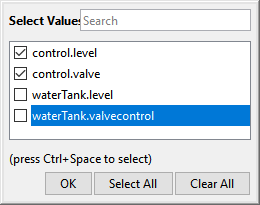
While selecting values in the dialog, you can add up to ten values at a time. If there are more than ten values, click Select All to select the initial ten values in the dialog.
The generated Time Series Chart is displayed for the selected values. You can also change/update the values by clicking the  icon in the Time Series Chart. You can generate multiple charts with different values at the same time. When a CSV file is unloaded, charts are deactivated, but remain open for a reference. Additionally, you can load a new CSV export file and generate new Time Series Charts. A black vertical line indicates the current time step and you can change the time step by clicking on the chart.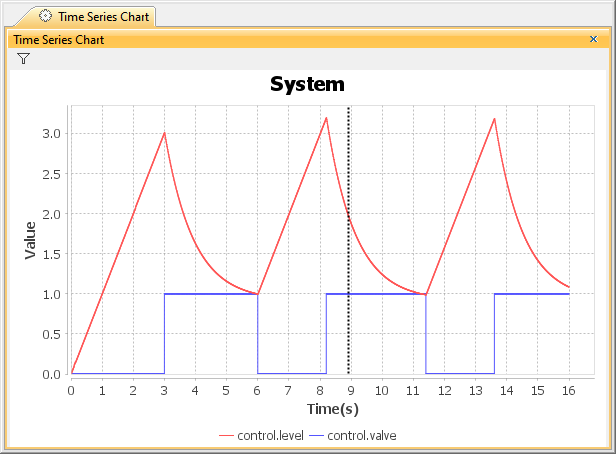
Time Series Chart
Exporting the current step to an Instance Specification
To export the current step to an Instance Specification
- Click the
 icon present on the Result Player.
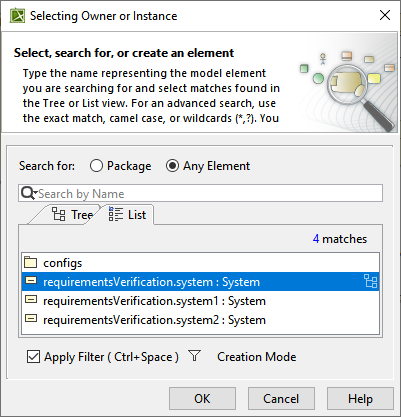
 - From the Selecting Owner or Instance dialog, select a Package to generate a new instance, or select an existing instance to update its values. Click OK.
|