 on right side of the app bar and select an Export document to PDF or HTML.
- Active section - exports the open section of the document which is selected in the Navigation pane.
- Active section's presentation elements - selecting this option allows you to choose which elements of the active section should be exported as displayed below.
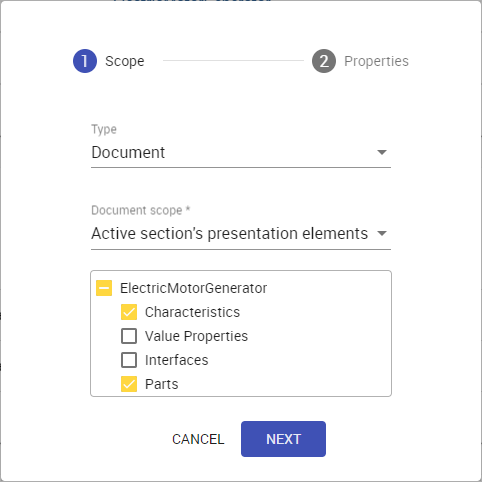
- Active view - exports the open view of the document selected in the app bar.
- Whole document - exports the whole document.
In the second step of the wizard, choose the format of the target document by selecting the PDF or HTML radio button.
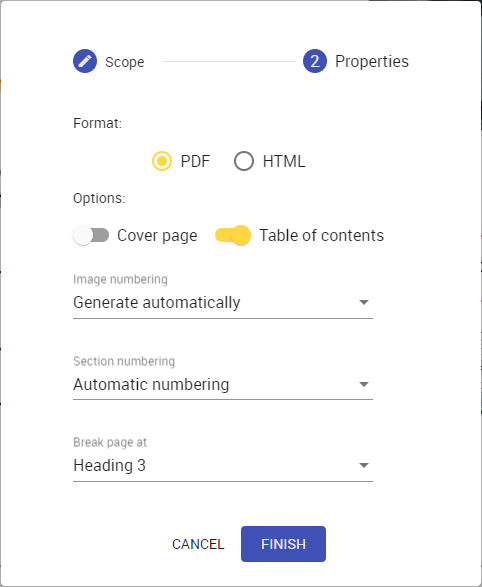
- Turn on the Cover page switch to add a cover page to the generated document. A cover page contains the document name, export date, and project and document information.
Turn on the Table of contents switch to add a page with the table of contents to the generated document.
You cannot add the table of contents when exporting documents to the HTML format.
- Generate automatically - all images in the generated document are numbered automatically while disregarding any image numbers that were changed manually.
- Use current numbering - all images in the generated document are numbered the same way as in the Cameo Collaborator for Teamwork Cloud document.
- Automatic numbering - all sections in the generated document are numbered automatically.
- None - sections in the generated document are not numbered.
Click the Break page at drop-down box and select the heading after which page breaks are added in the generated document.
You cannot add page breaks when exporting documents to the HTML format. |