When you work on a server project in parallel with other users, you do not see the changes that other users have committed until you update the project from the 3DEXPERIENCE platform. By default, a modeling tool regularly checks if there are new project iterations on the server and displays a notification prompting you to update the project once a new iteration is detected.
This chapter explains how to update a project from the server and view the upcoming changes when a new project iteration becomes available.
To update a project from the 3DEXPERIENCE platform
- In the main menu of a modeling tool, select Collaborate > Update Project.
When you update a project, your current project iteration is merged with the changes of the latest project iteration available on the server.
Viewing upcoming project changes
Before updating a project from the 3DEXPERIENCE platform you can view the changes of the latest project iteration stored on the server.
To view the upcoming project changes
The Upcoming Changes tab displays the project changes committed to the server after the last time you updated the project in your modeling tool. These changes will be merged with your current project iteration when you update the project.
Enabling notifications about new project iterations
The option to get notifications about new project iterations committed to the server is enabled by default. However, you can change this setting in the Environment Options dialog.
To enable or disable notifications about new project iterations
- In the main menu of a modeling tool, select Options > Environment.
- On the left side of the Environment Options dialog, select the Collaboration option group.
- Do one of the following:
- To enable notifications about new project iterations, set the Notify About New Project Versions on the Server option to true.
- To disable notifications about new project iterations, set the Notify About New Project Versions on the Server option to false.
In addition to enabling notifications, you can also specify how often your modeling tool checks for new project iterations on the server.
To specify the time interval determining how often a modeling tool checks for new project iterations
- In the main menu of a modeling tool, select Options > Environment.
- On the left side of the Environment Options dialog, select the Collaboration option group.
- Select the desired value of the Interval to Check For New Project Version (in seconds) option.
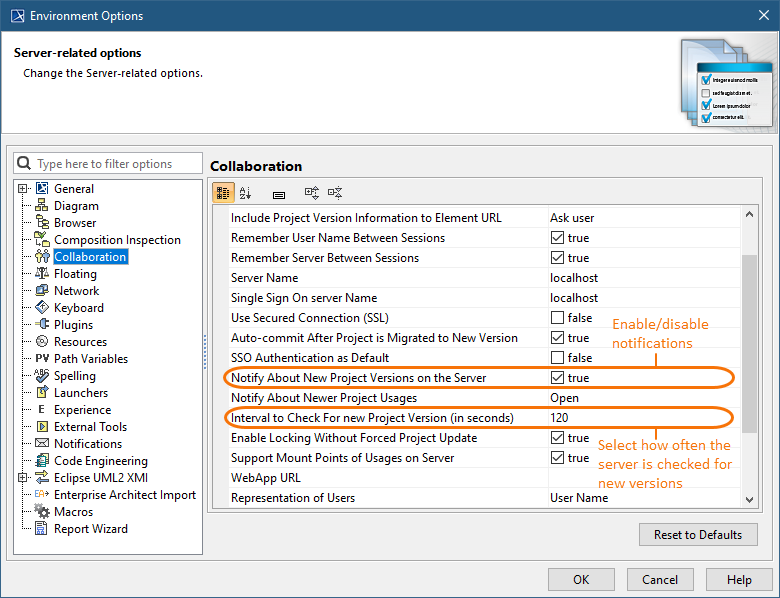
The environment options related to notifications about new project iterations on the server.
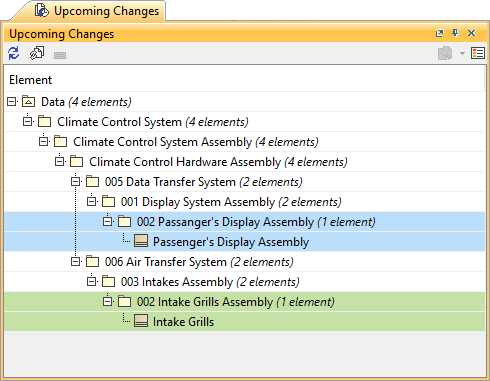
 to check for a new project iteration and refresh the Upcoming Changes tab.
 to update the project to the latest iteration.