On this page
When you create the Gantt Charts, you can easily customize its properties. You can change Capability Provision bar color, choose whether to show or hide the horizontal grid lines, set the top capability display conditions, and so on.
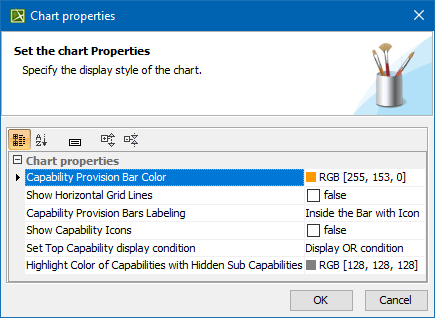
To open the Chart properties dialog, do one of the following
- Right-click the Gantt chart pane. From the shortcut menu, select Chart Properties.
- In the chart toolbar, click
 and then Chart Properties.
Common Gantt Chart Options
Marking the time period
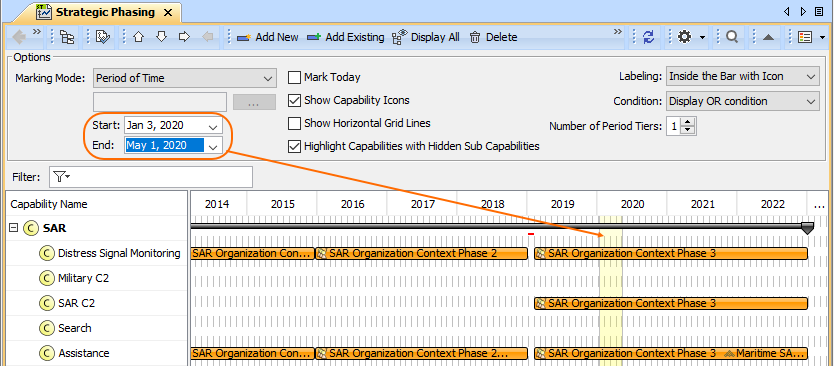
In the Gantt chart Options area, you can choose to mark the needed period of time. One of the following Marking Modes are available:
- None. Nothing will be marked.
- Period of Time. Choose to mark a period of time. For this mode, you can select the Start and End dates to be marked.
- Period of Actual Enterprise Phase. Choose to mark a period of the Actual Enterprise Phase. The time frame will be marked according to the Start and End dates set for the selected Actual Enterprise Phase.
Displaying Slots as grouping elements
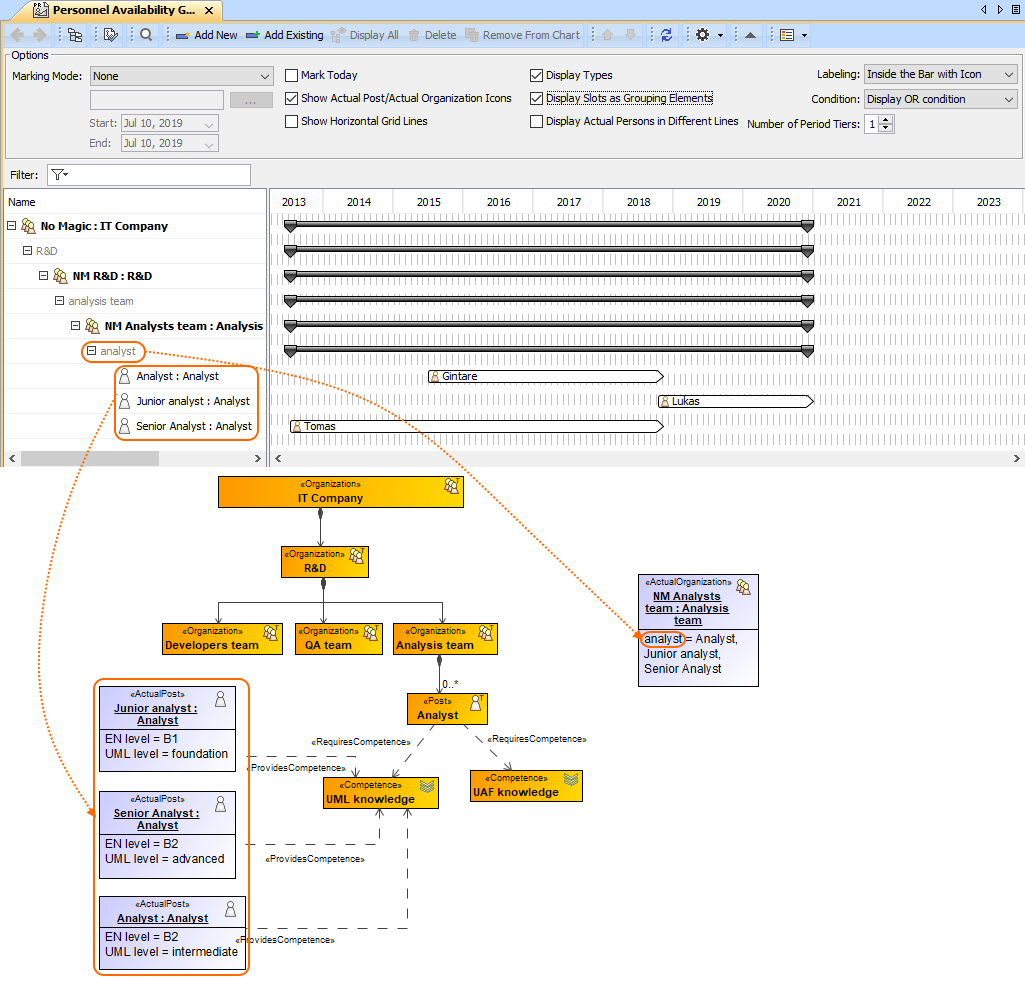
In Personnel Availability, Actual Enterprise Phase Gantt Charts, and Projects Roadmap diagram, you can choose to display Slots as grouping elements. Depending on the Gantt Chart you are working with, the Actual Organizations, Actual Enterprise Phases, or Actual Projects are displayed with the slot as a grouping element.
Other options
- Show <...> Icons. Select this option to display the icons near the elements.
- Show Horizontal Grid Lines. Select this option to display the horizontal lines in the chart.
- Display Types. Select to display types with element names.
Strategic Phasing Gant Chart Options
Top Capability display conditions
In the Chart Properties dialog, you can choose a condition to highlight the availability of capabilities. There are two available options:
- Select AND condition to highlight the Top Capability bar in red when any capability is unavailable in that period of time, and in black when all sub capabilities are available.
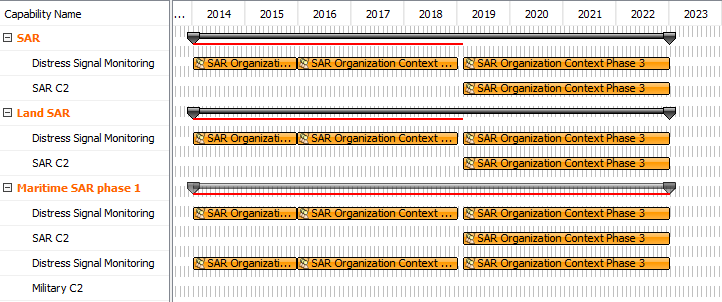
- Select OR to highlight the Top Capability bar in black when any sub capability is available.
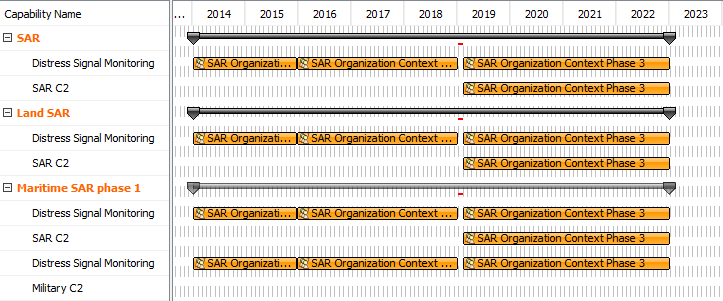
Highlighting Capabilities with hidden Sub Capabilities
When a Capability, displayed in the Gantt chart has Sub Capabilities, those Sub Capabilities can be removed from the chart. In such case, when Sub Capabilities are removed, the main Capability can be highlighted.
To start highlighting Capabilities with removed Sub Capabilities
- In the chart Options area, click to select a check box near Highlight Capabilities with Hidden Sub Capabilities.
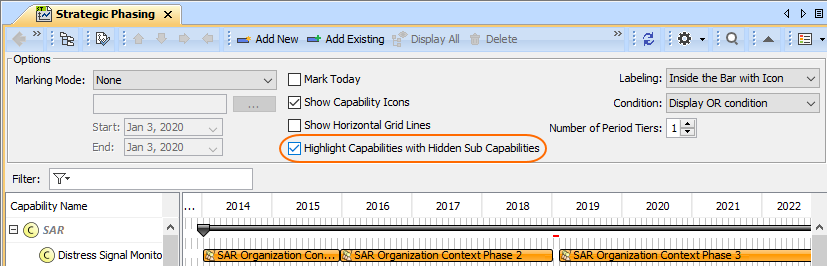
The default color of the highlighted Capabilities is gray, but you can change it.
To change a highlight color
- Open the Chart Properties dialog.
- In the Highlight Color of Capabilities With Hidden Sub Capabilities property cell and click ... to select a new color.
Personnel Availability Gant Chart Options
Displaying Actual Persons in different lines
In the Personnel Availability Gantt Chart, you can choose to display Actual Persons in the different lines.
If Actual Persons are removed from the chart, they will not be displayed, regardless of whether the Display Actual Persons in Different Lines option is enabled or disabled.
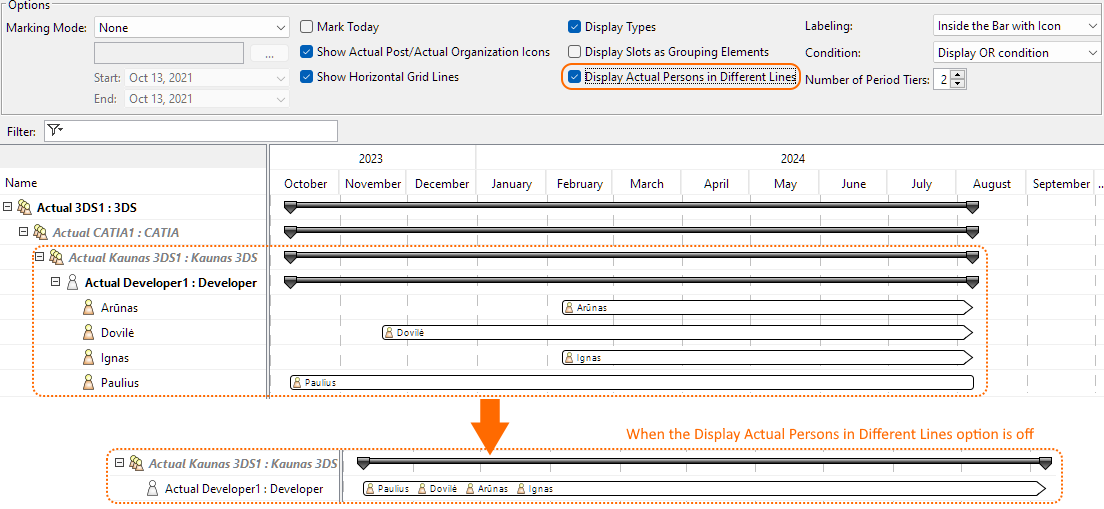
Project Roadmap Gantt Chart Options
Display Actual Projects as Grouping Elements
The Display Actual Projects as Grouping Elements option in the Gantt chart options area controls how the Actual Project is displayed:
- Turn the option on to display the Actual Project only as a grouping element.
- Turn the option off to display the grouping Actual Project bars with Actual Project Milestones and completion progress.
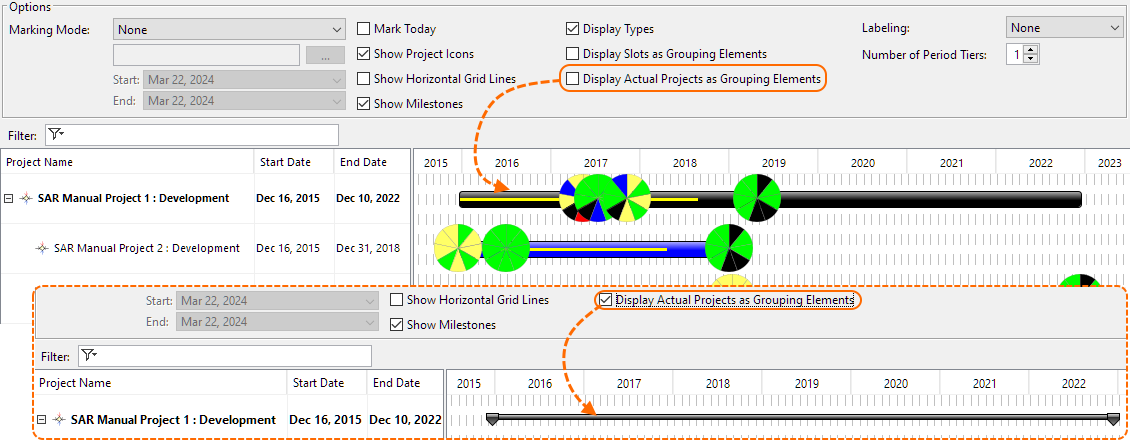
Related diagrams
- CV-3 Capability Phasing
- MODAF. StV-3 Capability Phasing
- NCV-3 Capability Phasing
- Pr Configuration Management
- Strategic Phasing diagram
- Actual Strategic Phases Gantt Chart
- Personnel Availability Gantt Chart
- Projects Roadmap diagram
- Resources Evolution diagram
- Services Roadmap diagram
- Personnel Evolution diagram