Diagram
To create a Cyber Security Attack Graph Diagram
- In the Containment tree, right-click any required package and select Create Diagram.
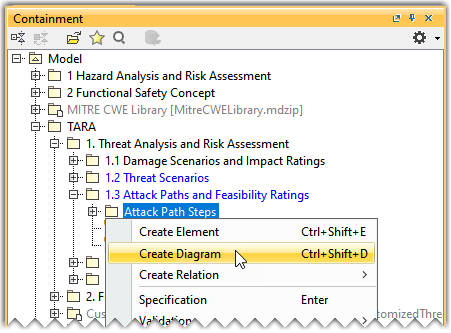
- Do one of the following:
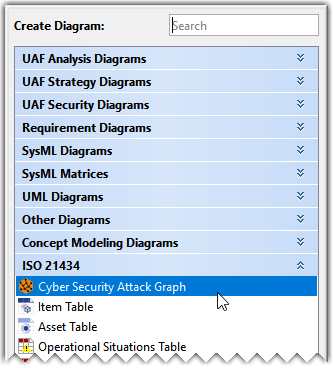
- In the dialog, expand ISO 21434 and select Cyber Security Attack Graph Diagram.
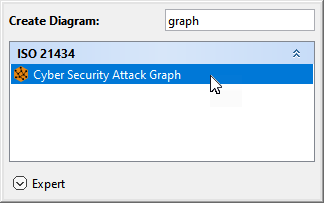
- In the search tab, type the keyword graph and then select Cyber Security Attack Graph Diagram.
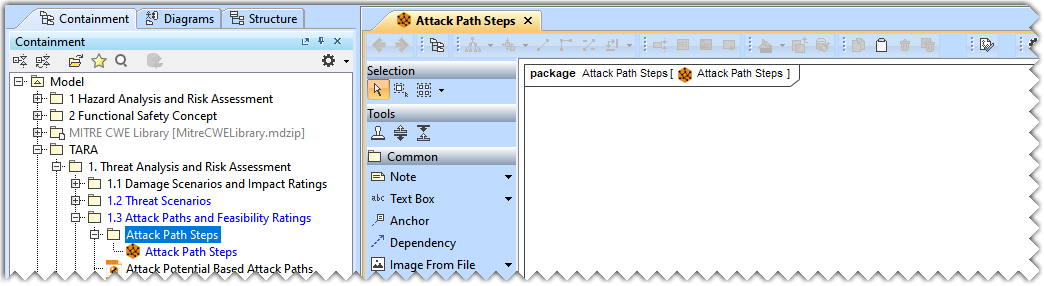
The Cyber Security Attack Graph Diagram is displayed in the diagram pane of the modeling tool.
Adding an Attack Path Step in the Attack Graph
To add a new Attack Path Step in the Attack Graph
- From the diagram palette, select Attack Path Step and click on the diagram pane. Name the created Attack Path Step.
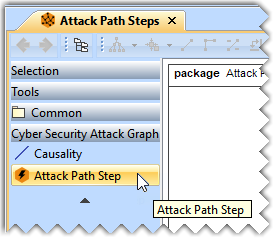
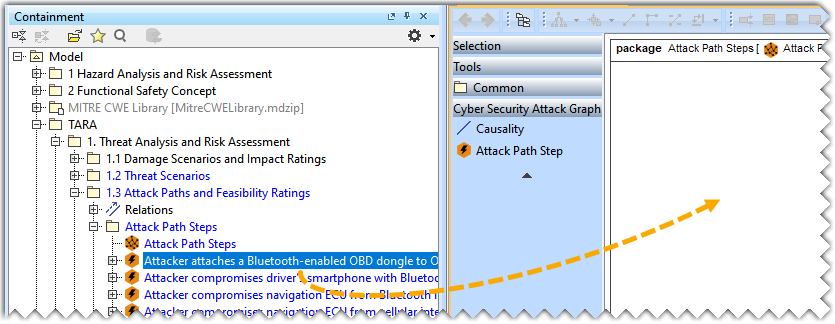
To add an existing Attack Path Step, CWE Element, or any Situation in the Attack Graph
- from the Containment tree and drop it in the diagram pane.
Creating a Causality Relation between Attack Path Steps
To create a Causality Relation between Attack Path Steps
- Do one of the following:
- Click the attack path step to open the Smart Manipulator toolbar, select the Causality relationship, and create a relationship. To learn more about creating relationships, refer to Creating a relationship
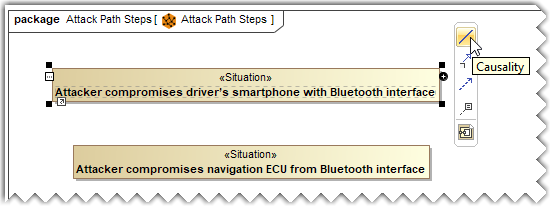
- From the diagram palette, select the Causality command and then select the .
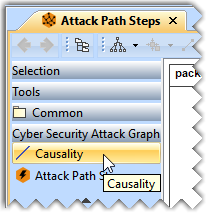
An arrow icon is displayed in the graph which denotes that causality relation is created.
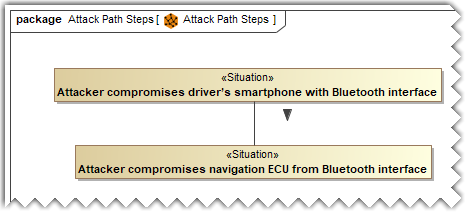
Generating an Attack Path from the Attack Graph
To generate an Attack Path from the Attack Graph
In the attack graph, select the two required attack steps by holding down the Shift key. The selected attack paths are considered as two ends of an attack path.
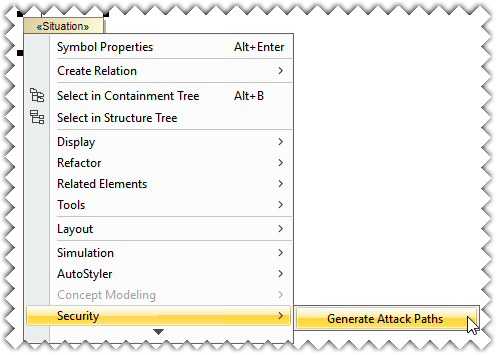
- Right-click and select the Generate Attack Paths command.
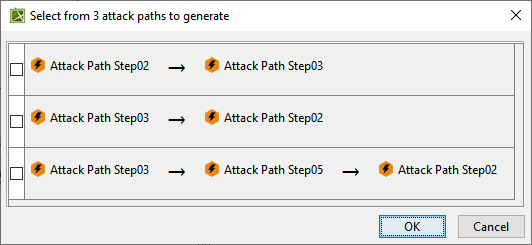
In the Select Attack Paths dialog, select the required attack path from the list of available attack paths and click OK.
Loops present in the attack graph are eliminated while calculating the attack path(s). |
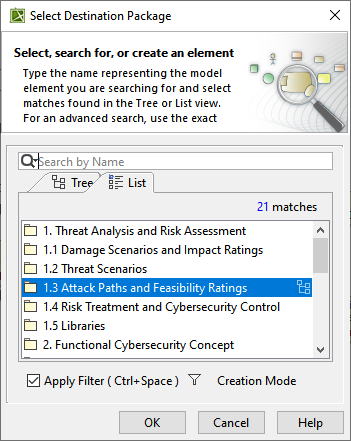
In the Select Destination Package dialog, select the package to save the generated attack path(s).
- After generation of an Attack Path, if Attack Graph changes in such a way that the path is not valid anymore, a validation rule is triggered and an error occurs. You can fix the error from the Attack Path, but in such case, the path will not be linked to the graph anymore. Also, no further errors will be reported on that Attack Path if the graph is further modified.
- The generated attack path(s) are manual attack paths.
|