On this page
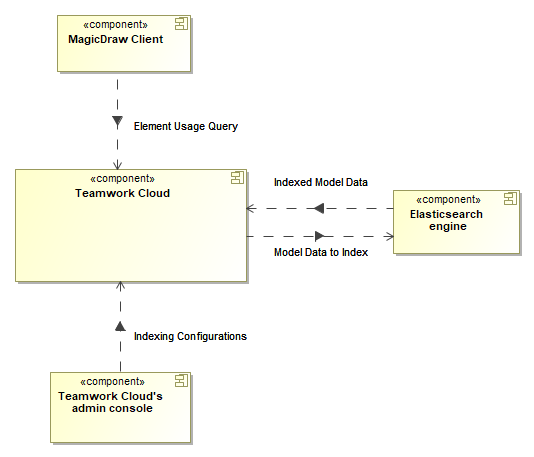
You can index resources for their element usages within the selected scope of the Magic Collaboration Studio repository and later query these usages through the modeling tool. This enables you to evaluate what impact modifying or deleting certain model elements will have on other models that are using it. To enable this functionality, Magic Collaboration Studio needs to be incorporated with a dedicated search engine - Elasticsearch. This component makes it possible to index model element usage data and serve it quickly when queried from a modeling tool.
Conceptual solution for the global element usage indexing and search functionality.To start using the global element usage search functionality, you need to install and set up Elasticsearch (v7 series) as described below. Installing and setting up ElasticsearchSystem requirements
Used Project size (element count) x 400 bytes x N x # of Using Projects (specified scope), where N equals the number of times both using and used elements get changed throughout their history (N tends to range from 4 to 10 as noted from experiments with production data). Installing ElasticsearchGo to https://www.elastic.co/downloads/elasticsearch and install Elasticsearch (v7 series).
Enabling global element usage indexing and searchOnce you install Elasticsearch, configure Magic Collaboration Studio as described below to start using the global element usage search functionality. To enable global element usage search
Enabling Encrypted Communication (SSL) with ElasticSearch Server
To enable encrypted communication between Magic Collaboration Studio and ElasticSearch servers
Example:
Alternatively, if the certificate subject name does not match the hostname, you can generate the certificate to facilitate the Subject Alternative Name extension:
2. Configure elasticsearch.yml. Enable security:
Enable SSL for transport:
Enable SSL for HTTP (REST API):
3. Import the certificate into Java's trusted certificates keystore cacerts. First, export the X.509 certificate (usually *.crt or *.cer file) from the *.p12 file (for this use tools like OpenSSL or KeyStore Explorer). Then import the certificate file using Java's keytool:
4. Set up Magic Collaboration Studio: in application.conc, set the following properties:
|
Pointing multiple Teamwork Cloud instances to one Elasticsearch instance
Instead of using a separate Elasticsearch instance for each Teamwork Cloud instance, you can point multiple Teamwork Cloud instances or clusters to a single Elasticsearch instance.
To point multiple Teamwork Cloud instances to one Elasticsearch instance
- Go to <install_root>/TeamworkCloud/configuration, open the application.conf file.
- Uncomment the following setting and specify a valid suffix. Note that each Teamwork Cloud instance pointing to the same Elasticsearch instance needs a unique suffix:
# Custom suffix for Elasticsearch index names. Allows for separating indexes of separate TWCloud instances/clusters # if they are using same Elasticsearch instance. Uncomment and enter a non-empty alphanumeric value to enable. # NOTE: make sure to set the same suffix for all nodes of the same TWCloud cluster! # # esi.query.es.index-name-suffix = "CHANGE_ME" |