Creating a Threat ScenarioTo create a Threat Scenario
- In the Containment tree, right-click Threat Scenario and select Create Element.
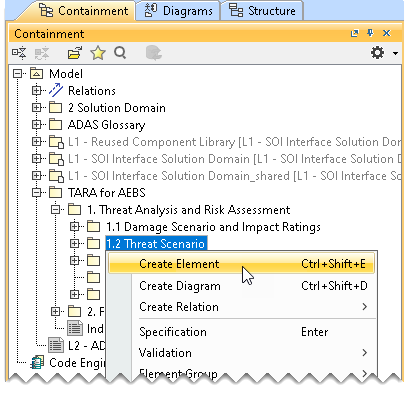
- Do one of the following:
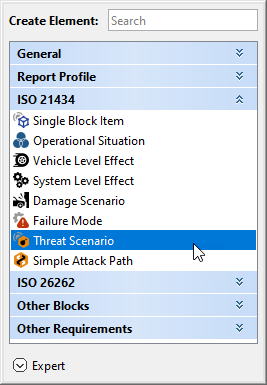
- In the dialog, expand ISO 21434 and select Threat Scenario.
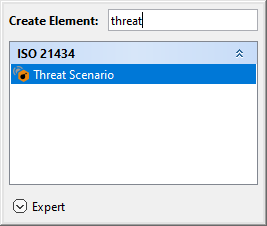
- In the search tab, type the keyword threat and then select Threat Scenario.
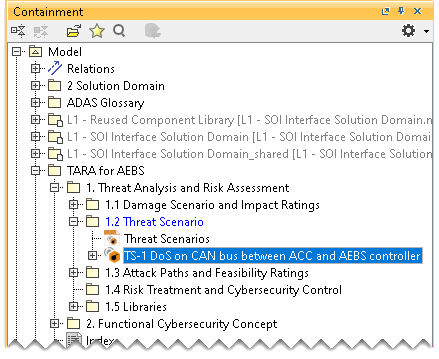
- Name the created Threat Scenario in the Containment tree and press Enter. The Threat Scenario has the suffix DS which denotes that the created element is a Threat Scenario; the number 1 indicates that it is the first Threat Scenario created.
Creating a Threat Scenario Table
To create a Threat Scenario Table
- In the Containment tree, right-click Threat Scenario and select Create Diagram.
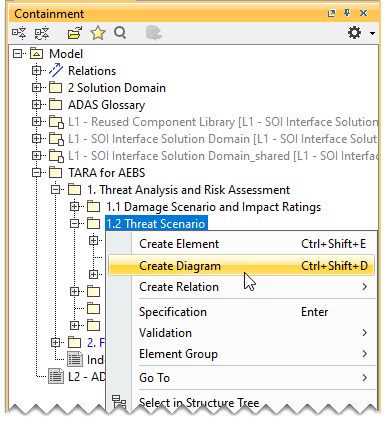
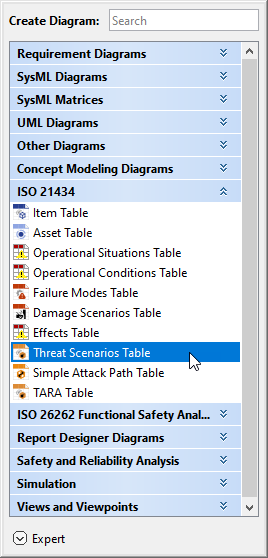
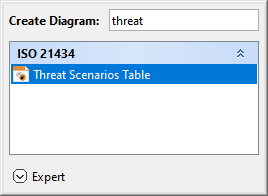
- Do one of the following:
- In the dialog, expand ISO 21434 and select Threat Scenario Table.
- In the search tab, type the keyword threat and then select Threat Scenario Table.
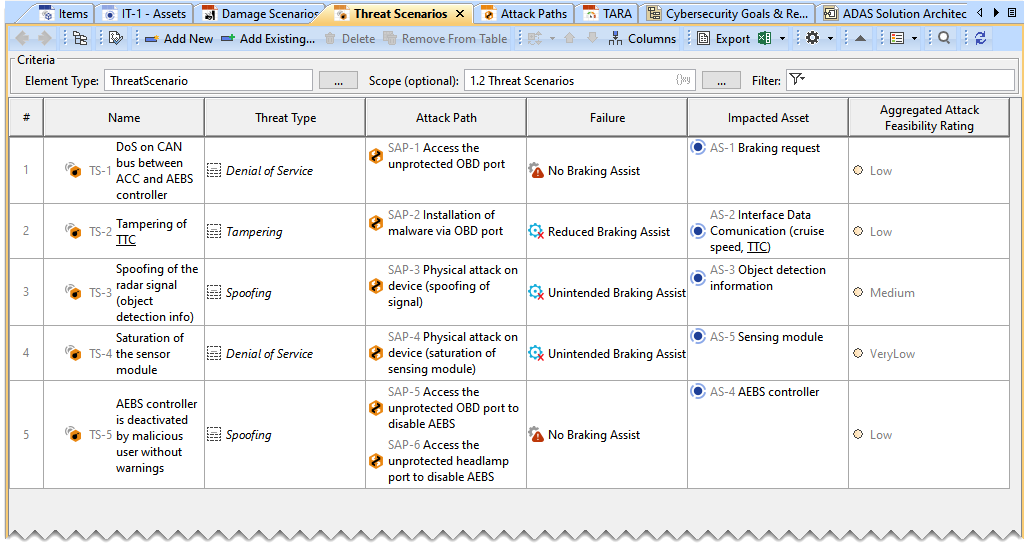
The Threat Scenario Table is now displayed in the diagram pane of the modeling tool.
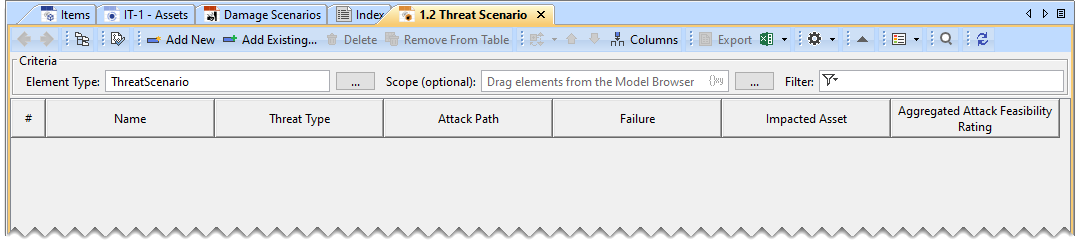
Adding a Threat Scenario to the Threat Scenario TableTo add a new Threat Scenario to the Threat Scenario Table
- In the Threat Scenario Table, click Add New. A row is added in the Threat Scenario Table, which shows the new Threat Scenario.

- In the newly created Threat Scenario's row and the Name column, double-click the designated cell to name the Threat Scenario.
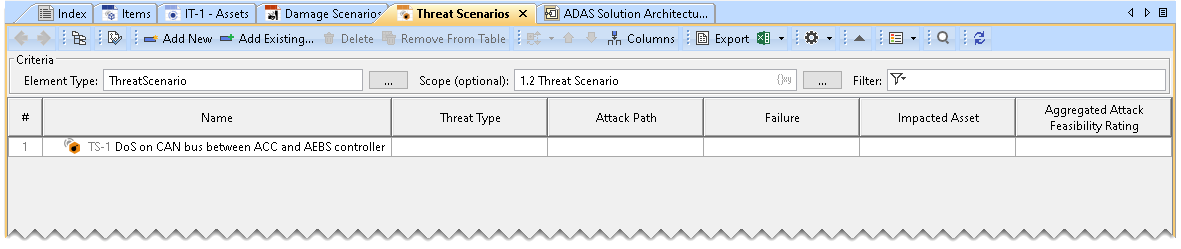
To add an existing Threat Scenario to the Threat Scenario Table
- In the Threat Scenario Table, click Add Existing.

- From the dialog, select the required Threat Scenario. A row is added to the Threat Scenario Table, which shows the existing Threat Scenario.
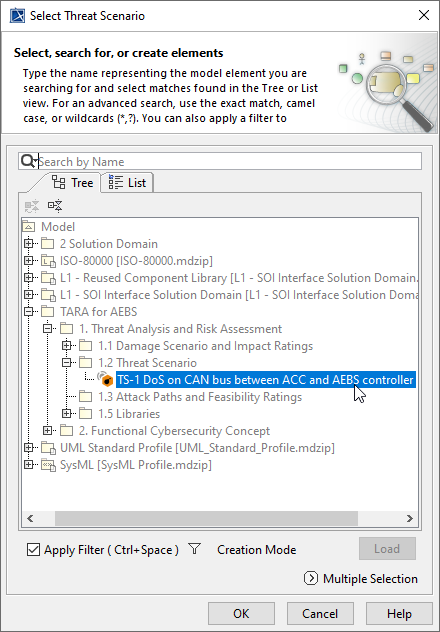
- In the existing Threat Scenario's row and the Name column, double-click the designated cell to rename the Threat Scenario.
Adding a Threat TypeTo add a Threat Type
- Double-click the designated cell in the Threat Scenario's row and the Threat Type colu
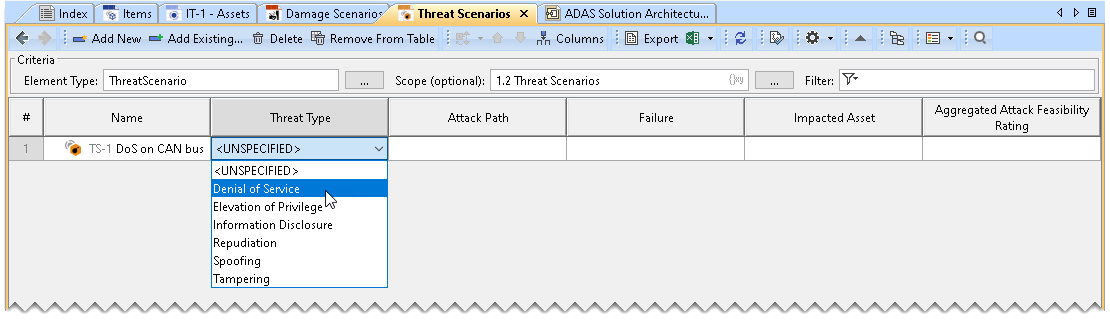
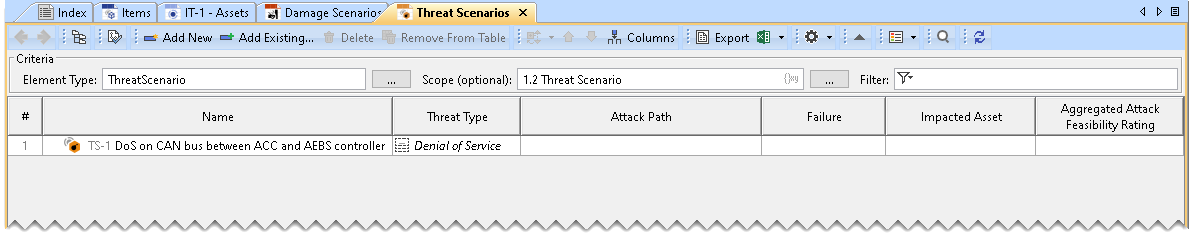
The Threat Type will be added to the Threat Scenarios Table.
Adding an Attack PathYou can add multiple attack paths for a given Threat Scenario. |
To
- Double-click the designated cell in the Attack Path column and the required Threat Scenario's row and click
 . .
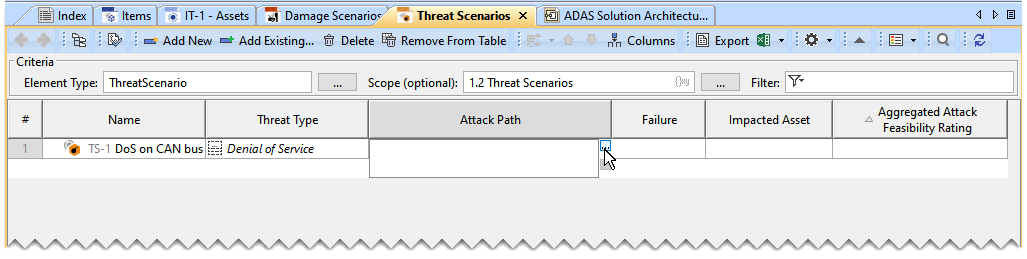
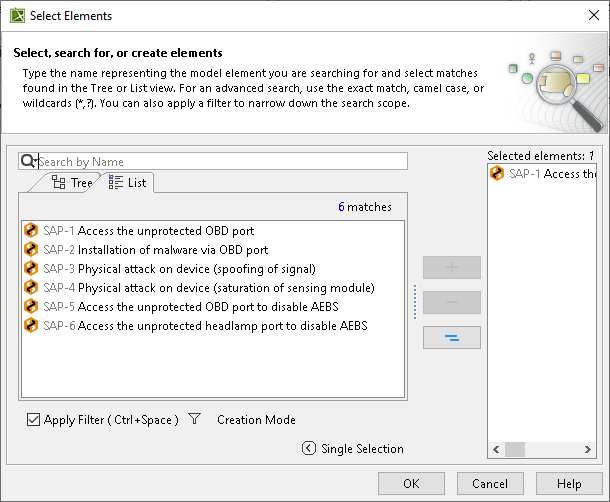
- From the dialog, select Attack Path.
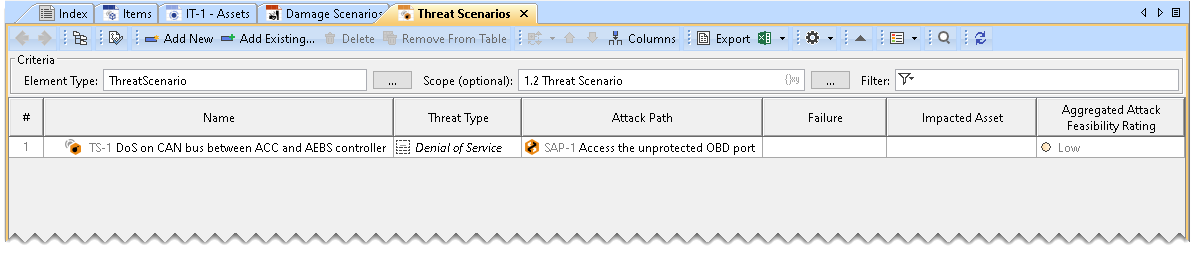
The Attack Path is added to the Threat Scenario Table.
- You can also drag and drop the Attack Paths from the Containment tree to the Threat Scenario Table.
- The Aggregated Attack Feasibility Rating is added automatically after you add Attack Path.
|
Adding a FailureTo add a Failure
- Double-click the designated cell in the Failure column and the required Threat Scenario's row and click .
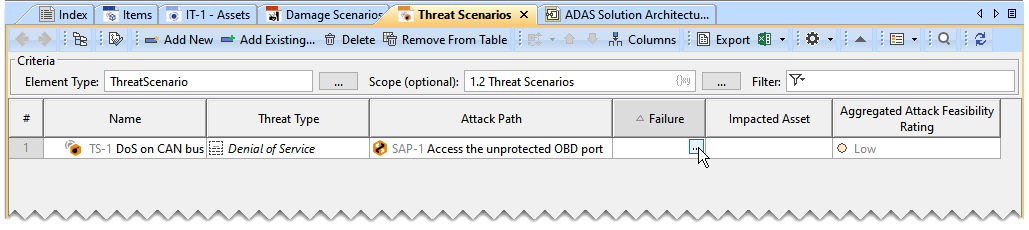
- From the dialog, select Failure.
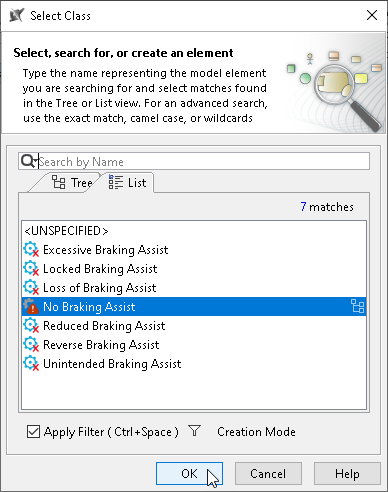
The Failure is now shown in the Threat Scenario Table.
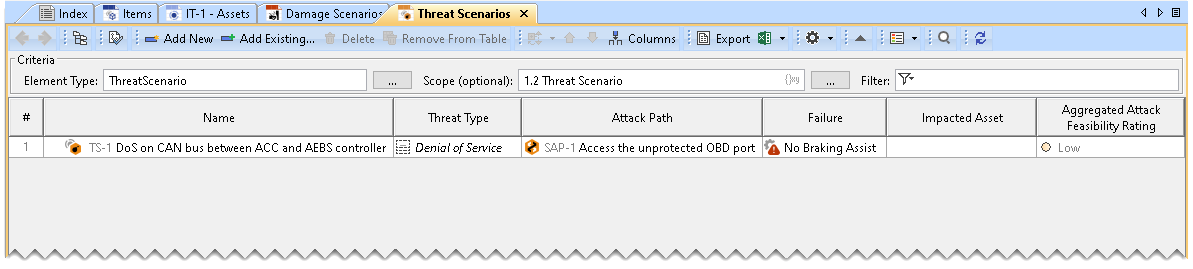
You can also drag and drop the Failure modes from the Containment tree to the Threat Scenario Table. |
Adding and Impacted AssetYou can add multiple Impacted Assets for a given Threat Scenario. |
To add an Impacted Asset
- Double-click the designated cell in the Impacted Asset column and the required Threat Scenario's row and click .

- From the dialog, select Impacted Asset.
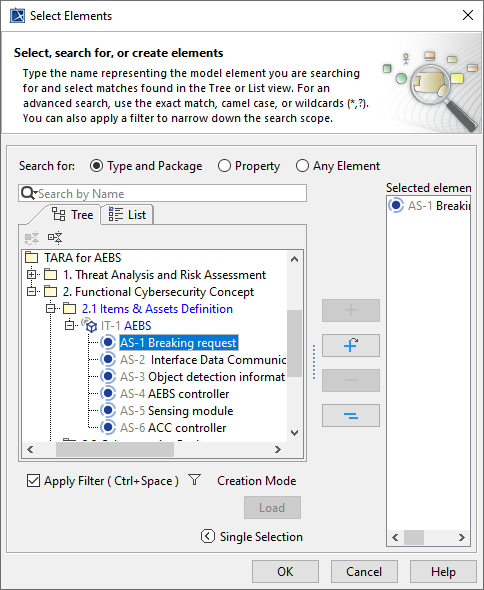
The Impacted Asset is added to the Threat Scenario Table.
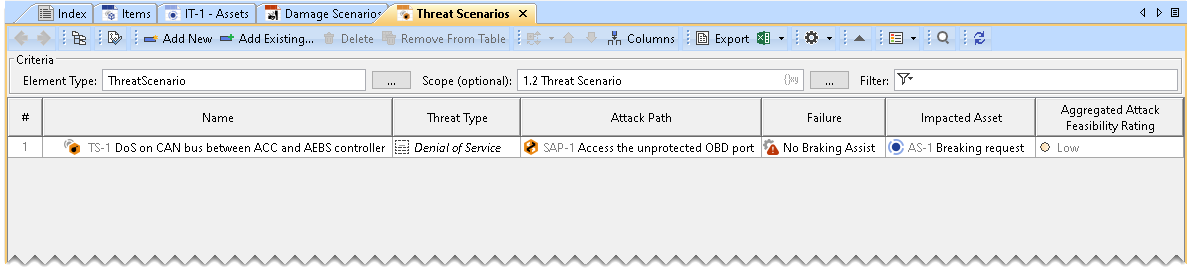
You can also drag and drop the Impacted Assets from the Containment tree to the Threat Scenario Table. |
|